> ## Documentation Index
> Fetch the complete documentation index at: https://docs.turbodev.ai/llms.txt
> Use this file to discover all available pages before exploring further.
# AI Agents in Turbodev
Agents in Turbodev allow you to automate customer conversations on WhatsApp using intelligent, trigger-based automation.
You can create AI agents that respond to messages, trigger after orders, or start conversations from Click-to-WhatsApp ads.
## Prerequisites Before Creating an AI Agent
Before creating an AI Agent, ensure:
* You have sufficient **AI Credits** available.
* If credits are not available, purchase a minimum of **1000 AI credits**.
To check your AI credits:
1. Go to your Turbodev dashboard
2. Click on the profile → Select Subscription
 3. Check the AI Credits balance
4. If required, purchase additional credits
AI Agents will not function without available AI credits.
## How to Create a New AI Agent
Follow these steps to create an AI Agent:
### Step 1: Go to AI Agents
1. Log in to your Turbodev dashboard
2. Click on **AI Agents** from the left navigation panel
3. Click **Create New AI**
3. Check the AI Credits balance
4. If required, purchase additional credits
AI Agents will not function without available AI credits.
## How to Create a New AI Agent
Follow these steps to create an AI Agent:
### Step 1: Go to AI Agents
1. Log in to your Turbodev dashboard
2. Click on **AI Agents** from the left navigation panel
3. Click **Create New AI**
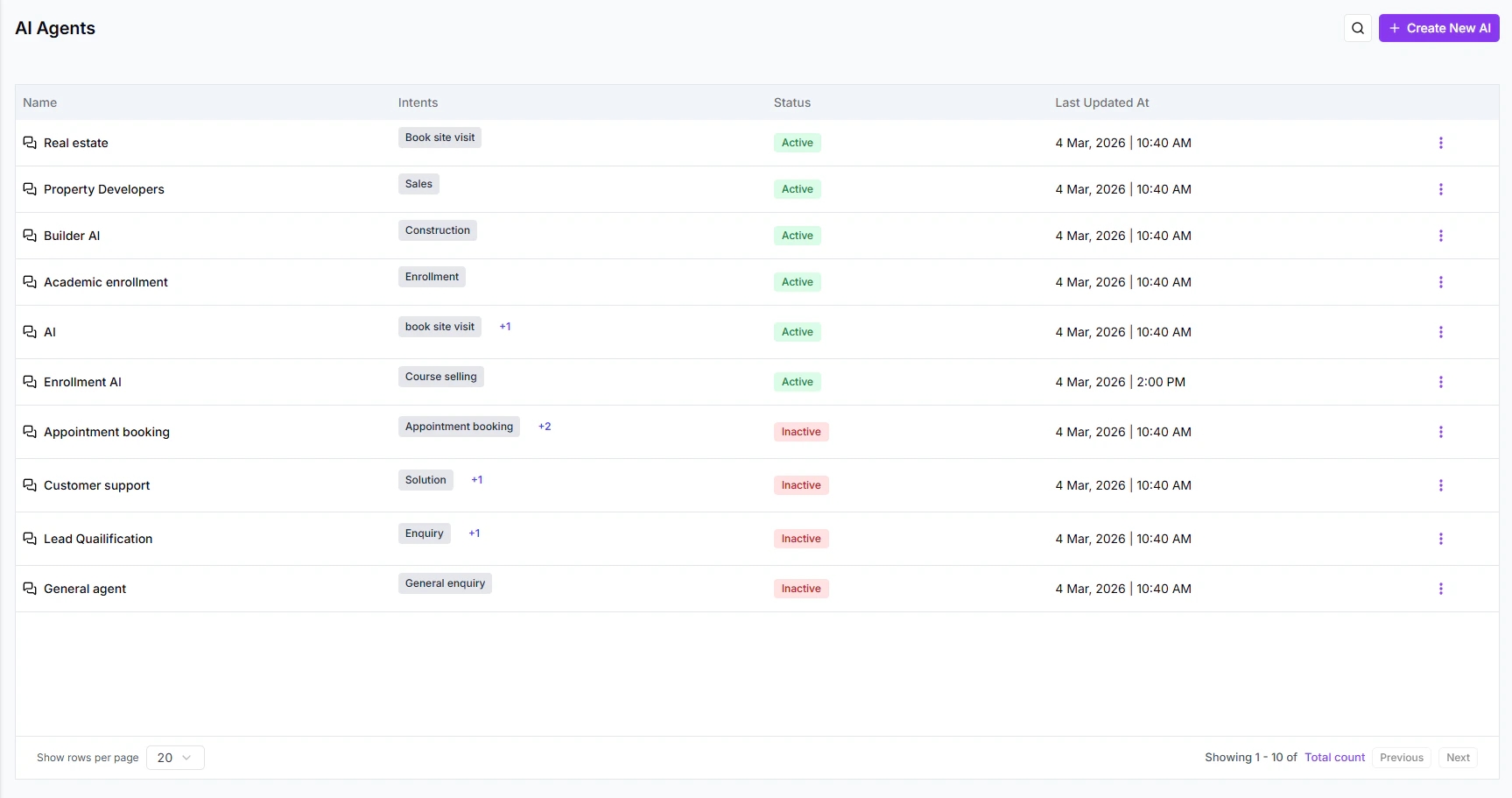 ### Step 2: Enter Basic Details
You will need to enter:
* **AI Name**
* **Description**
* **Agent Type**
Choose the appropriate agent type based on your use case.
## AI Agent Types in Turbodev
Turbodev offers three types of AI Agents:
### 1. Message-Based Bot
A Message-Based AI is triggered when a user sends a message that matches a specific intent or keyword.
### Step 2: Enter Basic Details
You will need to enter:
* **AI Name**
* **Description**
* **Agent Type**
Choose the appropriate agent type based on your use case.
## AI Agent Types in Turbodev
Turbodev offers three types of AI Agents:
### 1. Message-Based Bot
A Message-Based AI is triggered when a user sends a message that matches a specific intent or keyword.
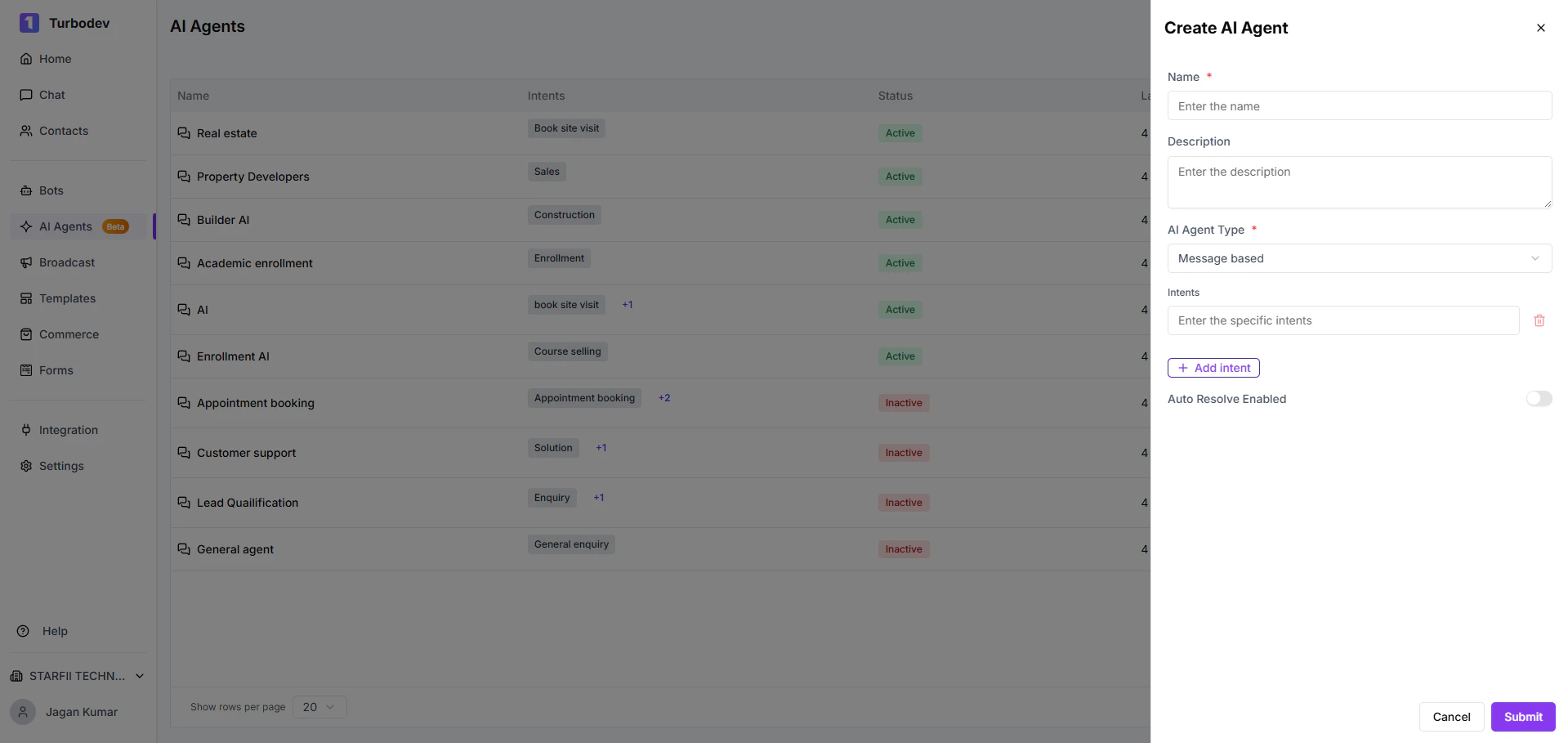 Example:
* User sends: “Pricing”
* AI triggers and responds automatically
This is ideal for:
* FAQs
* Support queries
* Product inquiries
* General automation
### 2. Order-Based Bot
An Order-Based AI is triggered automatically when a customer places an order from your connected catalogue.
Example:
* User sends: “Pricing”
* AI triggers and responds automatically
This is ideal for:
* FAQs
* Support queries
* Product inquiries
* General automation
### 2. Order-Based Bot
An Order-Based AI is triggered automatically when a customer places an order from your connected catalogue.
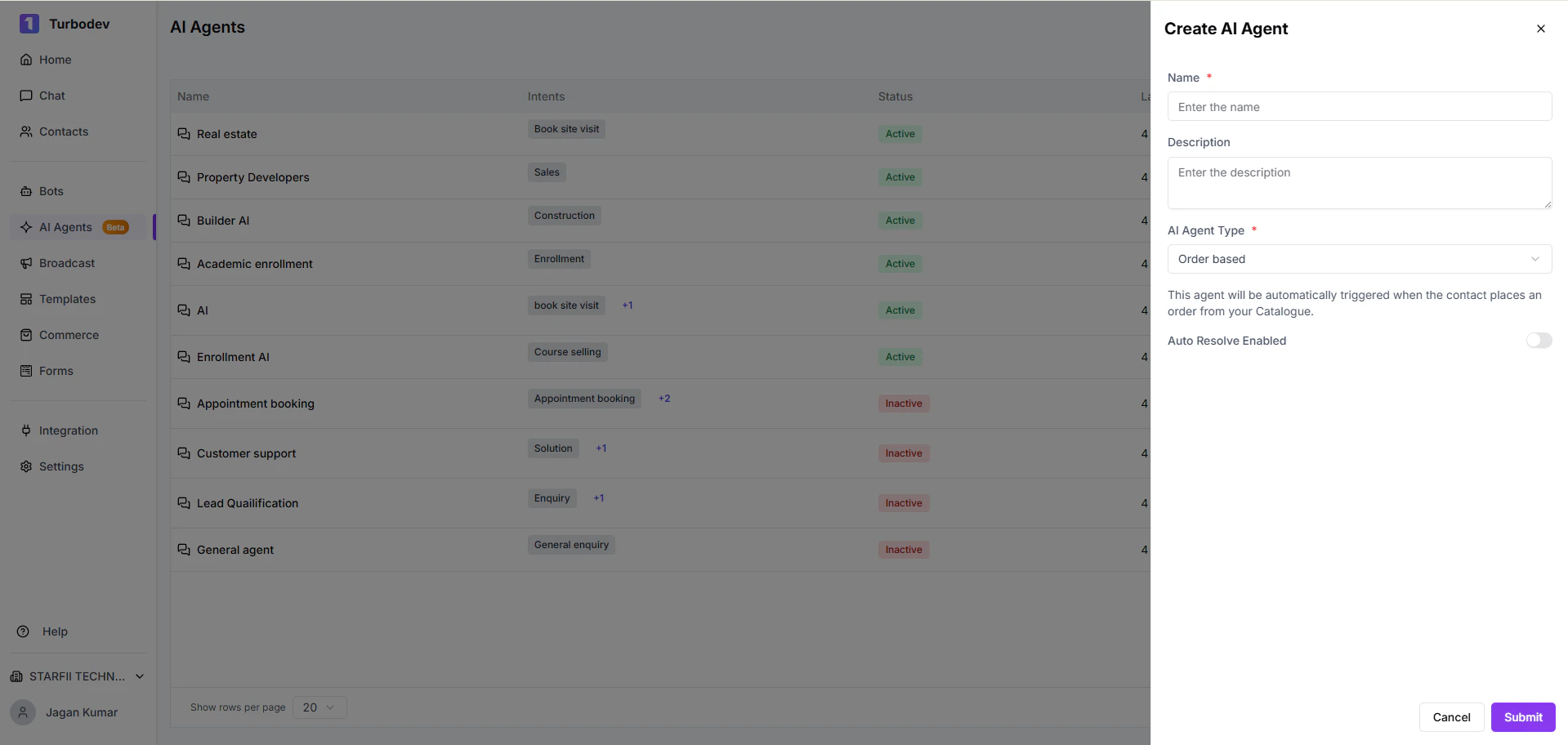 This type of AI works without waiting for a message from the customer.
Ideal for:
* Order confirmations
* Post-purchase upselling
* Delivery instructions
* Automated follow-ups
### 3. CTWA Ad–Based Bot
This AI is triggered when a conversation starts from a **Click-to-WhatsApp (CTWA) advertisement**.\\
This type of AI works without waiting for a message from the customer.
Ideal for:
* Order confirmations
* Post-purchase upselling
* Delivery instructions
* Automated follow-ups
### 3. CTWA Ad–Based Bot
This AI is triggered when a conversation starts from a **Click-to-WhatsApp (CTWA) advertisement**.\\
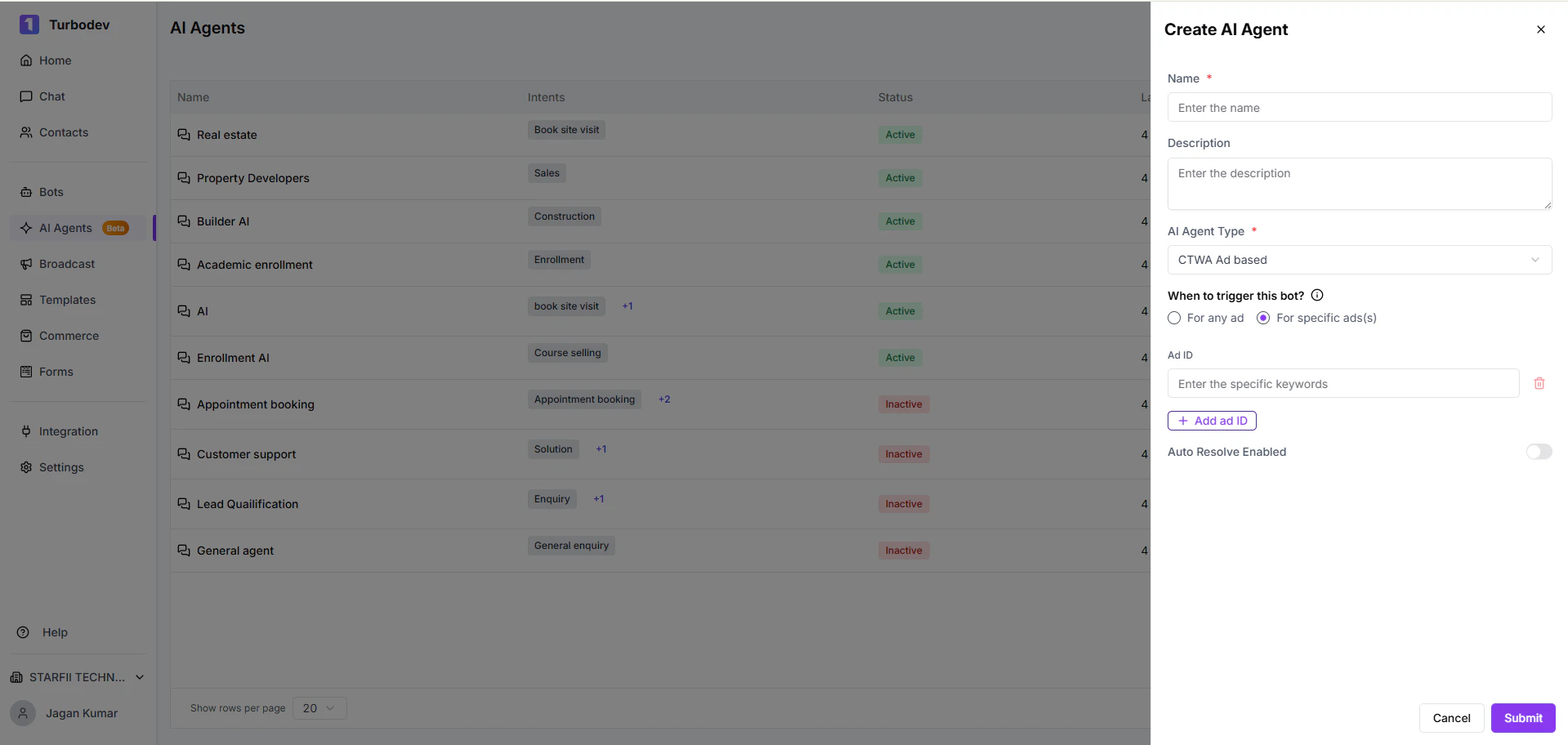 When a user clicks your ad and opens WhatsApp, the AI agent starts the conversation automatically.
Ideal for:
* Lead generation campaigns
* Ad-based promotions
* Campaign-specific automation
## Edit or Update an AI Agent
After creating an AI Agent, you can update it anytime.
You do not need to recreate the bot to make changes.
Editable details include:
* Name
* Type
* Trigger settings
This allows you to refine and optimize automation without disrupting the existing setup.
## Next Step: Configure the AI Agent
Once the AI Agent is created:
* Click on the created AI
* Configure the AI settings
* Set up intents, responses, and logic
AI configuration and advanced setup will be covered in a separate document.
When a user clicks your ad and opens WhatsApp, the AI agent starts the conversation automatically.
Ideal for:
* Lead generation campaigns
* Ad-based promotions
* Campaign-specific automation
## Edit or Update an AI Agent
After creating an AI Agent, you can update it anytime.
You do not need to recreate the bot to make changes.
Editable details include:
* Name
* Type
* Trigger settings
This allows you to refine and optimize automation without disrupting the existing setup.
## Next Step: Configure the AI Agent
Once the AI Agent is created:
* Click on the created AI
* Configure the AI settings
* Set up intents, responses, and logic
AI configuration and advanced setup will be covered in a separate document.