> ## Documentation Index
> Fetch the complete documentation index at: https://docs.turbodev.ai/llms.txt
> Use this file to discover all available pages before exploring further.
# Ask Button Option
> Increase customer engagement by using the Ask Button Option card to present quick, clickable choices. These buttons help customers respond faster, reduce typing, and move through conversations more smoothly.
### Overview
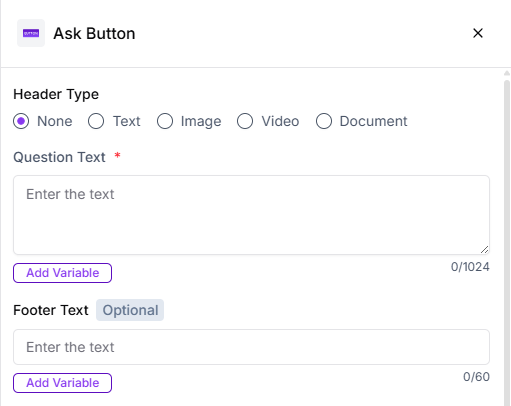
The Ask Button Option card allows you to ask a question and present up to three predefined response options as buttons. This makes it easier for customers to take action, whether they want to explore products, proceed with a purchase, or request more information.
You can also enhance the experience by adding media such as images, videos, text, or documents along with the question.
 ### Header Type
You can add one of the following to make the message more engaging:
* Image
* Video
* Text
* Document
### Question Text
Use this section to ask a clear question or provide a short description related to the options. For example, you can highlight an offer, describe a product, or guide the customer on what to choose next.
### Footer
The footer can be used to add supporting or promotional information, such as urgency messages, short instructions, or helpful notes related to the options shown.
### Option Types
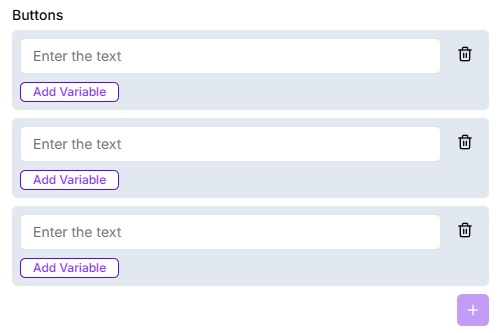
You can add up to **three buttons** using either of the following methods:
**Static Options**\
These are fixed button labels that remain the same for all users.
### Header Type
You can add one of the following to make the message more engaging:
* Image
* Video
* Text
* Document
### Question Text
Use this section to ask a clear question or provide a short description related to the options. For example, you can highlight an offer, describe a product, or guide the customer on what to choose next.
### Footer
The footer can be used to add supporting or promotional information, such as urgency messages, short instructions, or helpful notes related to the options shown.
### Option Types
You can add up to **three buttons** using either of the following methods:
**Static Options**\
These are fixed button labels that remain the same for all users.
 ### Attempts
Set how many times the question should be repeated if the customer provides an invalid response.
### Validation Error Message
This message is shown when the customer responds with an unexpected or unsupported input.
### Action on Invalid Response
Choose how the flow should behave when an invalid response is received:
* End the flow
* Skip the question and continue
### Store Response in Variable
Save the customer’s selected option into a variable for later use in the flow. You can create a new variable or select an existing one while setting up the card.
### Save and Continue
Once all required fields are configured, click **Save**. Based on the customer’s selected option, you can route them into personalized flows for a more tailored experience.
### Attempts
Set how many times the question should be repeated if the customer provides an invalid response.
### Validation Error Message
This message is shown when the customer responds with an unexpected or unsupported input.
### Action on Invalid Response
Choose how the flow should behave when an invalid response is received:
* End the flow
* Skip the question and continue
### Store Response in Variable
Save the customer’s selected option into a variable for later use in the flow. You can create a new variable or select an existing one while setting up the card.
### Save and Continue
Once all required fields are configured, click **Save**. Based on the customer’s selected option, you can route them into personalized flows for a more tailored experience.