> ## Documentation Index
> Fetch the complete documentation index at: https://docs.turbodev.ai/llms.txt
> Use this file to discover all available pages before exploring further.
# Ask List Option
> Present customers with a structured list of choices using the Ask List Option card. This helps simplify decision-making and keeps conversations clear, consistent, and easy to navigate.
### Overview
The Ask List Option card allows you to display up to **10 selectable options** in a single message. It’s ideal for menus, FAQs, service categories, or any scenario where customers need to choose from multiple options without typing.
### How to Use It
 ### Header Type
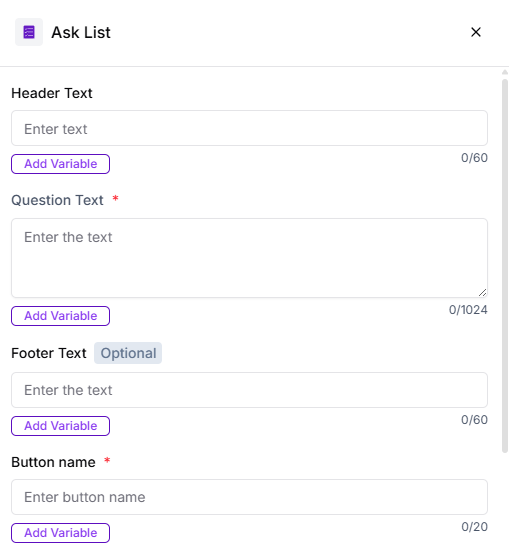
Use this field to add a short heading that sets context for the list. For example, a welcome message or a brief introduction to what the options represent.
### Question Text
This is where you ask the main question or explain what the list is for. It helps guide the customer on how to use the options provided.
### Footer
The footer can contain supporting information such as your business name, a short tagline, or any additional context related to the list.
### Options Type
**Static Options**\
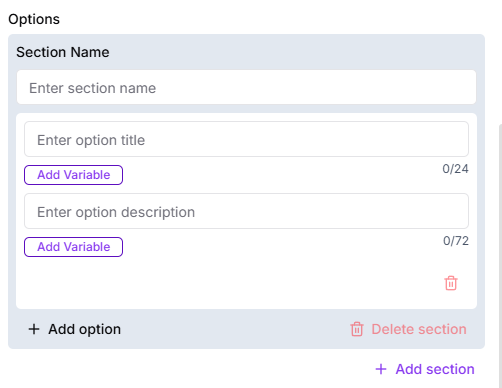
Static options remain fixed for all users and are best suited for standard menus or predefined selections.
### Header Type
Use this field to add a short heading that sets context for the list. For example, a welcome message or a brief introduction to what the options represent.
### Question Text
This is where you ask the main question or explain what the list is for. It helps guide the customer on how to use the options provided.
### Footer
The footer can contain supporting information such as your business name, a short tagline, or any additional context related to the list.
### Options Type
**Static Options**\
Static options remain fixed for all users and are best suited for standard menus or predefined selections.
 You can:
* Add up to **10 options**
* Organize options into **multiple sections** for better clarity
### Validation Settings
**Attempt**\
Set how many times the question should be repeated if the customer provides an invalid response.
**Validation Error Message**\
This message is shown when the customer responds with something other than the listed options, guiding them to choose correctly.
**Action on Invalid Response**\
Define how the flow should proceed when an invalid response is received:
* End the flow
* Skip the question
* Proceed to fallback
### Store Response in Variable
Save the customer’s selected option into a variable for use later in the flow. You can create a new variable or select an existing one while configuring the card.
### Save
Once all required fields are configured, click **Save** to activate the card and continue building personalized flows based on the customer’s selection.
You can:
* Add up to **10 options**
* Organize options into **multiple sections** for better clarity
### Validation Settings
**Attempt**\
Set how many times the question should be repeated if the customer provides an invalid response.
**Validation Error Message**\
This message is shown when the customer responds with something other than the listed options, guiding them to choose correctly.
**Action on Invalid Response**\
Define how the flow should proceed when an invalid response is received:
* End the flow
* Skip the question
* Proceed to fallback
### Store Response in Variable
Save the customer’s selected option into a variable for use later in the flow. You can create a new variable or select an existing one while configuring the card.
### Save
Once all required fields are configured, click **Save** to activate the card and continue building personalized flows based on the customer’s selection.