> ## Documentation Index
> Fetch the complete documentation index at: https://docs.turbodev.ai/llms.txt
> Use this file to discover all available pages before exploring further.
# Send Collection
> The Send Collection card helps e-commerce businesses showcase multiple products directly inside a WhatsApp conversation. Using this card, you can display product collections from your connected Meta catalog, making it easy for customers to browse and take action within chat.
### Overview
The Send Collection card is designed specifically for **e-commerce use cases**. It allows businesses to send a curated group of products (a collection) from their Meta catalog as part of a chat flow, helping customers discover products quickly and seamlessly.
Before using this card, ensure your **product catalog is connected** to Turbodev.
### Sending a Product Collection in a Chat Flow
Once your catalog is set up, you can use the Send Collection card inside a bot flow or conversation to display products.
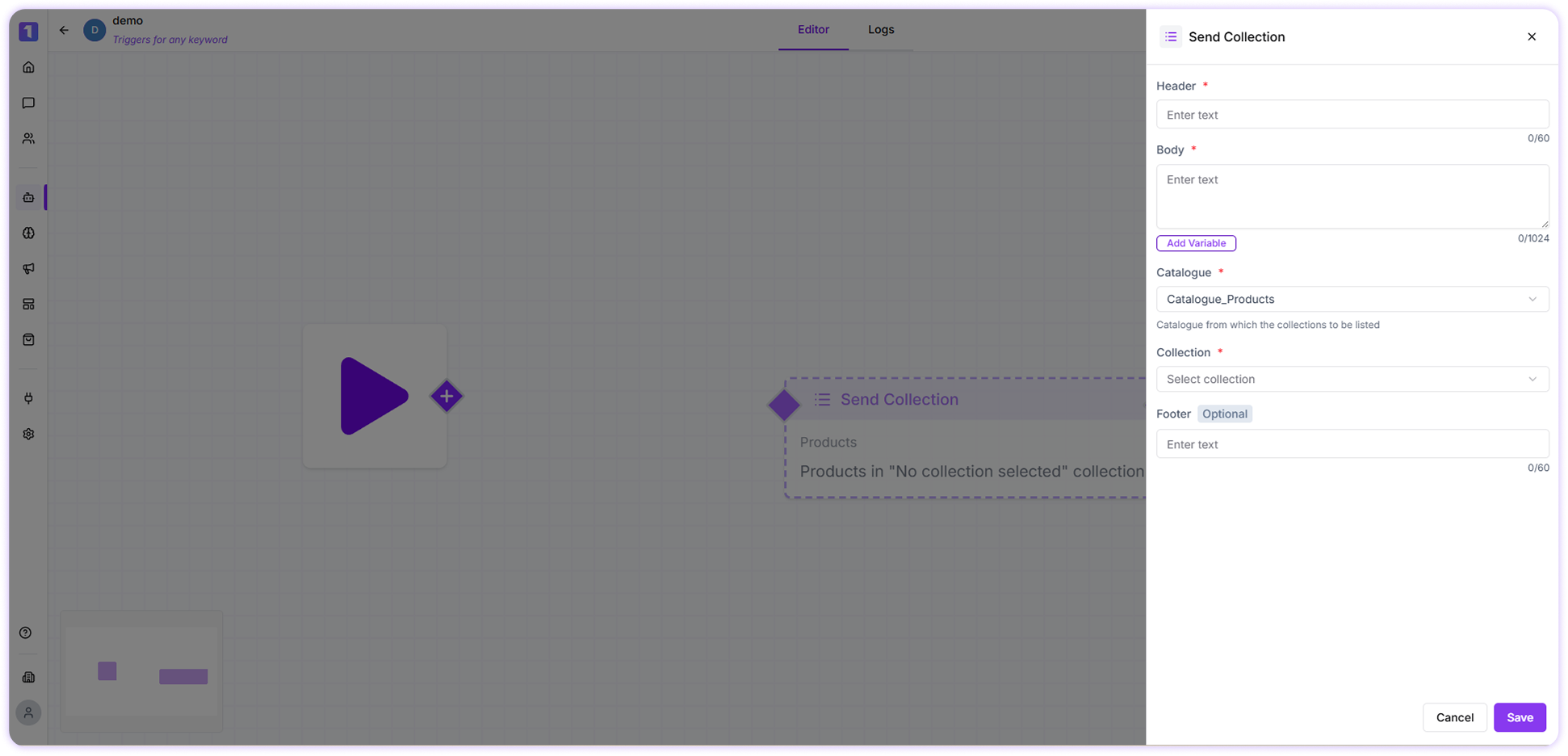 ### Header
The header lets you add a **short title or headline** for the collection. This helps customers instantly understand what the collection is about, such as *“New Arrivals”*, *“Best Sellers”*, or *“Your Order Items”*.
### Message
The message section allows you to add **supporting text** for the collection. You can describe product features, highlight offers, explain benefits, or guide the customer on what to do next.
### Use Variables
You can personalize the message using variables collected from customers, such as name or order details.\
Simply click **Add Variables** and select the required field. Make sure the selected variable already contains data, otherwise it will not appear in the message.
### Catalog
Select the **connected product catalog** from which the collection will be displayed.\
If your catalog is not yet connected, you will need to complete the catalog integration before using this option.
### Collection
A collection is a **group of related products** within your catalog. Selecting a collection allows customers to view multiple items together, making browsing and purchasing easier inside WhatsApp.
### Footer (Optional)
You may include optional information at the bottom of the message, such as business details or helpful instructions. Footer content is not mandatory and can be customized based on your communication needs and compliance practices.
### Edit, Duplicate, or Delete Send Collection Card
When building or updating a flow, you can easily manage the Send Collection card:
* **Edit** the card to update content or change the collection
* **Duplicate** the card to reuse it in other flows
* **Delete** the card if it’s no longer needed
### Header
The header lets you add a **short title or headline** for the collection. This helps customers instantly understand what the collection is about, such as *“New Arrivals”*, *“Best Sellers”*, or *“Your Order Items”*.
### Message
The message section allows you to add **supporting text** for the collection. You can describe product features, highlight offers, explain benefits, or guide the customer on what to do next.
### Use Variables
You can personalize the message using variables collected from customers, such as name or order details.\
Simply click **Add Variables** and select the required field. Make sure the selected variable already contains data, otherwise it will not appear in the message.
### Catalog
Select the **connected product catalog** from which the collection will be displayed.\
If your catalog is not yet connected, you will need to complete the catalog integration before using this option.
### Collection
A collection is a **group of related products** within your catalog. Selecting a collection allows customers to view multiple items together, making browsing and purchasing easier inside WhatsApp.
### Footer (Optional)
You may include optional information at the bottom of the message, such as business details or helpful instructions. Footer content is not mandatory and can be customized based on your communication needs and compliance practices.
### Edit, Duplicate, or Delete Send Collection Card
When building or updating a flow, you can easily manage the Send Collection card:
* **Edit** the card to update content or change the collection
* **Duplicate** the card to reuse it in other flows
* **Delete** the card if it’s no longer needed
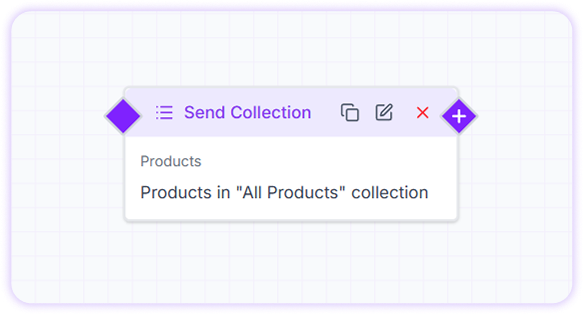 These options appear when you hover over the card, allowing quick adjustments without rebuilding the flow.