> ## Documentation Index
> Fetch the complete documentation index at: https://docs.turbodev.ai/llms.txt
> Use this file to discover all available pages before exploring further.
# Send Location
### Understanding Send Location
The Send Location feature allows you to send a **specific, static location** to users. It is commonly used to guide customers to offices, stores, event venues, or landmarks by sharing clear location details.
### Send Location Essentials
When using the Send Location card, you’ll be asked to provide the following information:
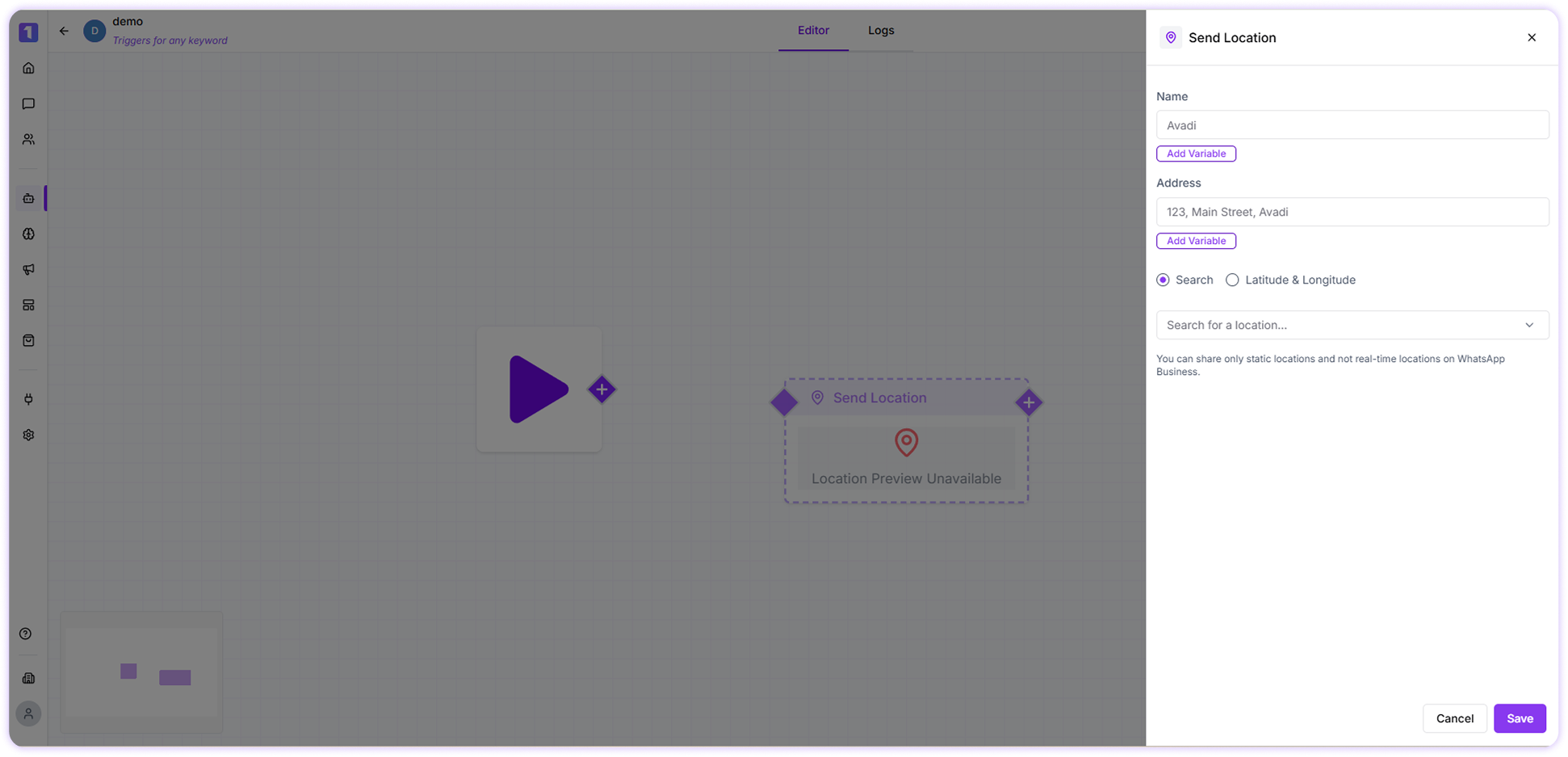 #### Name
This is the name of the location you are sharing. It can be a business name, landmark, or any identifiable place.
### Address
Enter the full address of the location, including street details, city, and country, to help users recognize the place easily.
### Location
You can define the location in either of the following ways:
* **Search Location**\
Search for the location by entering its name or address. You can use the *View on Map* option to verify that the selected place is correct.
* **Latitude & Longitude**\
Manually enter the exact latitude and longitude coordinates of the location if you already have them.
Only **static locations** can be shared. Live or real-time locations are not supported through the WhatsApp Business API.
### Implementation Example
To send a location using this card, follow these steps:
* Enter the location name, such as *Habitat Center*.
* Add the complete address of the location.
* Choose how you want to set the location:
* Search and select it using the map search, or
* Enter the latitude and longitude manually.
* Review the details and save the Send Location card.
#### Name
This is the name of the location you are sharing. It can be a business name, landmark, or any identifiable place.
### Address
Enter the full address of the location, including street details, city, and country, to help users recognize the place easily.
### Location
You can define the location in either of the following ways:
* **Search Location**\
Search for the location by entering its name or address. You can use the *View on Map* option to verify that the selected place is correct.
* **Latitude & Longitude**\
Manually enter the exact latitude and longitude coordinates of the location if you already have them.
Only **static locations** can be shared. Live or real-time locations are not supported through the WhatsApp Business API.
### Implementation Example
To send a location using this card, follow these steps:
* Enter the location name, such as *Habitat Center*.
* Add the complete address of the location.
* Choose how you want to set the location:
* Search and select it using the map search, or
* Enter the latitude and longitude manually.
* Review the details and save the Send Location card.