> ## Documentation Index
> Fetch the complete documentation index at: https://docs.turbodev.ai/llms.txt
> Use this file to discover all available pages before exploring further.
# Select Audience
> Easily choose your target audience for sending Broadcast messages in TurboDev.
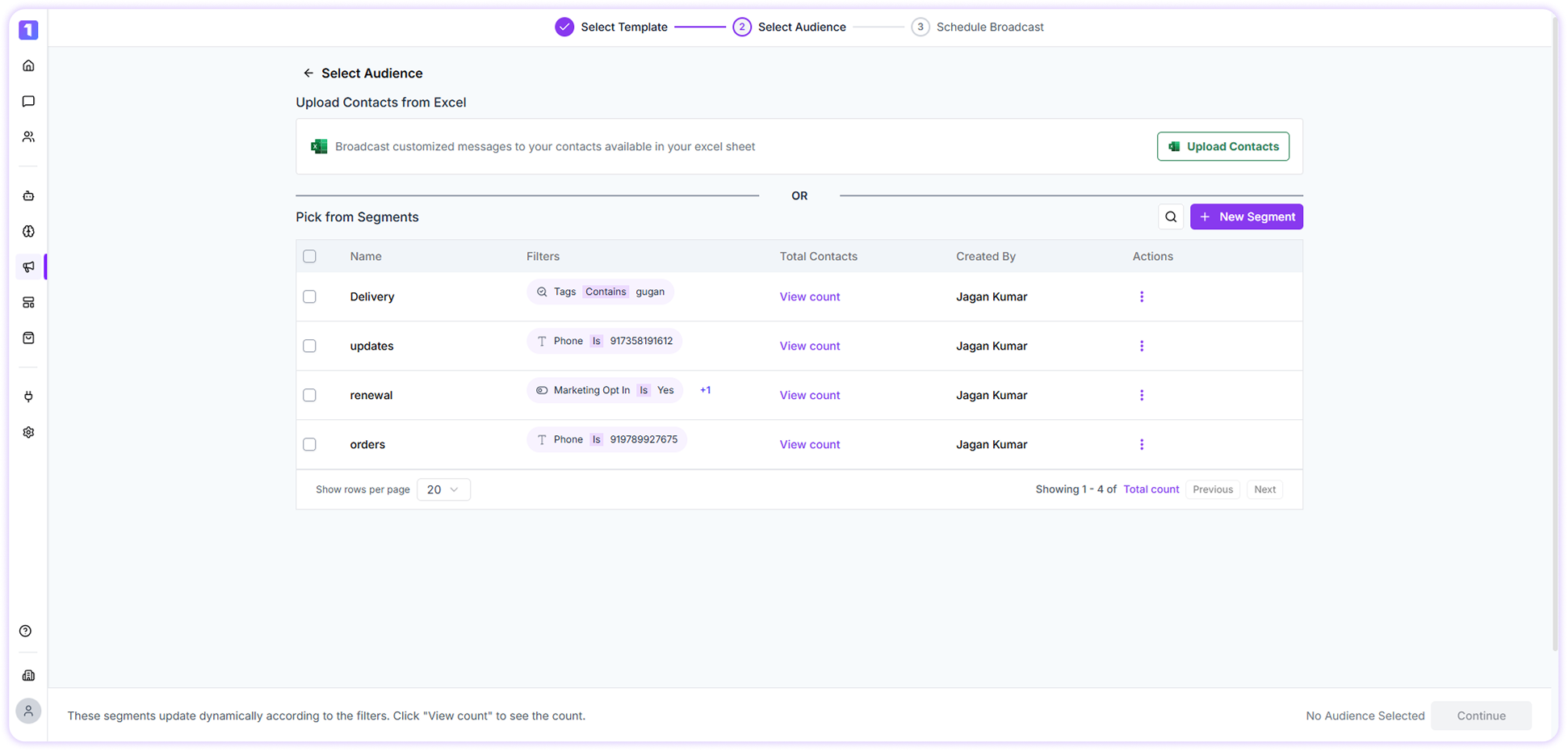
To select the audience for your Broadcast, you can either **upload contacts using an Excel file** or **select contacts from an existing Contact Group**.
 > **Important:**\
> Ensure all phone numbers include the country code (for example: +91, +1, +971).
Let’s look at both options in detail.
## Upload Contacts from Excel
Send personalized Broadcast messages to contacts stored in an Excel file.
Click on **Upload Contacts** to download the sample file.\
Use this sample as a reference and restructure your data (such as **Name** and **Phone Number**) accordingly.
> **Important:**\
> Ensure all phone numbers include the country code (for example: +91, +1, +971).
Let’s look at both options in detail.
## Upload Contacts from Excel
Send personalized Broadcast messages to contacts stored in an Excel file.
Click on **Upload Contacts** to download the sample file.\
Use this sample as a reference and restructure your data (such as **Name** and **Phone Number**) accordingly.
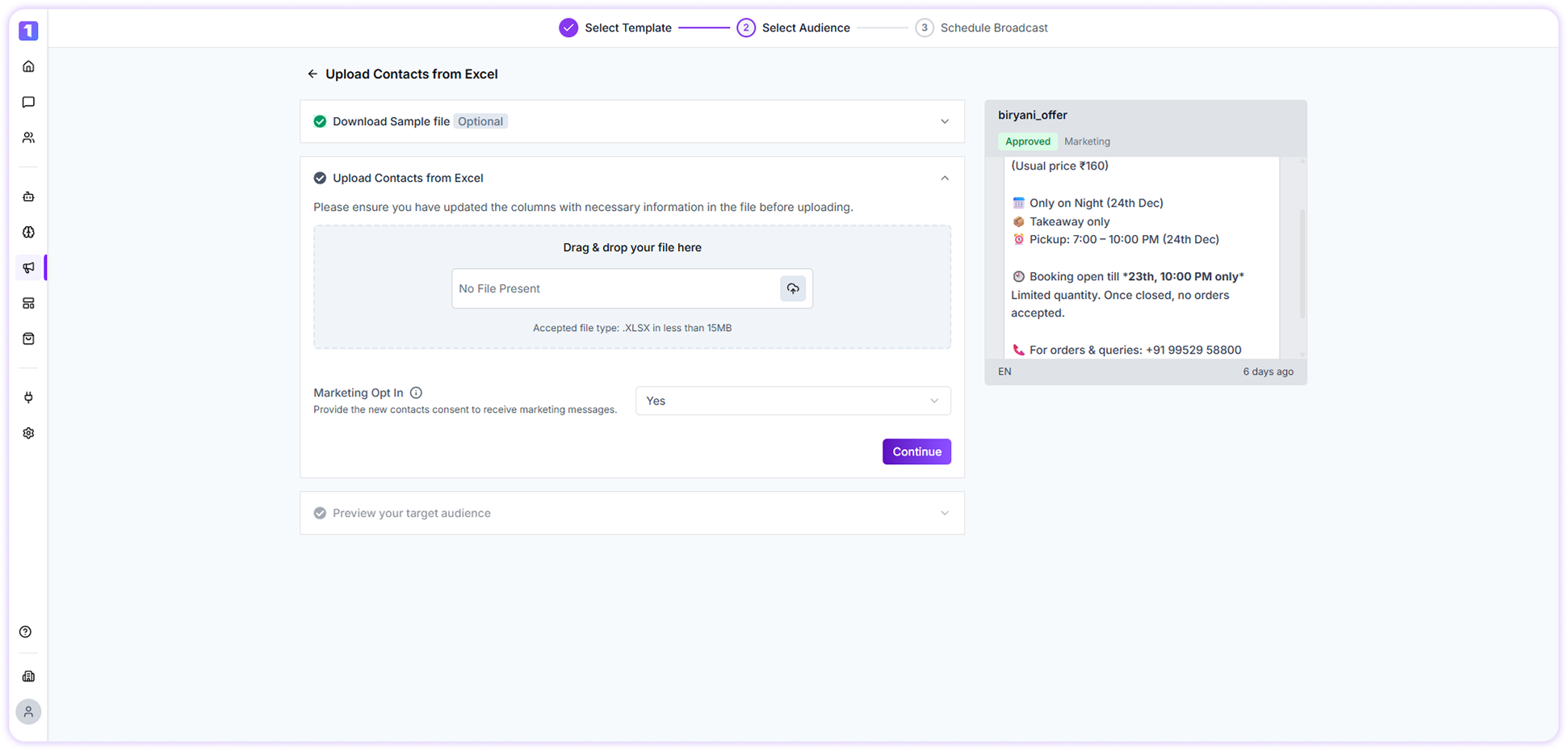 Once your data is formatted correctly, upload the Excel file to TurboDev.\
Before proceeding, set the **Marketing Opt-in status** and choose the **phone number format**.
**Variable & Media Mapping**\
If your WhatsApp Template includes **pre-defined variables**, you can map them to the appropriate columns in your Excel file.
## Select from Contact Group
Send Broadcast messages using saved contact segment.
You can either:
* **Create a new Contact Segment**, or
* **Select an existing segment**
### Create a New Contact Group
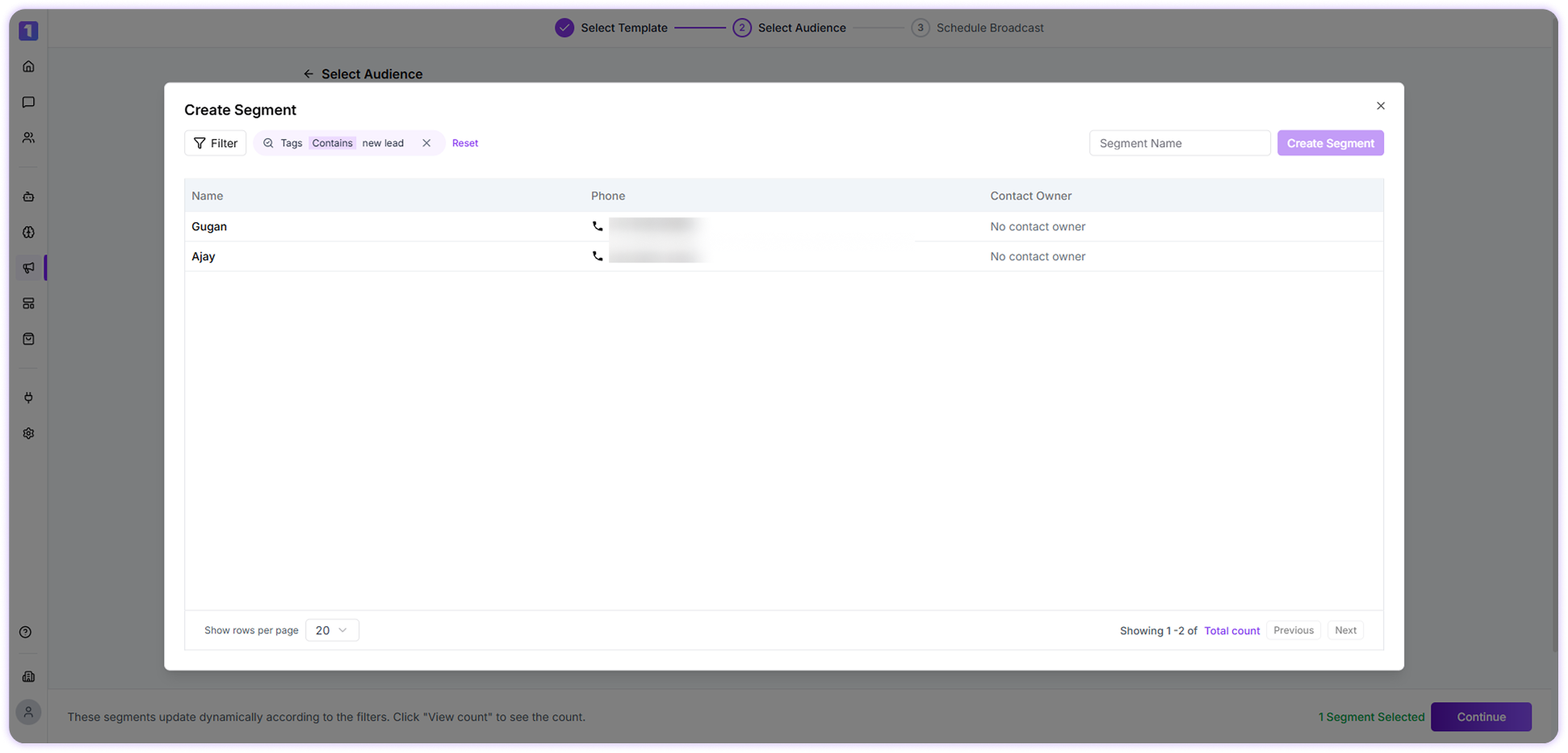
Click on **New Segment**, apply filters based on fields such as tags, email, marketing opt-in, or other available attributes, and then name the segment.\
Once created, contacts that match the criteria will automatically be added to the group.
Once your data is formatted correctly, upload the Excel file to TurboDev.\
Before proceeding, set the **Marketing Opt-in status** and choose the **phone number format**.
**Variable & Media Mapping**\
If your WhatsApp Template includes **pre-defined variables**, you can map them to the appropriate columns in your Excel file.
## Select from Contact Group
Send Broadcast messages using saved contact segment.
You can either:
* **Create a new Contact Segment**, or
* **Select an existing segment**
### Create a New Contact Group
Click on **New Segment**, apply filters based on fields such as tags, email, marketing opt-in, or other available attributes, and then name the segment.\
Once created, contacts that match the criteria will automatically be added to the group.
 ### Use an Existing Group
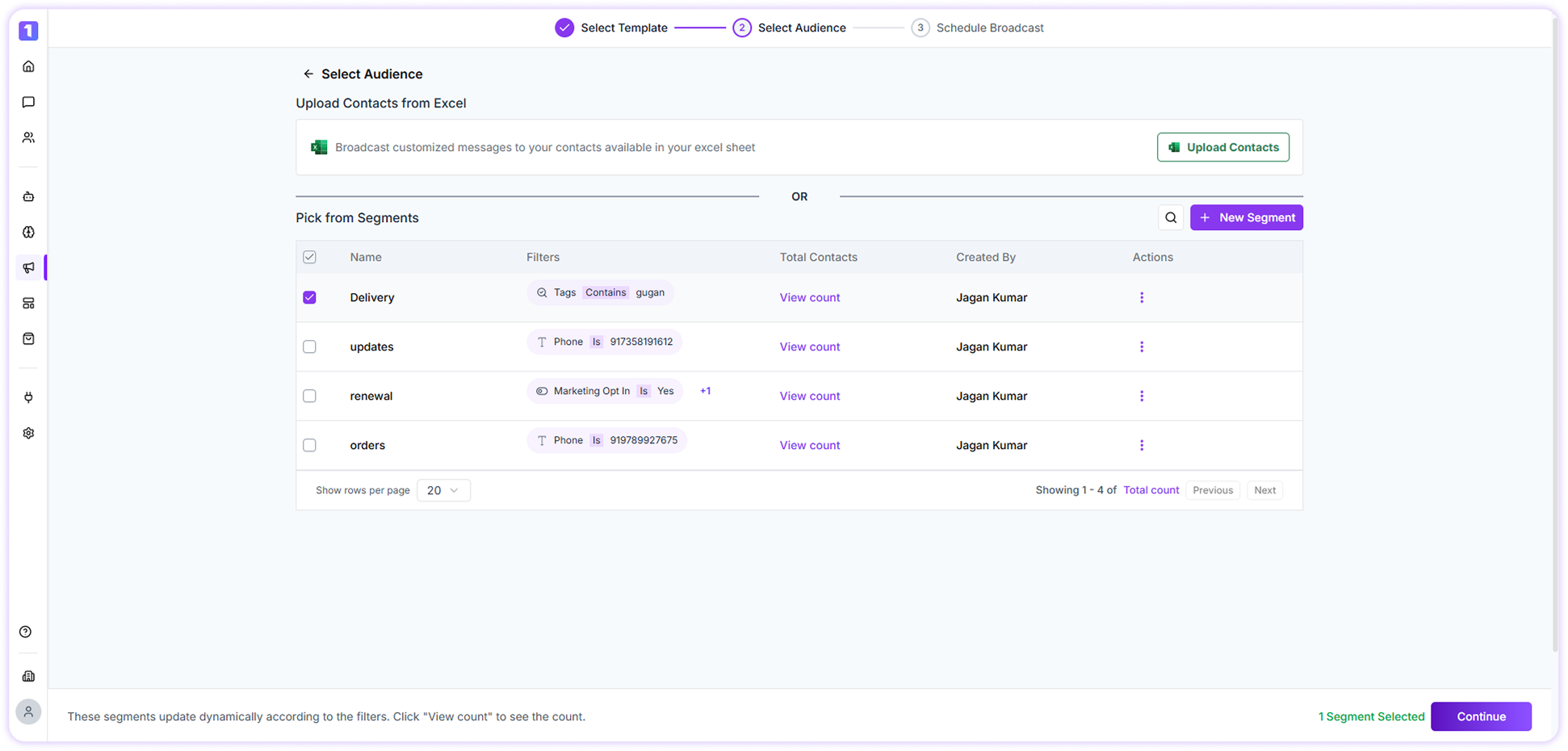
Search for and select an existing contact segment to quickly proceed.
### Use an Existing Group
Search for and select an existing contact segment to quickly proceed.
 ## Map the Variables
After uploading contacts or selecting a contact group, preview the data and map the correct values to your template variables.
## Map the Variables
After uploading contacts or selecting a contact group, preview the data and map the correct values to your template variables.
 If your WhatsApp Template contains variables, ensure they are mapped correctly so each recipient receives a personalized message.
## Add Button Payload
Button payloads allow you to define actions when users interact with CTA or Quick Reply buttons.
Depending on your template:
If your WhatsApp Template contains variables, ensure they are mapped correctly so each recipient receives a personalized message.
## Add Button Payload
Button payloads allow you to define actions when users interact with CTA or Quick Reply buttons.
Depending on your template:
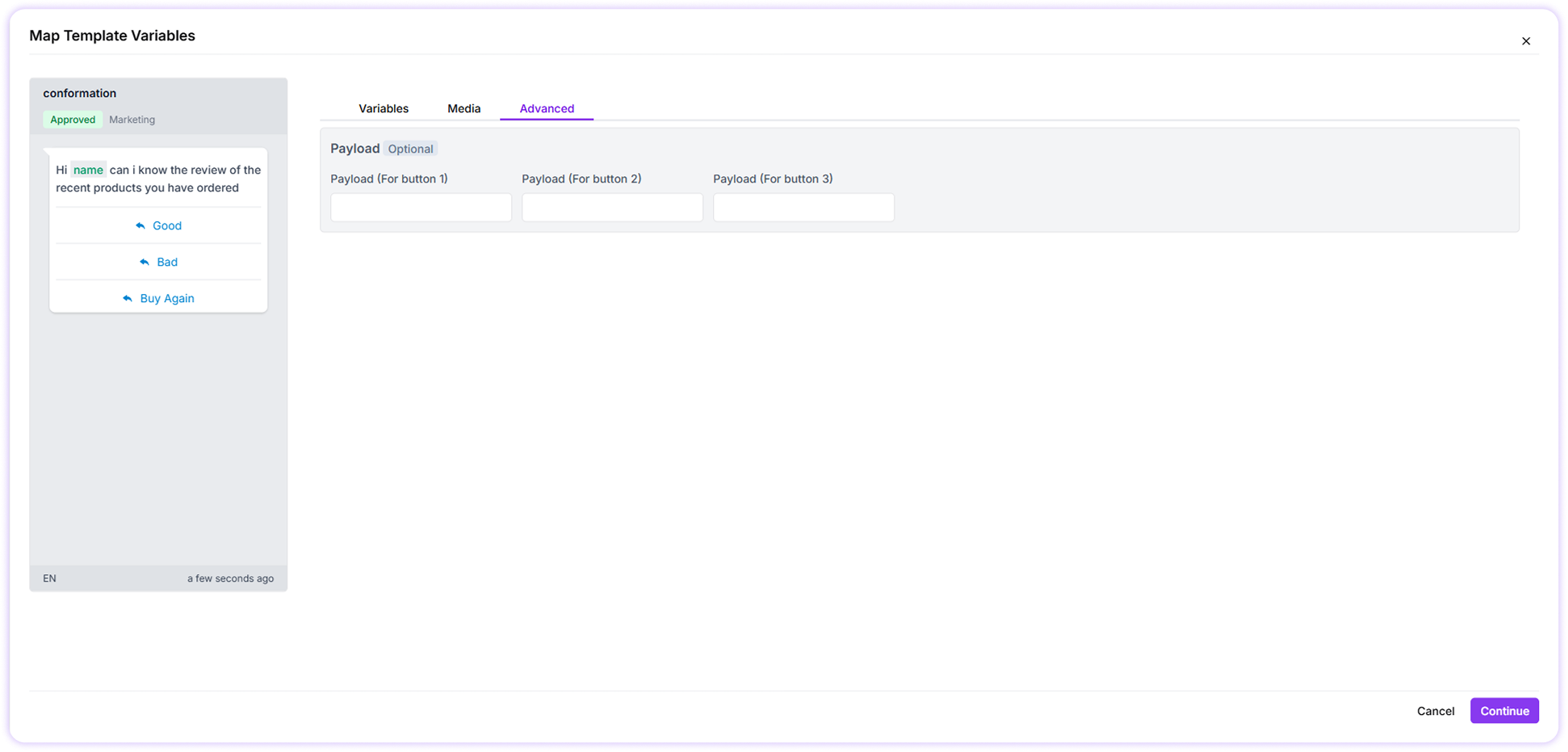 * **Dynamic URL CTA buttons** can include variables to generate personalized links.
* **Quick Reply buttons** can trigger specific bot flows by assigning an intent in the payload field.
If your template includes media, you can:
* Map variables for dynamic content
* Add personalized URLs for CTA buttons
* **Dynamic URL CTA buttons** can include variables to generate personalized links.
* **Quick Reply buttons** can trigger specific bot flows by assigning an intent in the payload field.
If your template includes media, you can:
* Map variables for dynamic content
* Add personalized URLs for CTA buttons