> ## Documentation Index
> Fetch the complete documentation index at: https://docs.turbodev.ai/llms.txt
> Use this file to discover all available pages before exploring further.
# Select Template
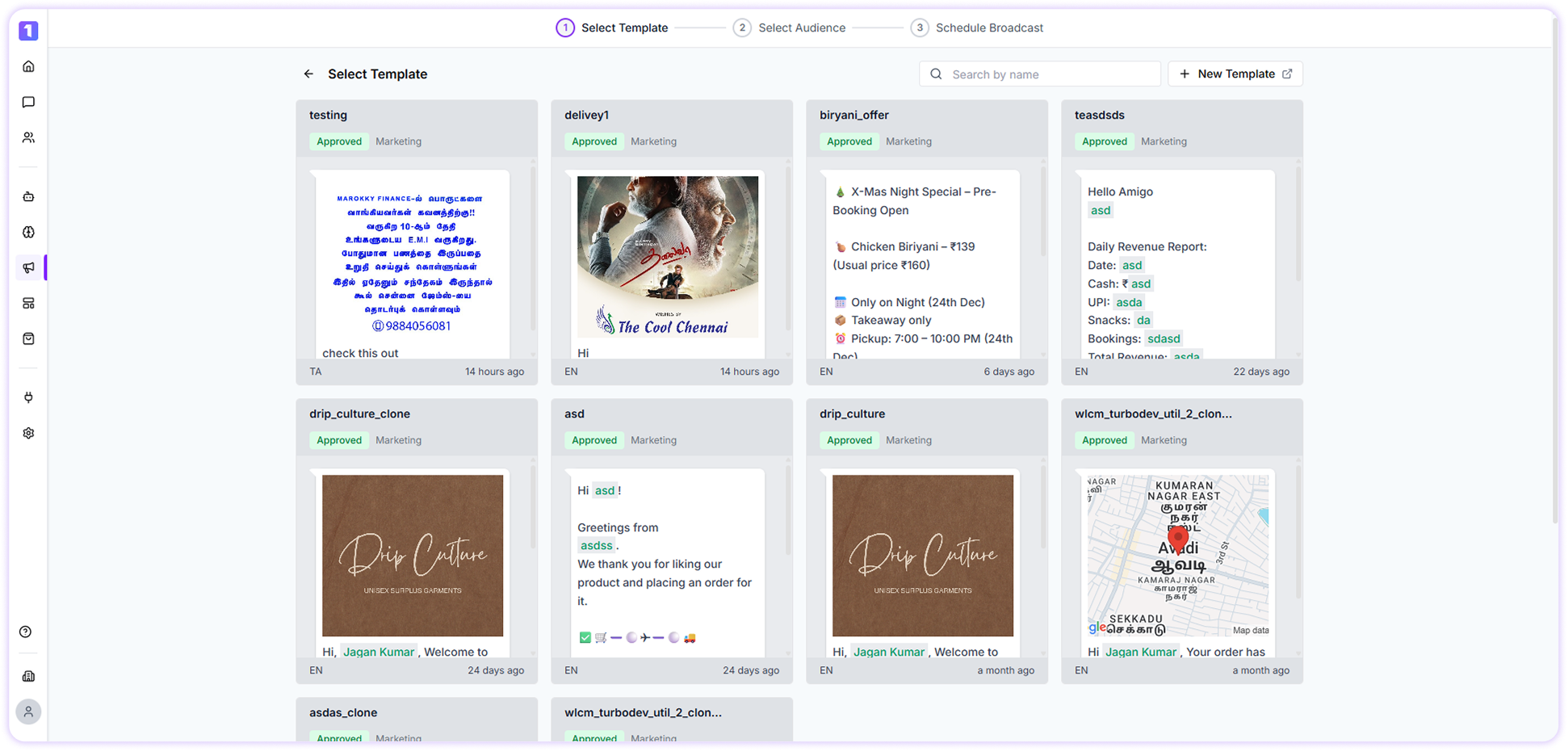
> Kickstart your broadcast setup by choosing a message template. Select an existing template or create a new one to begin your broadcast.
The first step in creating your Broadcast in TurboDev is selecting the message template you want to send.
### Select Created Template
If you have already created a message template, click the **Select** button next to the template. You will then be redirected to the next step, where you can choose the audience for your broadcast.
If you haven’t created a template yet, click **+ New Template** to create one for your campaign.\
You can refer to the guide on how to create a WhatsApp Template for more details.
 It is recommended to create WhatsApp templates in advance, as template approval may take some time. Once approved, templates can typically be used within 15 minutes.
### Search Bar
Use the **Search Bar** to quickly find the template you want to send in your broadcast by typing the template name or keyword.
It is recommended to create WhatsApp templates in advance, as template approval may take some time. Once approved, templates can typically be used within 15 minutes.
### Search Bar
Use the **Search Bar** to quickly find the template you want to send in your broadcast by typing the template name or keyword.