> ## Documentation Index
> Fetch the complete documentation index at: https://docs.turbodev.ai/llms.txt
> Use this file to discover all available pages before exploring further.
# Connect your WhatsApp
> Learn how to link your WhatsApp Business number with Turbodev and start automating your customer conversations. This guide walks you through the complete connection process.
## Follow the steps below:
To begin the process, click on the "Connect Whatsapp" button to start linking your WhatsApp Channel with Turbodev.
**Important:** Make sure all pre-requisites are ready before connecting your number. [Review pre-requisites here](#)
### **Connection Steps**
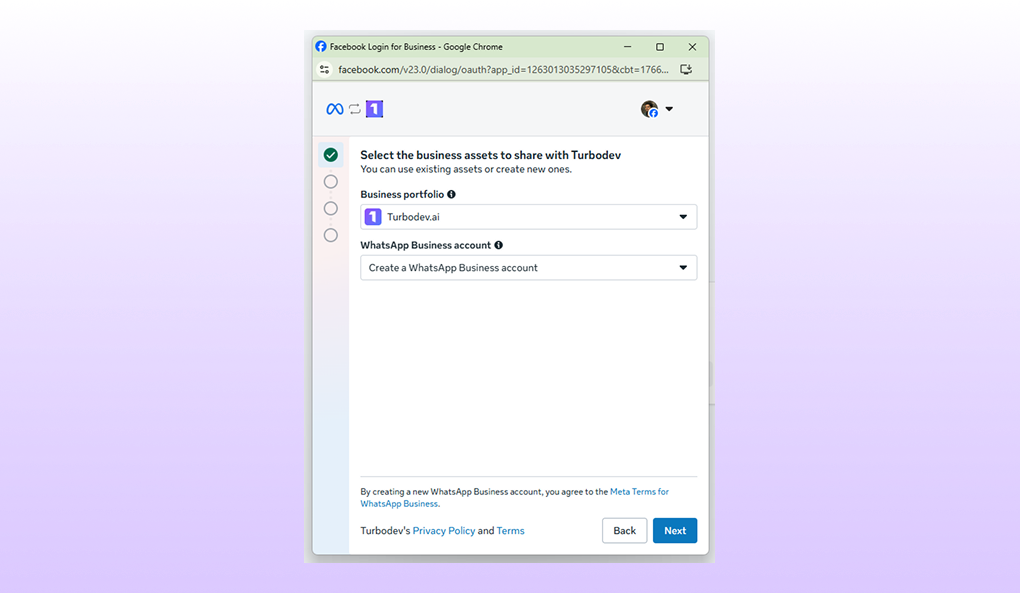
### **Step 1: Select Business Assets to Share with Turbodev**
Choose which business assets you want to use with Turbodev. You can either use existing assets or create new ones.
* **Business Portfolio:** Select your existing Business Portfolio from the dropdown,
If you're new, create a new WhatsApp Business Account
* **WhatsApp Business Account:** Choose an existing account or create a new WhatsApp Business Account
 ### **Step 2: Enter Your Business Information**
* If you already have a WhatsApp Business Account, select it from the list
* If you're new, create a new WhatsApp Business Account
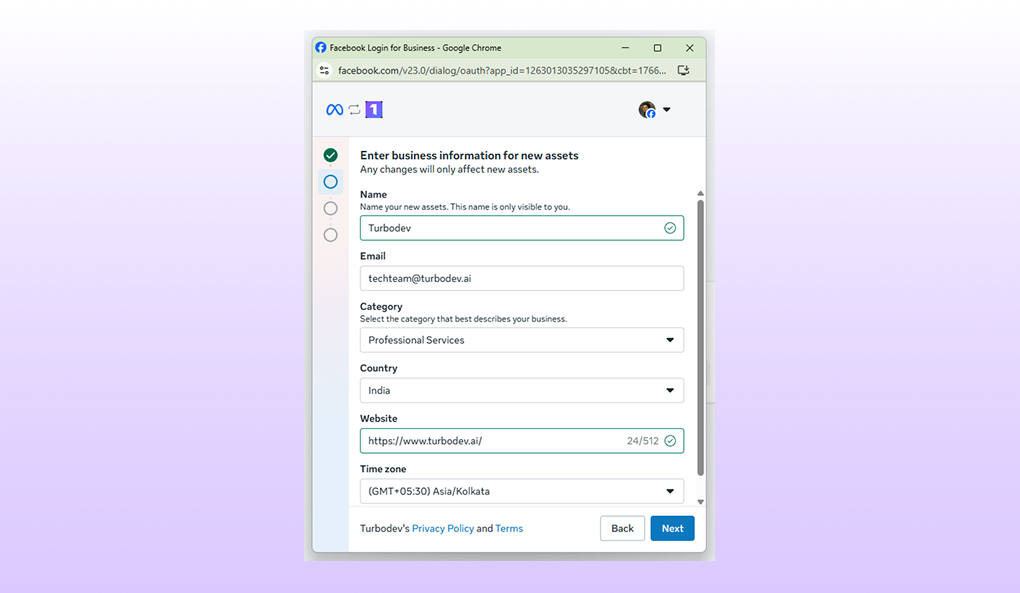
### **Step 2: Enter Your Business Information**
* If you already have a WhatsApp Business Account, select it from the list
* If you're new, create a new WhatsApp Business Account
 ### **Step 3: Set Up Your WhatsApp Business Profile**
Create your WhatsApp Business profile with information that will be visible to your customers when they view your business profile on WhatsApp.
### **Step 4: Add and Verify Your Phone Number**
* Enter the mobile number you want to connect
* Verify the number using the one-time password (OTP) sent to that number
### **Step 3: Set Up Your WhatsApp Business Profile**
Create your WhatsApp Business profile with information that will be visible to your customers when they view your business profile on WhatsApp.
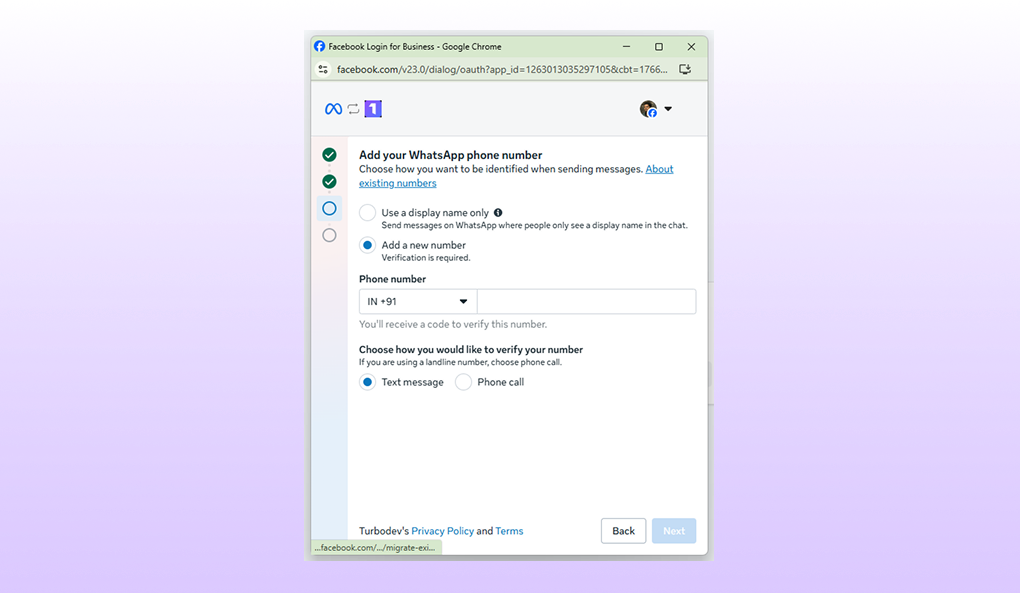
### **Step 4: Add and Verify Your Phone Number**
* Enter the mobile number you want to connect
* Verify the number using the one-time password (OTP) sent to that number
 ### **Step 5: Wait for Account Creation**
Allow 3-5 minutes for your WhatsApp Business Account to be created and configured.
### **Step 6: Connect to Turbodev**
Once your account is created, it will automatically connect to Turbodev. This process takes approximately 30-45 seconds.
### **Step 7: Register Your Channel**
After the connection is established, you'll be prompted to register your channel within Turbodev.
**Congratulations!** Your WhatsApp number is now successfully connected with Turbodev. You're ready to start automating conversations and engaging with your customers through the platform.
### **Step 5: Wait for Account Creation**
Allow 3-5 minutes for your WhatsApp Business Account to be created and configured.
### **Step 6: Connect to Turbodev**
Once your account is created, it will automatically connect to Turbodev. This process takes approximately 30-45 seconds.
### **Step 7: Register Your Channel**
After the connection is established, you'll be prompted to register your channel within Turbodev.
**Congratulations!** Your WhatsApp number is now successfully connected with Turbodev. You're ready to start automating conversations and engaging with your customers through the platform.