> ## Documentation Index
> Fetch the complete documentation index at: https://docs.turbodev.ai/llms.txt
> Use this file to discover all available pages before exploring further.
# Meta Business Verification
> Meta Business Verification is an important step to unlock higher messaging limits and build trust on WhatsApp. Once verified, your business can send messages at scale and run WhatsApp campaigns smoothly using Turbodev. Following the right preparation steps and submitting accurate documents significantly improves your chances of approval.
## Getting Started with Meta Business Verification
**Step 1: Check Your Verification Status**
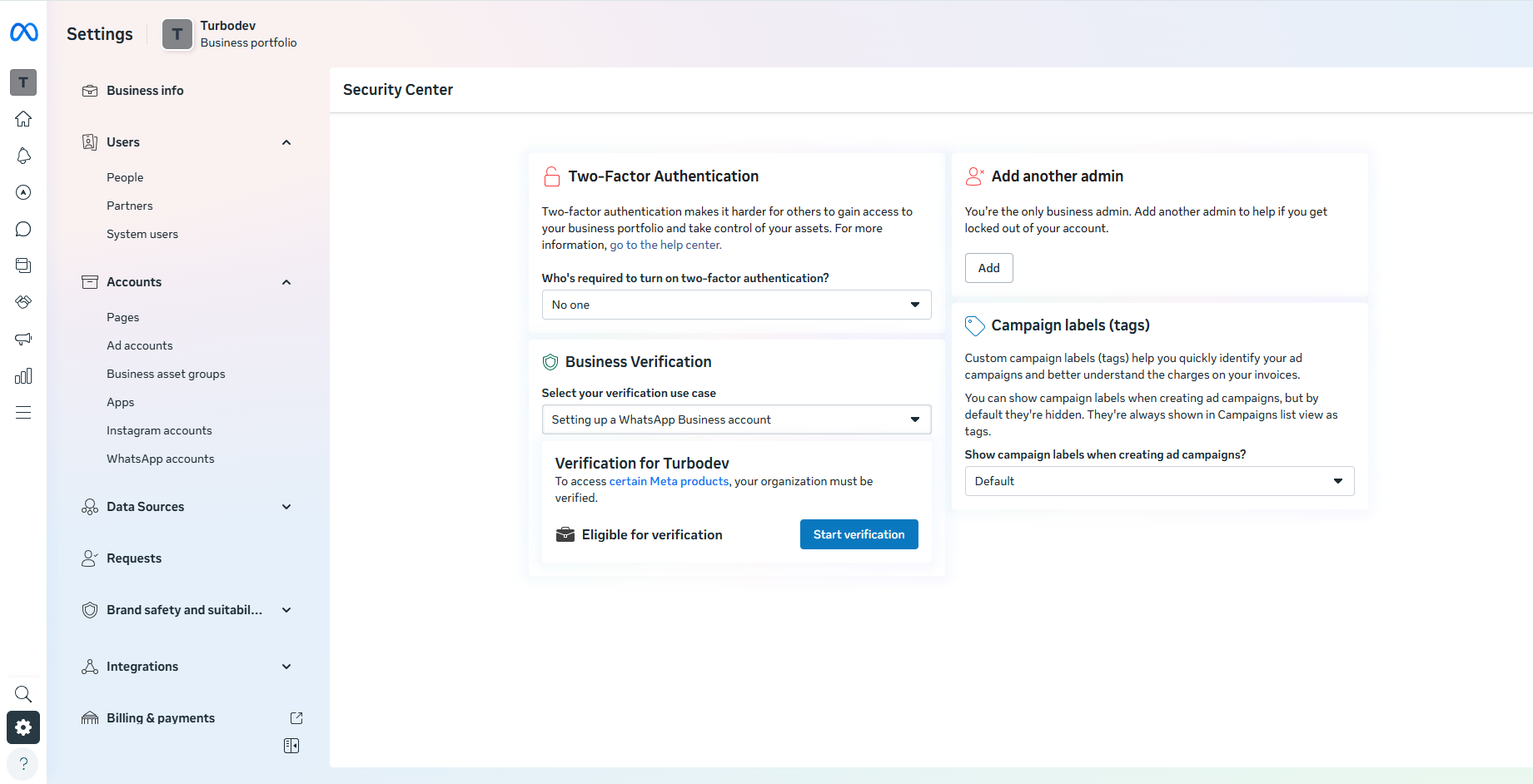 Before starting, confirm your current verification status in Meta Business Manager:
1. Log in to [**Meta Business Manager**](https://www.facebook.com/business/tools/business-manager)
2. Click **Business Settings**
3. Navigate to [**Security Center**](https://business.facebook.com/settings/security)
4. Review your current **Business Verification status**
If verification hasn’t started yet, you’ll see an option to begin.
## Preparation for Meta Business Verification
To improve approval chances, make sure the following are in place:
* Your **business website is active**, secured with SSL (https), and clearly shows:
* Business name
* Address
* Phone number\
These details must match your Meta Business Manager information.
* If you plan to verify via **email/domain**, use an email address that matches your website domain (e.g., [info@yourcompany.com](mailto:info@yourcompany.com)).
* For **phone verification**, ensure the number can receive calls or SMS.\
If IVR is enabled, temporarily disable it.
* Your **business or trade name** should be consistent across:
* Website
* Meta Business Manager
* Legal documents\
(If names differ, they should clearly reference the same business.)
## Documents Required for Business Verification
Meta requires businesses to submit official documents that verify their **legal business name, address, and phone number**.\
The accepted documents vary by country.
Meta cross-checks submitted details with official government records (such as the **Ministry of Corporate Affairs (MCA)** in India). Because of this, it’s extremely important that all documents are **accurate, up to date, and consistent** with the information entered in Meta Business Manager.
### Accepted Business Documents
Meta provides a country-wise list of acceptable documents for business verification.\
You can view the complete and most up-to-date list here:
**Meta’s Accepted Business Documents**\
[https://www.facebook.com/business/help/159334372093366](https://www.facebook.com/business/help/159334372093366)
Commonly accepted documents include:
* Certificate of Incorporation
* Business Registration or License
* GST Certificate
* Business Bank Account Statement
* Utility Bill (for address verification)
**Important Notes:**
* The business name on the document must exactly match the name entered in Meta Business Manager.
* Address and phone number must be clearly visible.
* Documents must be valid and not expired.
* Upload clear, readable scans or images.
* Select the correct document language while submitting to ensure faster review.
Any mismatch or outdated information can result in rejection or additional verification requests from Meta.Application Process for Meta Business Verification
1. Open [**Meta Business Manager**](https://www.facebook.com/business/tools/business-manager)
2. Go to **Business Settings**
3. Scroll to [**Security Center**](https://business.facebook.com/settings/security) and click **Start Verification**
4. Enter your business details:
* Legal Business Name
* Address
* Phone Number
* Website\
Ensure these match your official documents.
5. Select your business from the suggested list shown by Meta
6. Confirm the business details to be displayed on your Meta profile
7. Upload a supporting document to verify your **legal business name**
* Select the correct document language for faster review
8. Upload documents to verify your **address or phone number**
9. Choose a verification method:
* Email
* Phone call
* Domain verification
10. Enter the verification code received and submit
Once submitted, your verification request is complete.
## Review Process and Approval Timeline
* Meta’s review process can take **3 business days to up to 4 weeks**
* You’ll receive an email once verification is approved
* You can also track progress inside the **Security Center**
If Meta requests additional documents, respond directly within the same support flow to avoid delays.
## After Verification
Once your business is verified:
* You gain access to **higher WhatsApp messaging limits**
* You can run campaigns, broadcasts, and automations smoothly via **Turbodev**
* Your business credibility improves with Meta
**Business Verification is different from the WhatsApp green tick (Official Business Account)**. Each serves a different purpose and requires separate approval.
## If the Verification Button Is Not Visible
If you don’t see the verification option:
* Complete all **Business Info** in Meta Business Manager
* Ensure your WhatsApp Business API is properly set up with Turbodev
* The verification option usually becomes available once prerequisites are met
Before starting, confirm your current verification status in Meta Business Manager:
1. Log in to [**Meta Business Manager**](https://www.facebook.com/business/tools/business-manager)
2. Click **Business Settings**
3. Navigate to [**Security Center**](https://business.facebook.com/settings/security)
4. Review your current **Business Verification status**
If verification hasn’t started yet, you’ll see an option to begin.
## Preparation for Meta Business Verification
To improve approval chances, make sure the following are in place:
* Your **business website is active**, secured with SSL (https), and clearly shows:
* Business name
* Address
* Phone number\
These details must match your Meta Business Manager information.
* If you plan to verify via **email/domain**, use an email address that matches your website domain (e.g., [info@yourcompany.com](mailto:info@yourcompany.com)).
* For **phone verification**, ensure the number can receive calls or SMS.\
If IVR is enabled, temporarily disable it.
* Your **business or trade name** should be consistent across:
* Website
* Meta Business Manager
* Legal documents\
(If names differ, they should clearly reference the same business.)
## Documents Required for Business Verification
Meta requires businesses to submit official documents that verify their **legal business name, address, and phone number**.\
The accepted documents vary by country.
Meta cross-checks submitted details with official government records (such as the **Ministry of Corporate Affairs (MCA)** in India). Because of this, it’s extremely important that all documents are **accurate, up to date, and consistent** with the information entered in Meta Business Manager.
### Accepted Business Documents
Meta provides a country-wise list of acceptable documents for business verification.\
You can view the complete and most up-to-date list here:
**Meta’s Accepted Business Documents**\
[https://www.facebook.com/business/help/159334372093366](https://www.facebook.com/business/help/159334372093366)
Commonly accepted documents include:
* Certificate of Incorporation
* Business Registration or License
* GST Certificate
* Business Bank Account Statement
* Utility Bill (for address verification)
**Important Notes:**
* The business name on the document must exactly match the name entered in Meta Business Manager.
* Address and phone number must be clearly visible.
* Documents must be valid and not expired.
* Upload clear, readable scans or images.
* Select the correct document language while submitting to ensure faster review.
Any mismatch or outdated information can result in rejection or additional verification requests from Meta.Application Process for Meta Business Verification
1. Open [**Meta Business Manager**](https://www.facebook.com/business/tools/business-manager)
2. Go to **Business Settings**
3. Scroll to [**Security Center**](https://business.facebook.com/settings/security) and click **Start Verification**
4. Enter your business details:
* Legal Business Name
* Address
* Phone Number
* Website\
Ensure these match your official documents.
5. Select your business from the suggested list shown by Meta
6. Confirm the business details to be displayed on your Meta profile
7. Upload a supporting document to verify your **legal business name**
* Select the correct document language for faster review
8. Upload documents to verify your **address or phone number**
9. Choose a verification method:
* Email
* Phone call
* Domain verification
10. Enter the verification code received and submit
Once submitted, your verification request is complete.
## Review Process and Approval Timeline
* Meta’s review process can take **3 business days to up to 4 weeks**
* You’ll receive an email once verification is approved
* You can also track progress inside the **Security Center**
If Meta requests additional documents, respond directly within the same support flow to avoid delays.
## After Verification
Once your business is verified:
* You gain access to **higher WhatsApp messaging limits**
* You can run campaigns, broadcasts, and automations smoothly via **Turbodev**
* Your business credibility improves with Meta
**Business Verification is different from the WhatsApp green tick (Official Business Account)**. Each serves a different purpose and requires separate approval.
## If the Verification Button Is Not Visible
If you don’t see the verification option:
* Complete all **Business Info** in Meta Business Manager
* Ensure your WhatsApp Business API is properly set up with Turbodev
* The verification option usually becomes available once prerequisites are met