> ## Documentation Index
> Fetch the complete documentation index at: https://docs.turbodev.ai/llms.txt
> Use this file to discover all available pages before exploring further.
# Initiate a New Chat
> Turbodev allows you to initiate conversations with customers using approved WhatsApp templates. You can start a chat either with an existing contact or by adding a new one. WhatsApp templates are required to initiate conversations with customers who haven’t messaged you within the 24-hour session window.
## Ways to Initiate a Chat in Turbodev
### Start a Chat with a Saved Contact
If the contact already exists in Turbodev,
**Step1:** you can initiate a conversation by selecting the contact from the Conversations section.
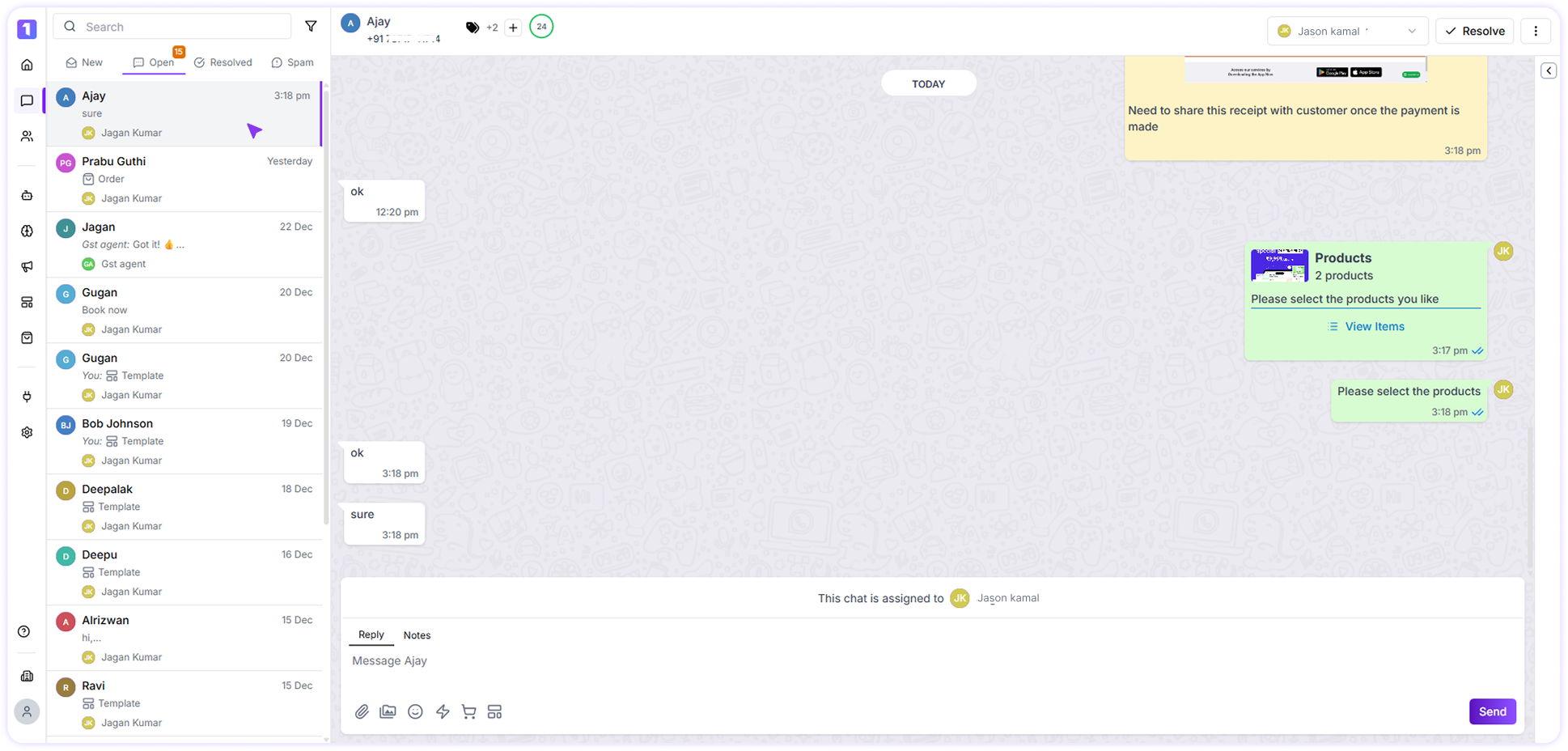 **Step2:** Choose a pre-approved WhatsApp template, fill in the required variables and send the message to start the chat.
### Send an Individual Message to a Saved Contact
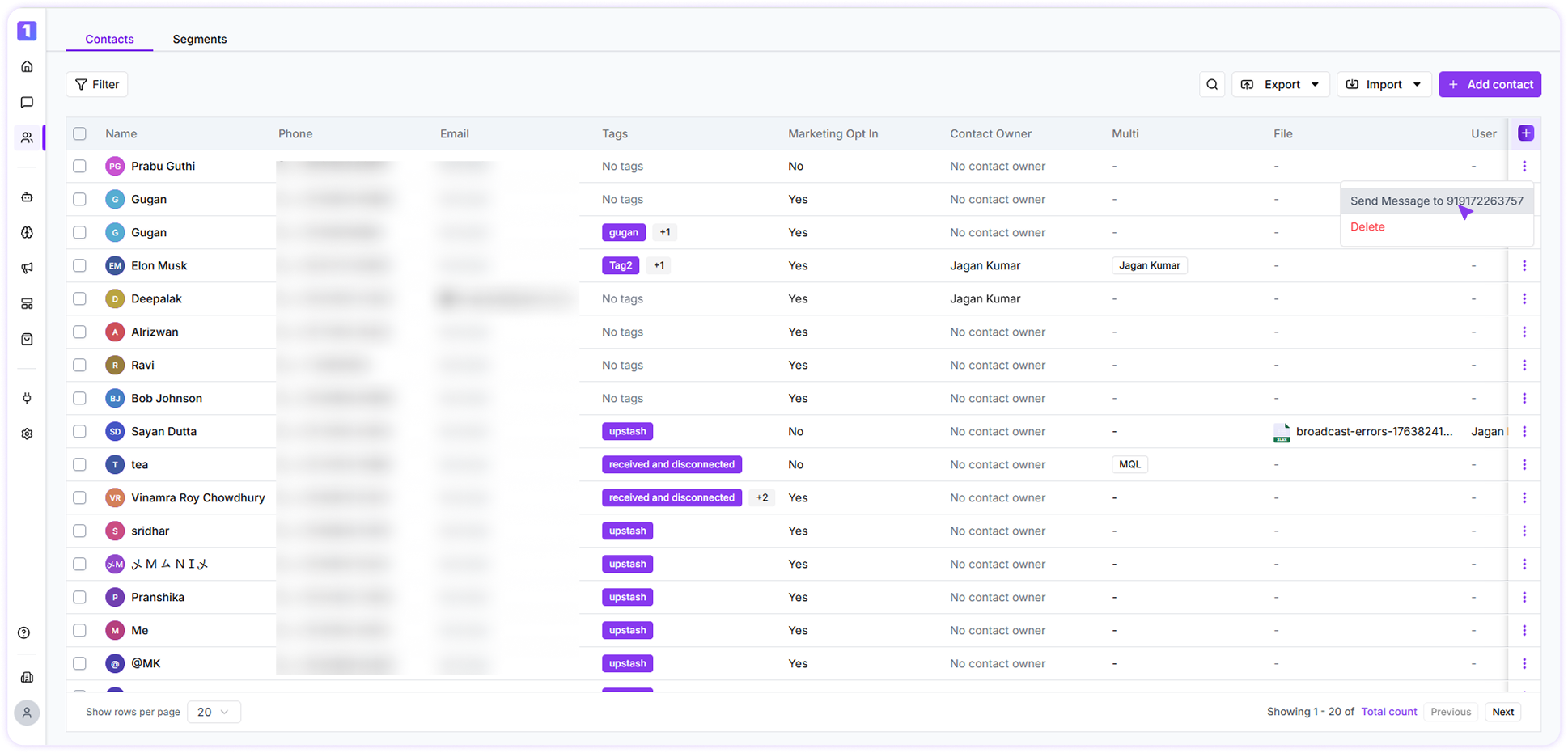
If you want to send a message directly while browsing your contact list, Click the \*\*menu (⋮) button on the contact section and select send message.
**Step2:** Choose a pre-approved WhatsApp template, fill in the required variables and send the message to start the chat.
### Send an Individual Message to a Saved Contact
If you want to send a message directly while browsing your contact list, Click the \*\*menu (⋮) button on the contact section and select send message.
 ### Respond to Customer Messages
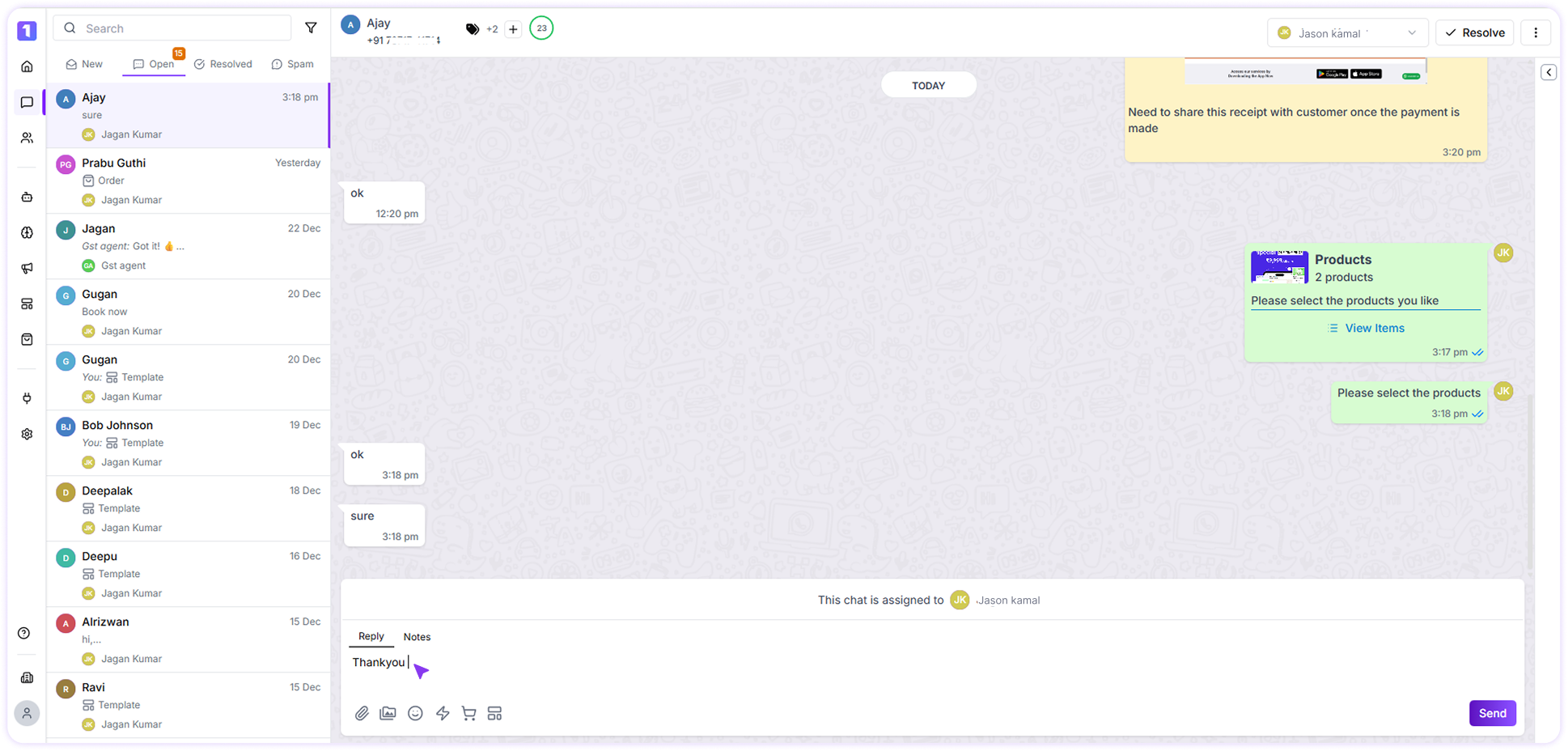
Once a customer sends a message, you can instantly reply and continue the conversation without needing a template, as long as it’s within WhatsApp’s 24-hour session window.
### Respond to Customer Messages
Once a customer sends a message, you can instantly reply and continue the conversation without needing a template, as long as it’s within WhatsApp’s 24-hour session window.