> ## Documentation Index
> Fetch the complete documentation index at: https://docs.turbodev.ai/llms.txt
> Use this file to discover all available pages before exploring further.
# Quick Replies
> Quick Replies in Turbodev allow you to instantly respond to customers using pre-saved messages, media, or documents. This feature is designed to help teams reply faster, maintain consistency in communication, and reduce repetitive manual typing.
To use Quick Replies during a conversation, you must first create **Canned Responses**. These saved responses act as the foundation for Quick Replies and can include text, images, videos, audio files, or documents.
Once created, Canned Responses can be easily accessed and sent directly from the chat window using the Quick Reply option.
## Step 1: Create a Canned Response
Before using Quick Replies, make sure you have added at least one canned response.
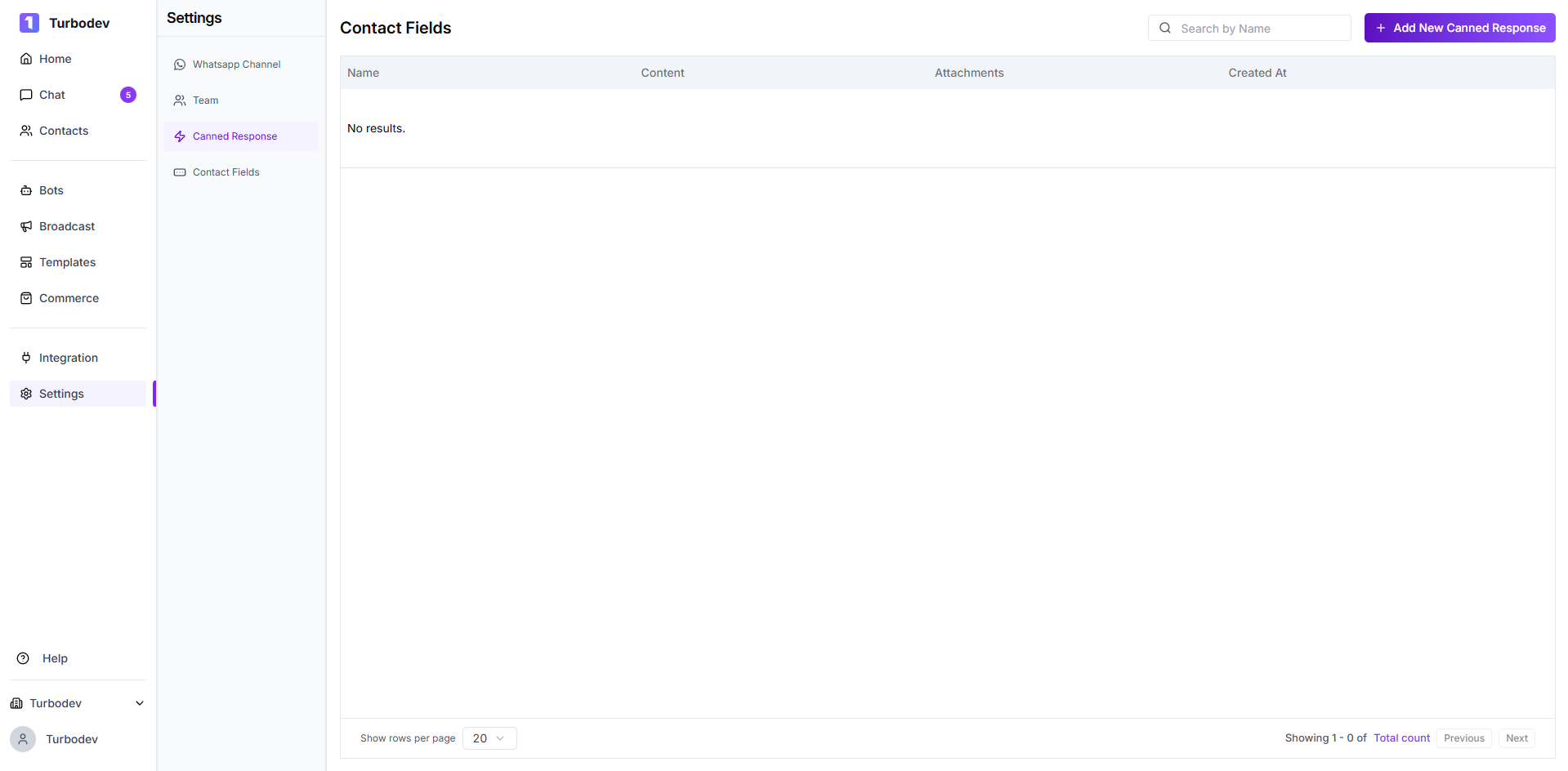 1. Go to Turbodev **Settings**
2. Click on **Canned Responses**
3. Select **Add New Canned Response**
4. Enter a **name** for the response (this is for internal reference)
5. Choose the **response type**:
1. Go to Turbodev **Settings**
2. Click on **Canned Responses**
3. Select **Add New Canned Response**
4. Enter a **name** for the response (this is for internal reference)
5. Choose the **response type**:
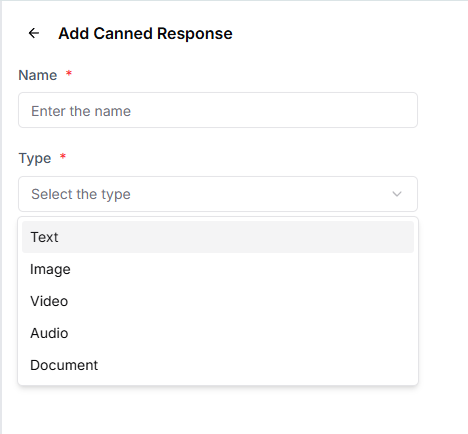 * Text
* Image
* Video
* Audio
* Document
6. Add the content based on the selected type
7. Click **Save**
* Text
* Image
* Video
* Audio
* Document
6. Add the content based on the selected type
7. Click **Save**
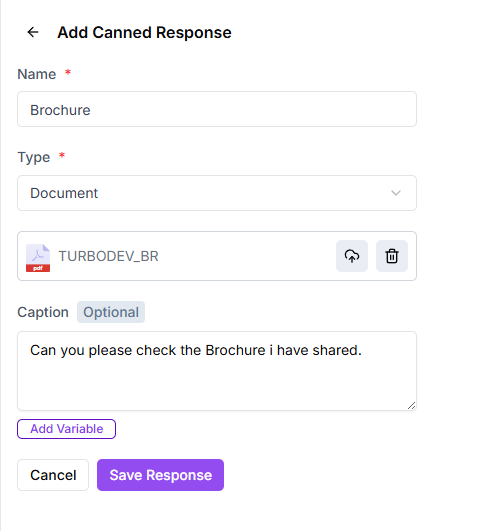 ### Use Variables
Variables help you personalize messages using customer data already available in **Turbodev**.
For example, a message like:
> **Hello , can you please check the details?**
will automatically replace `{{name}}` with the customer’s actual name during the conversation.
### Use Variables
Variables help you personalize messages using customer data already available in **Turbodev**.
For example, a message like:
> **Hello , can you please check the details?**
will automatically replace `{{name}}` with the customer’s actual name during the conversation.
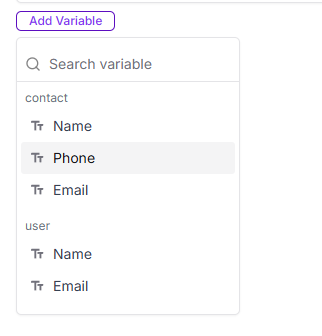 **To add variables:**
1. Click on **Add Variables**
2. Select the required field from the dropdown list
Ensure the selected variable contains data; otherwise, it may appear blank in the message.
5. Click **Save** to store the canned response
Once saved, the canned response will be available for use in chats.
## Step 2: Send a Quick Reply in Chat
After creating canned responses, you can use them while replying to customers.
1. Open the **Chat** with the customer
2. In the **Reply section**, locate the action icons
3. Click on the **⚡ Quick Reply icon**
4. Select the required canned response from the list
5. Click **Send**
The reply will be sent instantly to the customer.
## Edit or Delete Canned Responses
Once a canned response is created, you can manage it anytime based on your needs.
**To add variables:**
1. Click on **Add Variables**
2. Select the required field from the dropdown list
Ensure the selected variable contains data; otherwise, it may appear blank in the message.
5. Click **Save** to store the canned response
Once saved, the canned response will be available for use in chats.
## Step 2: Send a Quick Reply in Chat
After creating canned responses, you can use them while replying to customers.
1. Open the **Chat** with the customer
2. In the **Reply section**, locate the action icons
3. Click on the **⚡ Quick Reply icon**
4. Select the required canned response from the list
5. Click **Send**
The reply will be sent instantly to the customer.
## Edit or Delete Canned Responses
Once a canned response is created, you can manage it anytime based on your needs.
 #### Edit a Canned Response
You can edit an existing canned response to update its details.
**To edit:**
* Go to **Settings → Canned Responses**
* Select the canned response you want to edit
* Click **Edit**
* Update any of the following:
* Name
* Message content
* Caption
* Variables
* Click **Save** to apply the changes
The updated version will be available immediately for use in chats.
#### Delete a Canned Response
If a canned response is no longer required, you can delete it.
**To delete:**
* Go to **Settings → Canned Responses**
* Select the canned response
* Click **Delete**
Once deleted, the canned response will be permanently removed and will no longer be available in the reply section.
#### Edit a Canned Response
You can edit an existing canned response to update its details.
**To edit:**
* Go to **Settings → Canned Responses**
* Select the canned response you want to edit
* Click **Edit**
* Update any of the following:
* Name
* Message content
* Caption
* Variables
* Click **Save** to apply the changes
The updated version will be available immediately for use in chats.
#### Delete a Canned Response
If a canned response is no longer required, you can delete it.
**To delete:**
* Go to **Settings → Canned Responses**
* Select the canned response
* Click **Delete**
Once deleted, the canned response will be permanently removed and will no longer be available in the reply section.