> ## Documentation Index
> Fetch the complete documentation index at: https://docs.turbodev.ai/llms.txt
> Use this file to discover all available pages before exploring further.
# Turbodev WhatsApp Shop
> Enhance your WhatsApp business experience by integrating your Facebook Product Catalog with TurboDev. Showcase products directly inside WhatsApp chats and make it easier for customers to browse and place orders all in one seamless flow.
By connecting your Facebook Catalog with TurboDev, you can streamline product discovery, reduce friction in conversations, and enable faster purchase decisions through WhatsApp.
## Facebook Product Catalog
Think of your Facebook Product Catalog as your **digital storefront**. It holds all the product information images, prices, descriptions, and availability that customers see when browsing products on WhatsApp.
Before selling products through WhatsApp, you need to create and populate your catalog with accurate product details.
## Create Your First Catalog
### Before You Begin
Make sure you have the following:
* A **Facebook Page** for your business
* A [**Business Manager account**](https://www.facebook.com/business/help/442345745885606) with full control
* Permission to create and manage catalogs under your business
### Steps to Create a Catalog
1. Go to [**Meta Commerce Manager**](https://business.facebook.com/commerce/)
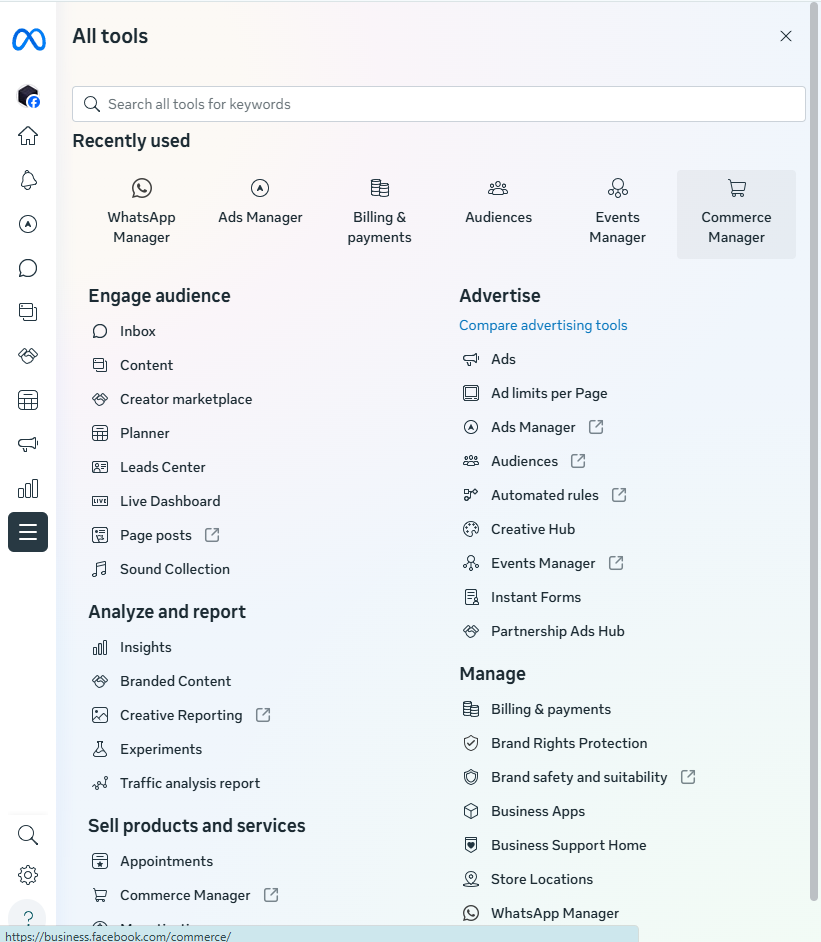 2. Click **Get Started**
3. Select **Create a Catalog** and proceed
### Choose Your Catalog Type
Select the catalog type that best fits your business:
2. Click **Get Started**
3. Select **Create a Catalog** and proceed
### Choose Your Catalog Type
Select the catalog type that best fits your business:
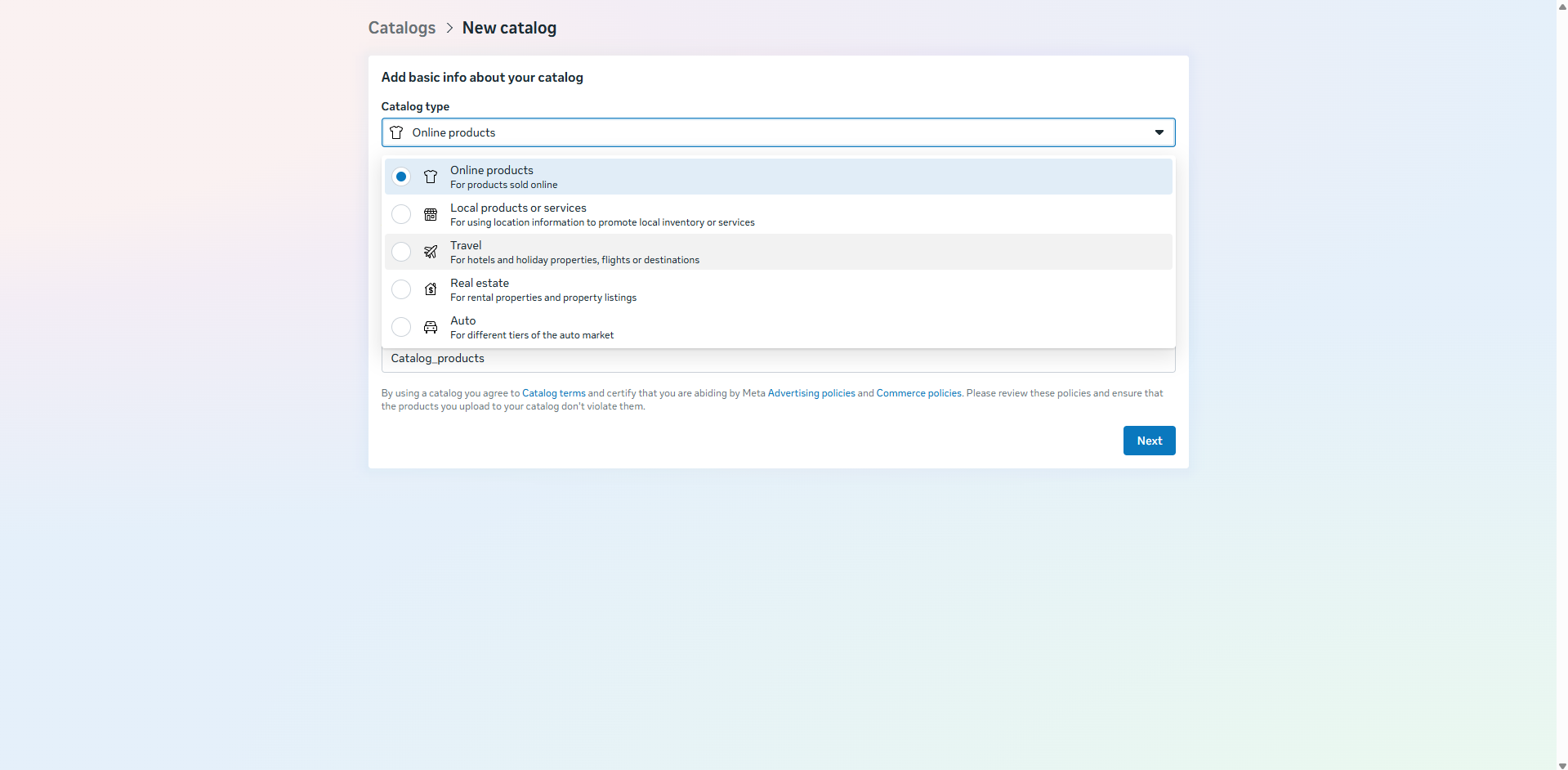 * **E-commerce**\
Ideal for selling physical products such as clothing, electronics, accessories, furniture, and more.
* **Travel**\
Suitable for hotels, holiday packages, flights, or travel destinations.
* **Property**\
Best for rental listings and real estate businesses.
* **Auto**\
Designed for automotive listings and vehicle-related businesses.
Click **Next** once you’ve selected the appropriate category.
### Configure Your Catalog
Next, choose how you want to upload or sync your products:
* **Upload Product Info**\
Upload products manually using Excel or CSV files.
* **Connect a Partner Platform**
* **E-commerce**\
Ideal for selling physical products such as clothing, electronics, accessories, furniture, and more.
* **Travel**\
Suitable for hotels, holiday packages, flights, or travel destinations.
* **Property**\
Best for rental listings and real estate businesses.
* **Auto**\
Designed for automotive listings and vehicle-related businesses.
Click **Next** once you’ve selected the appropriate category.
### Configure Your Catalog
Next, choose how you want to upload or sync your products:
* **Upload Product Info**\
Upload products manually using Excel or CSV files.
* **Connect a Partner Platform**
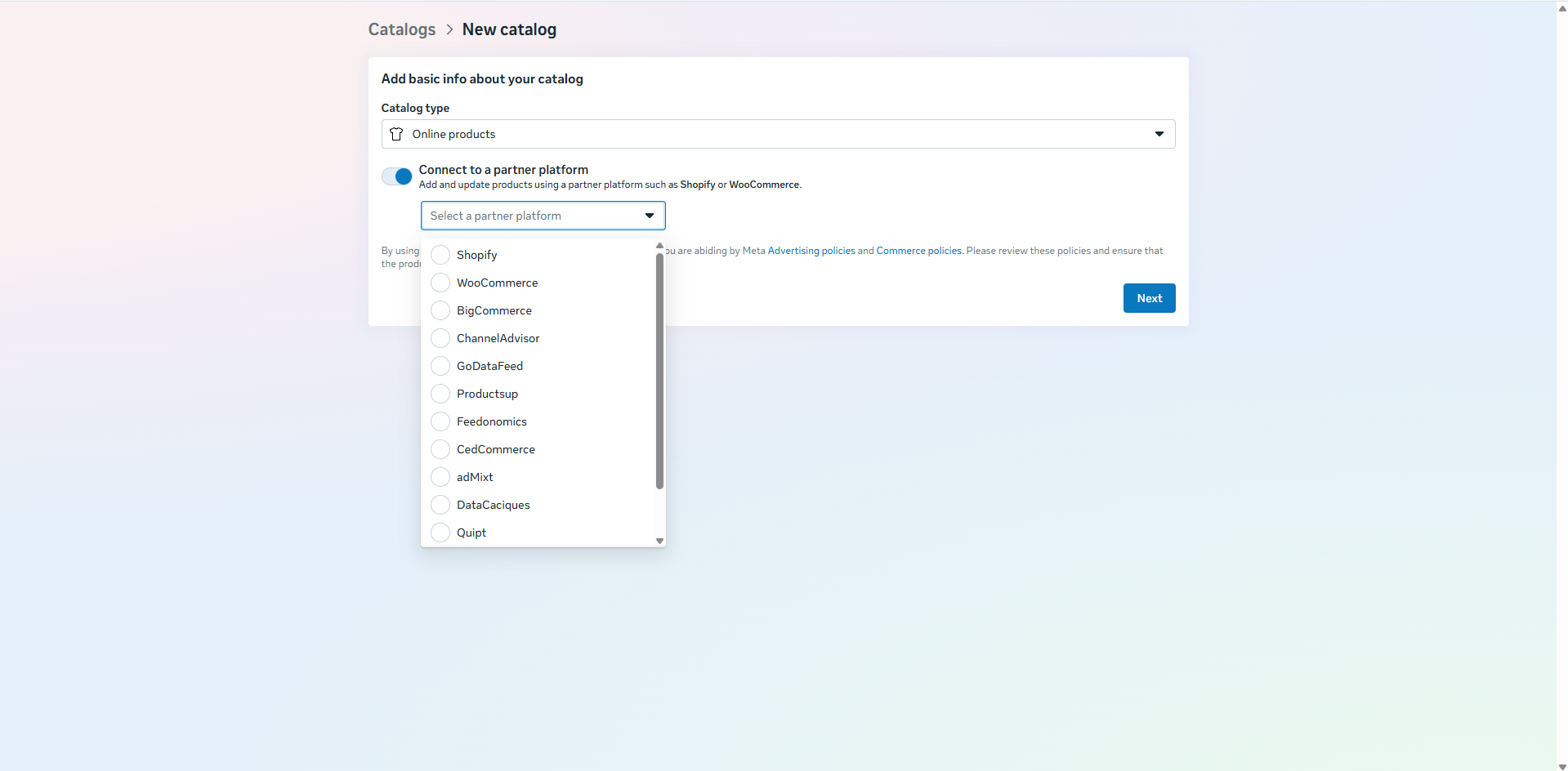 Sync products from platforms like **Shopify** or **WooCommerce**.
If you’re using Shopify or WooCommerce, select the platform from the dropdown and follow the on-screen steps to complete the setup.
## Manage Your Catalog
Once created:
* Click **View Catalog** to access it
* Start adding, editing, or managing products
* Your catalog will now be ready to connect with TurboDev for WhatsApp product messaging
## Ways to Add Products to Your Catalog
You can add items to your Facebook Catalog in three main ways:
Sync products from platforms like **Shopify** or **WooCommerce**.
If you’re using Shopify or WooCommerce, select the platform from the dropdown and follow the on-screen steps to complete the setup.
## Manage Your Catalog
Once created:
* Click **View Catalog** to access it
* Start adding, editing, or managing products
* Your catalog will now be ready to connect with TurboDev for WhatsApp product messaging
## Ways to Add Products to Your Catalog
You can add items to your Facebook Catalog in three main ways:
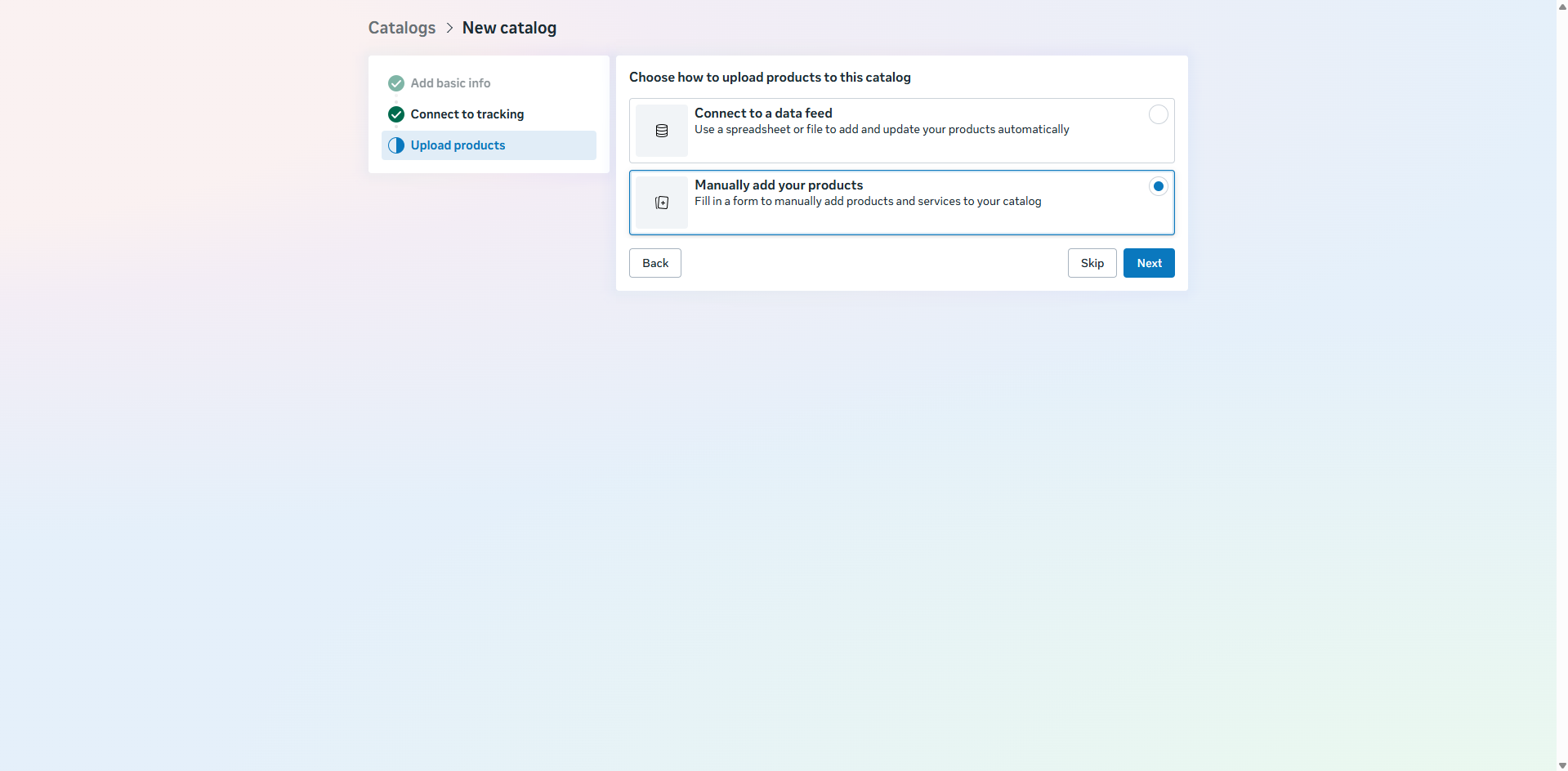 ### 1. Manual
Add products individually using a form in Commerce Manager.
### 2. Data Feed
Upload products in bulk using a spreadsheet (CSV/Excel) or XML file.
### 3. Partner Platform
Automatically sync products from platforms like Shopify or WooCommerce.
### 1. Manual
Add products individually using a form in Commerce Manager.
### 2. Data Feed
Upload products in bulk using a spreadsheet (CSV/Excel) or XML file.
### 3. Partner Platform
Automatically sync products from platforms like Shopify or WooCommerce.