> ## Documentation Index
> Fetch the complete documentation index at: https://docs.turbodev.ai/llms.txt
> Use this file to discover all available pages before exploring further.
# Razorpay Integration with Turbodev
Integrating Razorpay with Turbodev allows you to automate WhatsApp notifications for payment events such as successful payments, failed transactions, and payment confirmations. This ensures your customers receive instant updates and improves overall payment communication.
With Razorpay connected, Turbodev can automatically trigger workflows and send real-time WhatsApp messages based on payment activity.
## Why Connect Razorpay with Turbodev?
Connecting Razorpay enables automated communication throughout the payment process.
Key benefits include:
* Send instant payment confirmation messages
* Notify customers about successful or failed transactions
* Automate payment-related workflows
* Improve customer experience with real-time updates
* Reduce manual follow-ups
This integration helps streamline your payment communication and improves operational efficiency.
## Step-by-Step Guide to Connect Razorpay with Turbodev
Follow the steps below to connect your Razorpay account.
### Step 1: Open Razorpay Integration
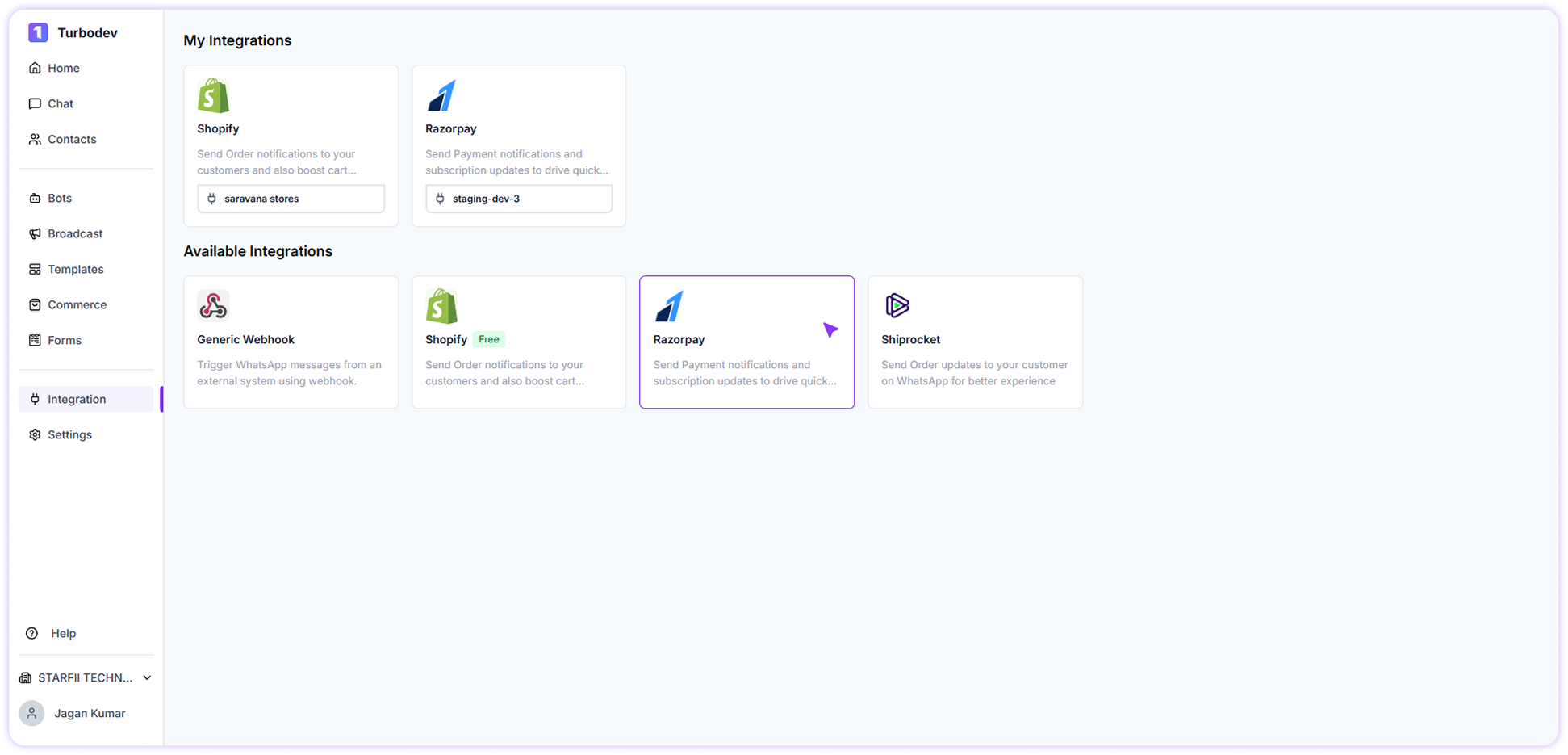 1. Log in to your **Turbodev dashboard**
2. Click on **Integrations** from the left navigation panel
3. Select **Razorpay** from the available integrations
4. Click **Connect**
1. Log in to your **Turbodev dashboard**
2. Click on **Integrations** from the left navigation panel
3. Select **Razorpay** from the available integrations
4. Click **Connect**
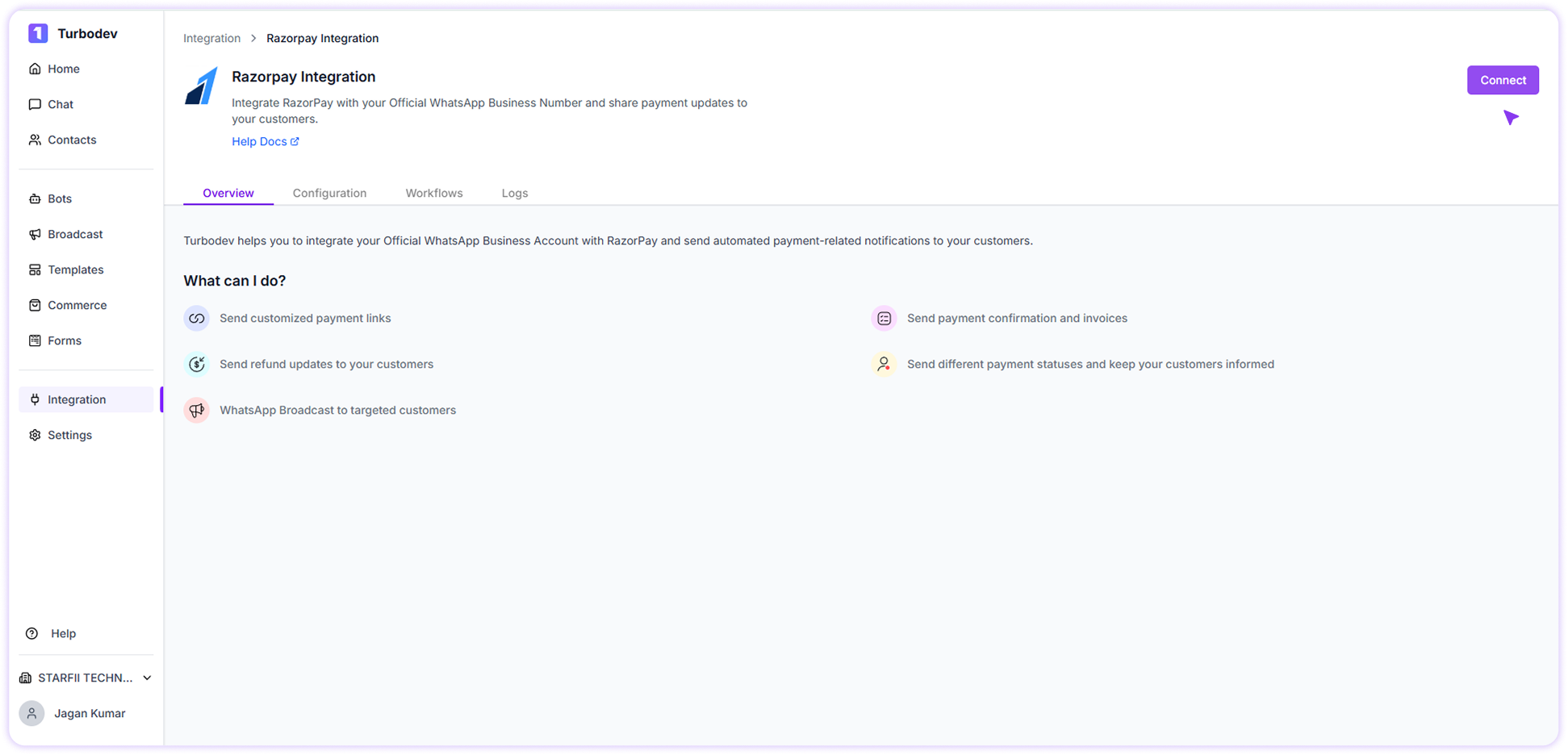 ### Step 2: Enter Brand Name
A pop-up window will appear.
### Step 2: Enter Brand Name
A pop-up window will appear.
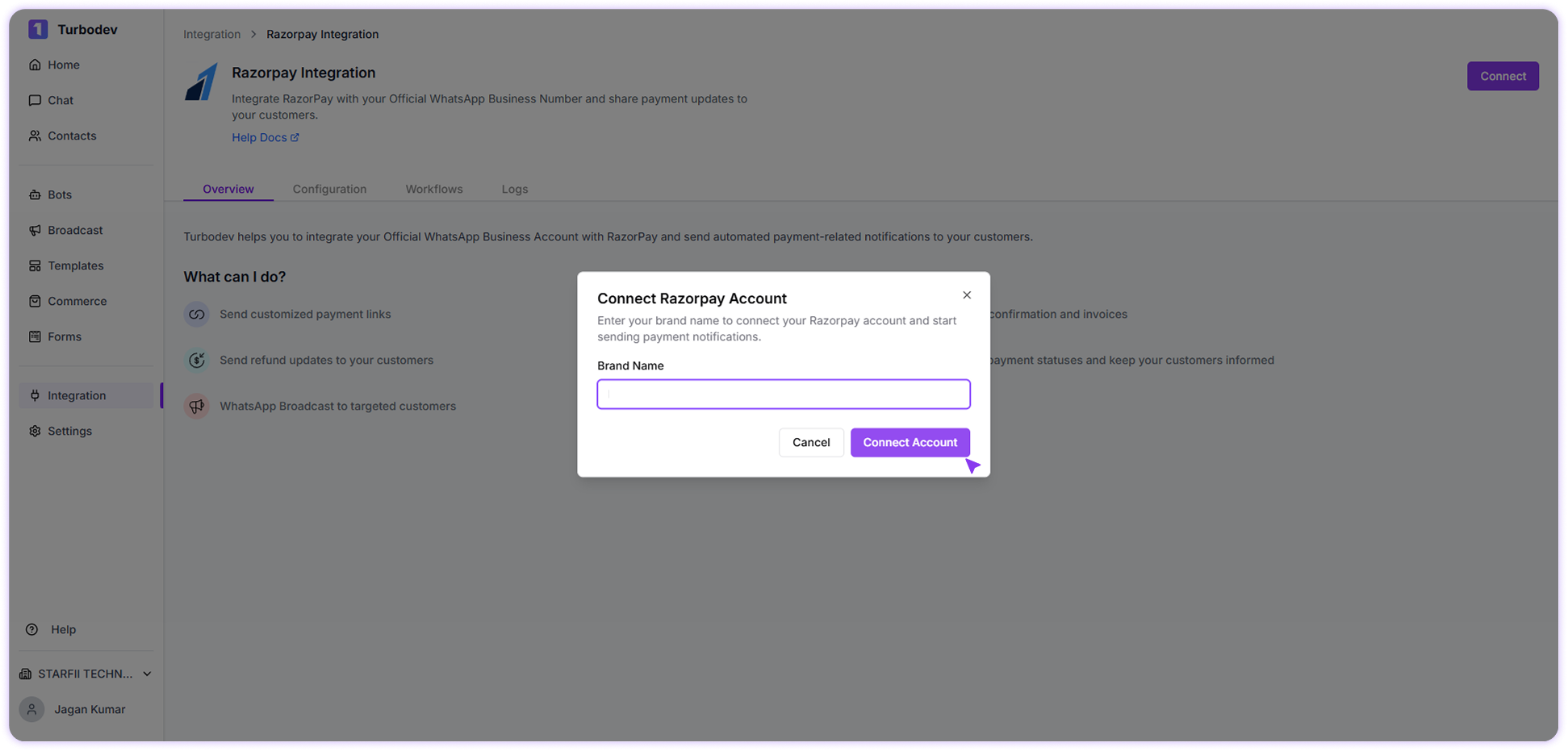 1. Enter a name for your Brand
2. Click **Connect Account**
You will now be redirected to Razorpay authorization.
### Step 3: Authorize Turbodev in Razorpay
You will be redirected to the Razorpay login page.
1. Log in to your **Razorpay account**
2. Review the authorization request
3. Click **Authorize**
This step securely connects your Razorpay account with Turbodev.
Once authorization is completed, you will be redirected back to Turbodev.
### Step 4: Complete Integration Configuration
After authorization, the configuration page will open in Turbodev.
Here:
1. Click **Update Configuration**
Your Razorpay integration will now be active.
## How to Verify Integration Status
To check if Razorpay is connected:
1. Go to **Integrations**
2. Select **Razorpay**
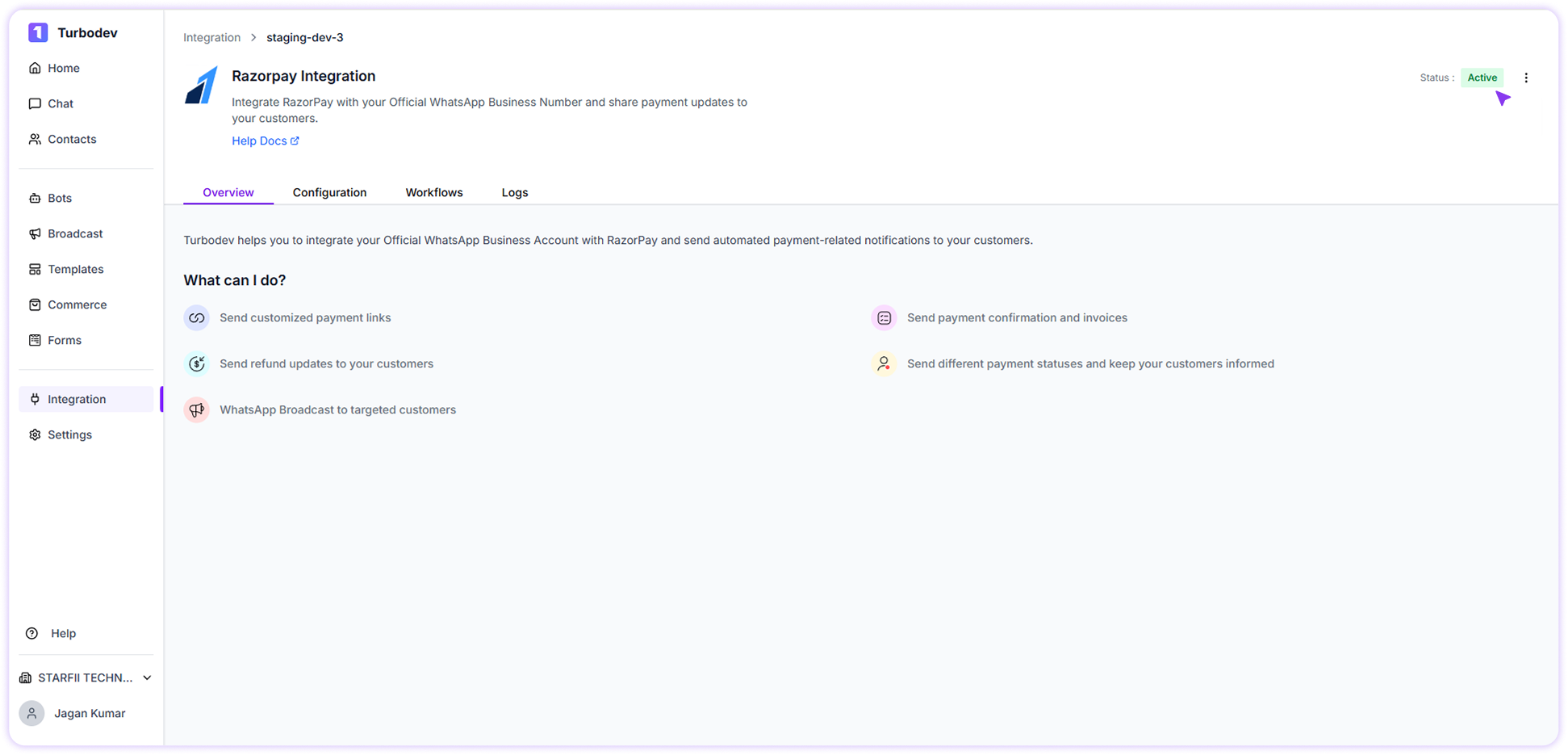
3. On the top right corner of the integration page, check the status
If the integration is successful, the status will show:
**Active**
1. Enter a name for your Brand
2. Click **Connect Account**
You will now be redirected to Razorpay authorization.
### Step 3: Authorize Turbodev in Razorpay
You will be redirected to the Razorpay login page.
1. Log in to your **Razorpay account**
2. Review the authorization request
3. Click **Authorize**
This step securely connects your Razorpay account with Turbodev.
Once authorization is completed, you will be redirected back to Turbodev.
### Step 4: Complete Integration Configuration
After authorization, the configuration page will open in Turbodev.
Here:
1. Click **Update Configuration**
Your Razorpay integration will now be active.
## How to Verify Integration Status
To check if Razorpay is connected:
1. Go to **Integrations**
2. Select **Razorpay**
3. On the top right corner of the integration page, check the status
If the integration is successful, the status will show:
**Active**
 You can also verify workflows in the Workflow section.
## How to Remove Razorpay Integration
If you want to disconnect Razorpay:
1. Go to **Integrations**
2. Click on **Razorpay Integration**
3. Click the **three-dot menu**
You can also verify workflows in the Workflow section.
## How to Remove Razorpay Integration
If you want to disconnect Razorpay:
1. Go to **Integrations**
2. Click on **Razorpay Integration**
3. Click the **three-dot menu**
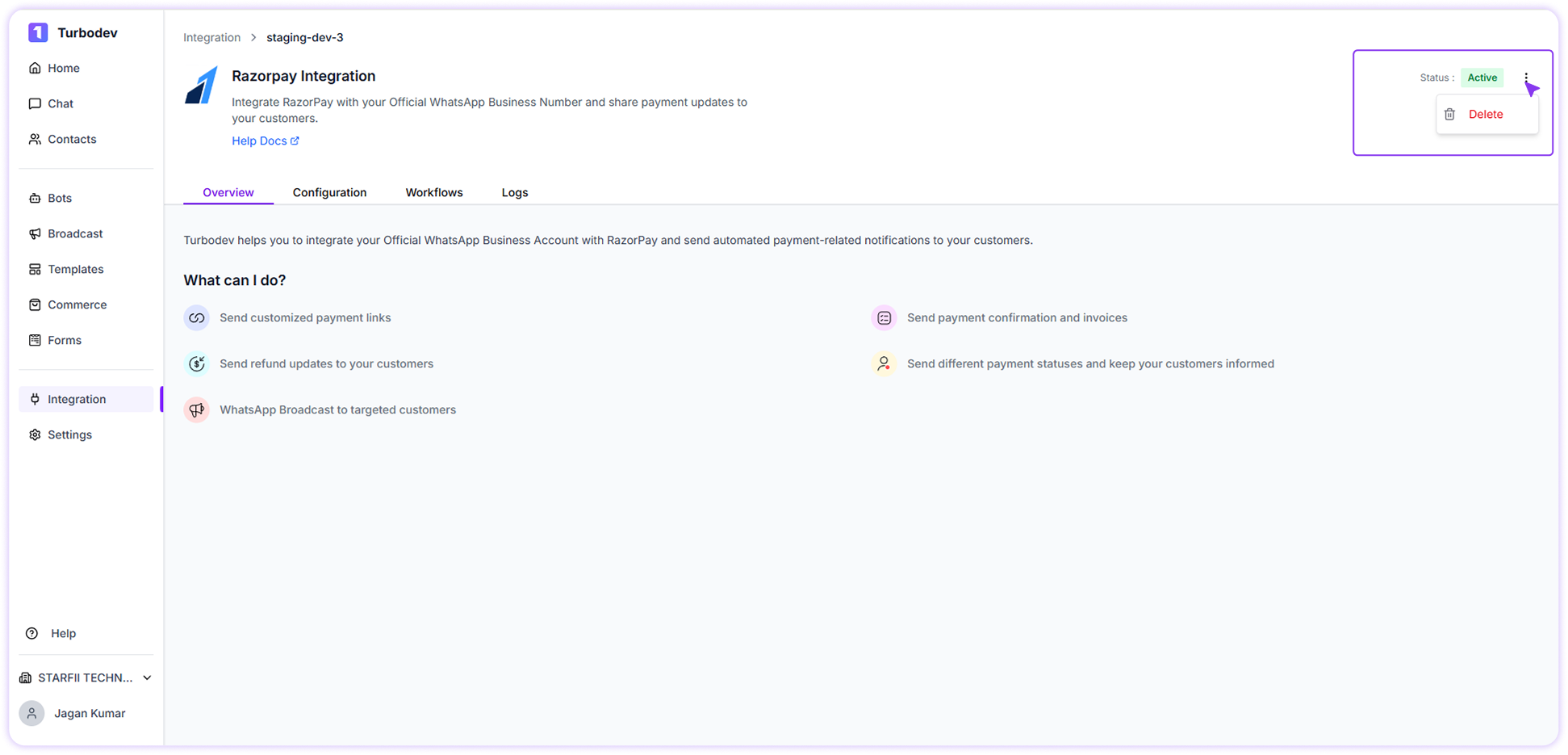 4. Select **Delete Integration**
5. Confirm deletion
4. Select **Delete Integration**
5. Confirm deletion
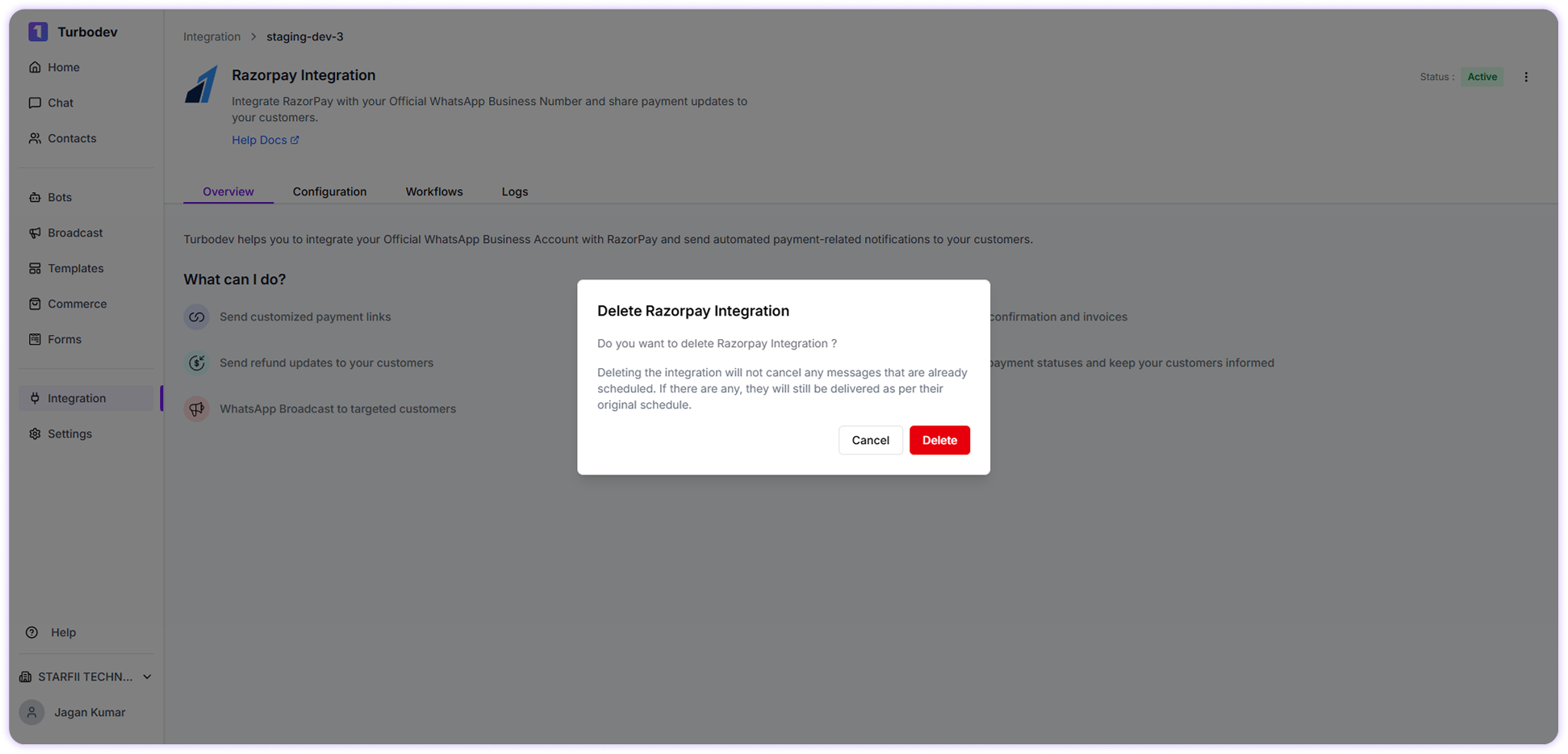 Once deleted, Razorpay will no longer be connected and workflows will stop.
## You're Ready to Automate Razorpay Notifications
Your Razorpay account is now successfully connected with Turbodev. You can automate payment notifications, improve customer communication, and streamline payment workflows.
Turbodev ensures your customers stay informed throughout the payment process with real-time WhatsApp messaging.
Once deleted, Razorpay will no longer be connected and workflows will stop.
## You're Ready to Automate Razorpay Notifications
Your Razorpay account is now successfully connected with Turbodev. You can automate payment notifications, improve customer communication, and streamline payment workflows.
Turbodev ensures your customers stay informed throughout the payment process with real-time WhatsApp messaging.