> ## Documentation Index
> Fetch the complete documentation index at: https://docs.turbodev.ai/llms.txt
> Use this file to discover all available pages before exploring further.
# Shopify Workflows in Turbodev
Once your Shopify store is connected with Turbodev, you can automate customer communication across the entire order lifecycle. Shopify workflows allow you to automatically send WhatsApp messages based on real-time customer actions such as placing an order, abandoning a cart, or receiving a delivery.
These workflows help you improve customer experience, increase conversions, and eliminate manual follow-ups.
## How Shopify Workflows Work in Turbodev
Turbodev connects directly with your Shopify store and listens for key events such as:
* Cart abandoned
* Order created
* Order fulfilled
* Order delivered
* Order cancelled
When one of these events occurs, Turbodev automatically triggers the workflow and sends the configured WhatsApp message to the customer.
You can fully customize the message, timing, and automation logic using the visual workflow builder.
## Available Shopify Workflow Triggers in Turbodev
Turbodev supports multiple Shopify automation triggers.
You can create workflows for:
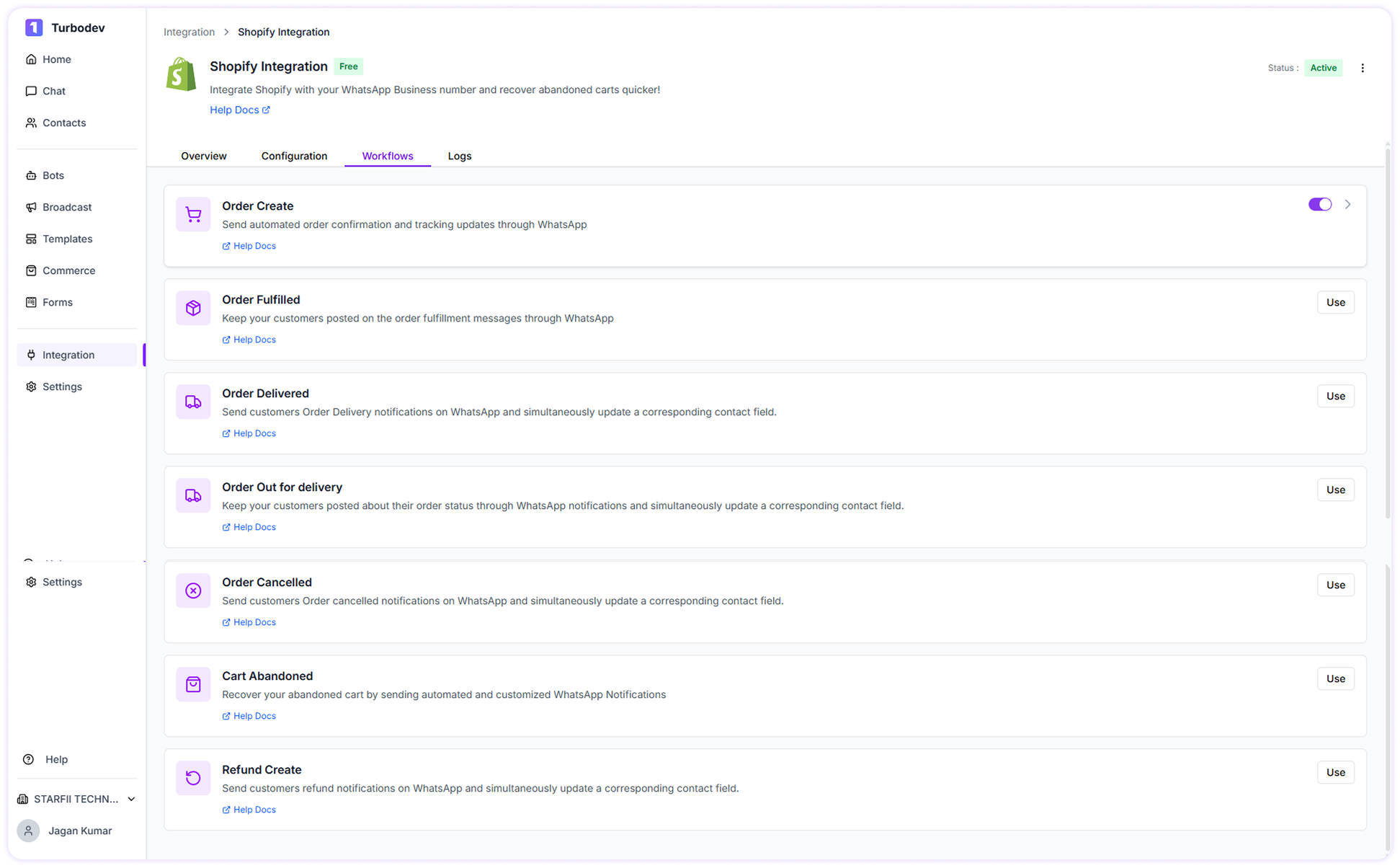 * Cart Abandoned
* Order Created
* Order Fulfilled
* Order Out for Delivery
* Order Delivered
* Order Cancelled
Each trigger can be customized based on your business needs.
## Cart Abandoned Workflow
Recover lost sales by automatically reminding customers to complete their purchase.
### How to Create Cart Abandoned Workflow
1. Go to **Workflows**
2. Click **Cart Abandoned Workflow**
* Cart Abandoned
* Order Created
* Order Fulfilled
* Order Out for Delivery
* Order Delivered
* Order Cancelled
Each trigger can be customized based on your business needs.
## Cart Abandoned Workflow
Recover lost sales by automatically reminding customers to complete their purchase.
### How to Create Cart Abandoned Workflow
1. Go to **Workflows**
2. Click **Cart Abandoned Workflow**
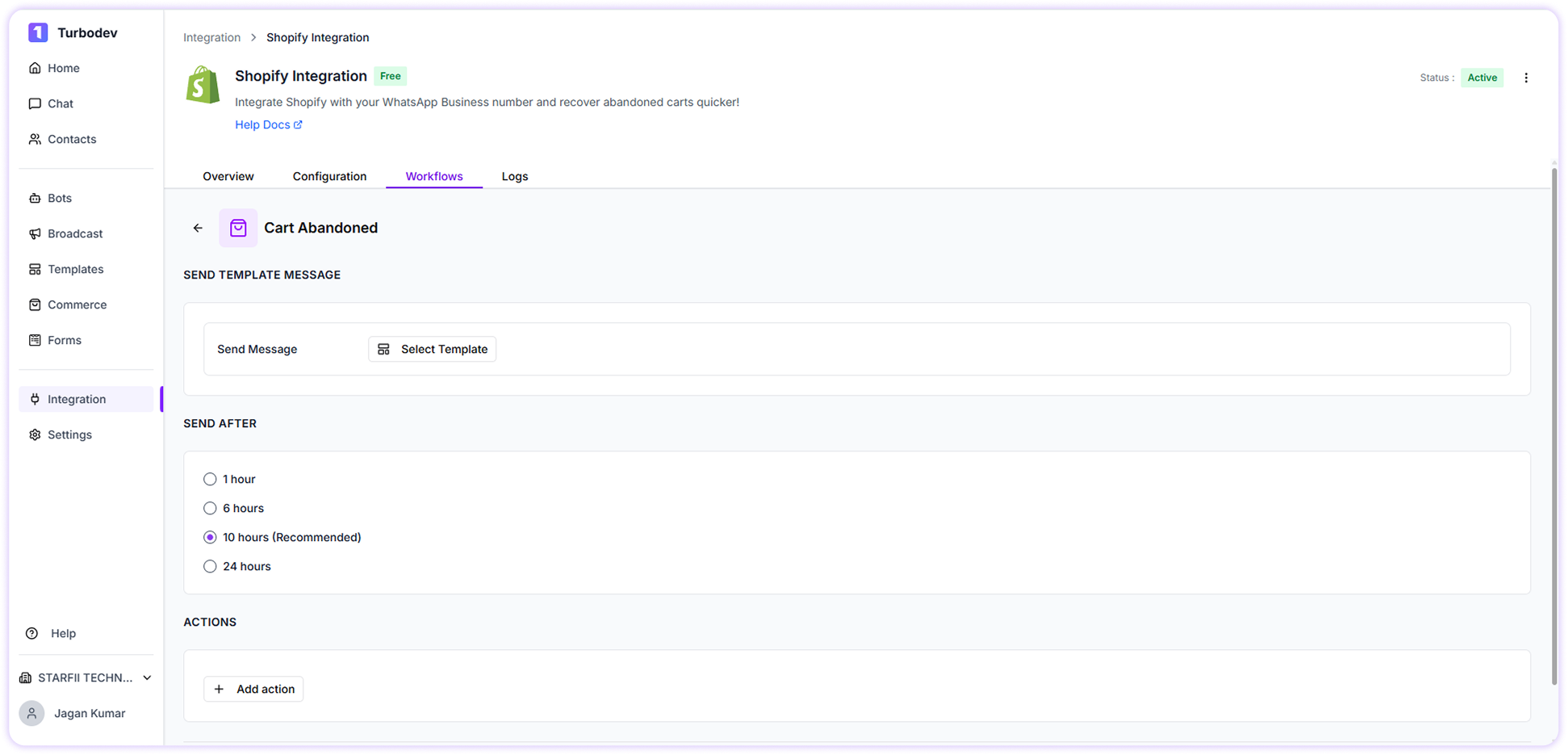 3. Select approved WhatsApp template
4. Map template variables with Shopify webhook data
5. Add actions if needed (optional)
### Set Delay Timing
You can set when the message should be sent after.
* 1 hour
* 6 hour
* 10 hours
* 24 hours
### Publish Workflow
Click **Create Workflow**
Your cart recovery automation is now active. The message will be sent automatically based on your selected delay time.
## Order Confirmation Workflow
Automatically notify customers when their order is placed.
### Steps to Create Order Confirmation Workflow
1. Go to **Workflows**
2. Click **Order Create Workflow**
3. Select approved WhatsApp template
4. Map template variables with Shopify webhook data
5. Add actions if needed (optional)
### Set Delay Timing
You can set when the message should be sent after.
* 1 hour
* 6 hour
* 10 hours
* 24 hours
### Publish Workflow
Click **Create Workflow**
Your cart recovery automation is now active. The message will be sent automatically based on your selected delay time.
## Order Confirmation Workflow
Automatically notify customers when their order is placed.
### Steps to Create Order Confirmation Workflow
1. Go to **Workflows**
2. Click **Order Create Workflow**
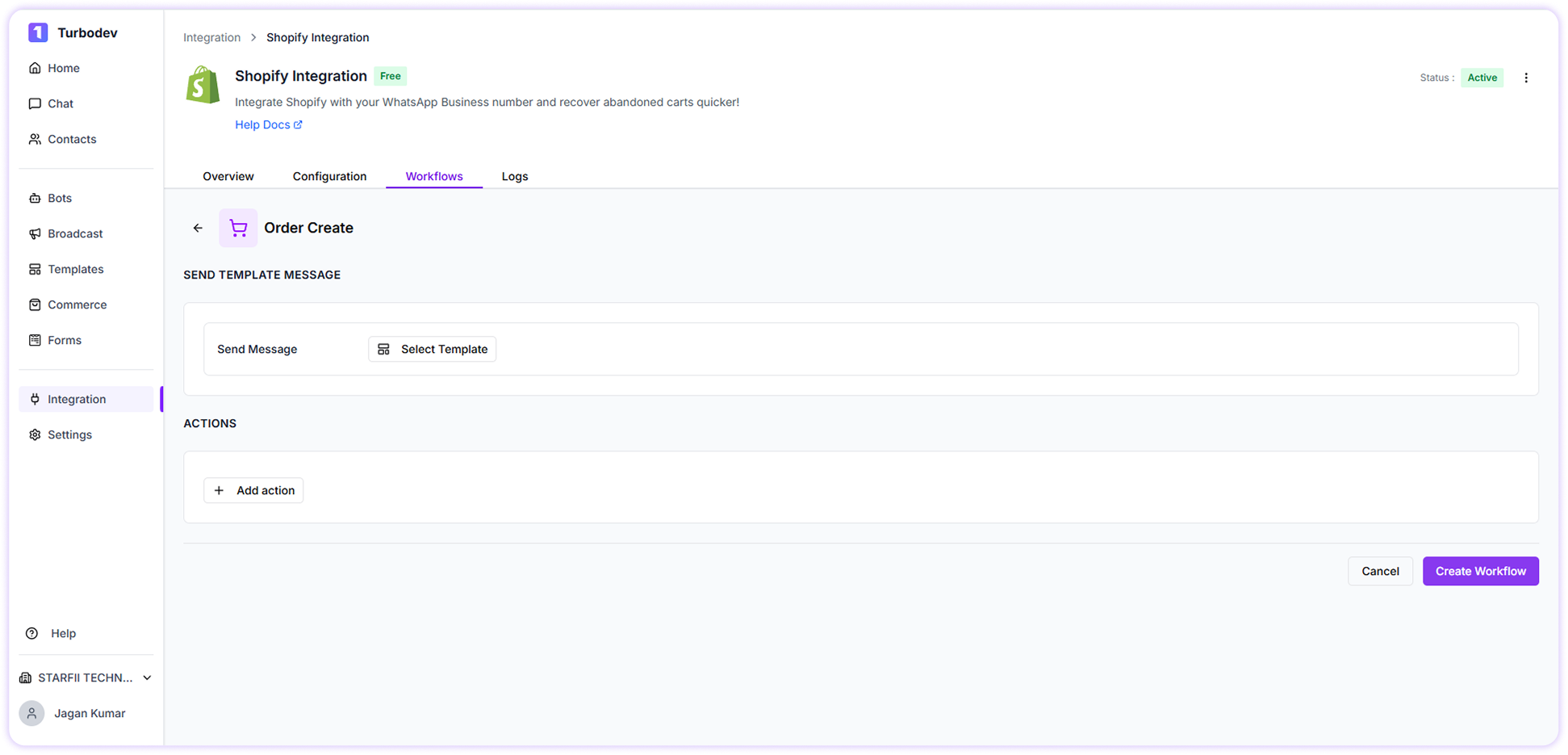 3. Select approved WhatsApp template
4. Map template variables with Shopify webhook data
5. Add actions if needed (optional)
6. Click **Create Workflow**
The message will be sent automatically after the order created
## Order Fulfilled Workflow
Notify customers when their order is shipped.
### Steps to Create Order Fulfilled Workflow
1. Go to **Workflows**
2. Click **Order Fulfilled Workflow**
3. Select approved WhatsApp template
4. Map template variables with Shopify webhook data
5. Add actions if needed (optional)
6. Click **Create Workflow**
The message will be sent automatically after the order created
## Order Fulfilled Workflow
Notify customers when their order is shipped.
### Steps to Create Order Fulfilled Workflow
1. Go to **Workflows**
2. Click **Order Fulfilled Workflow**
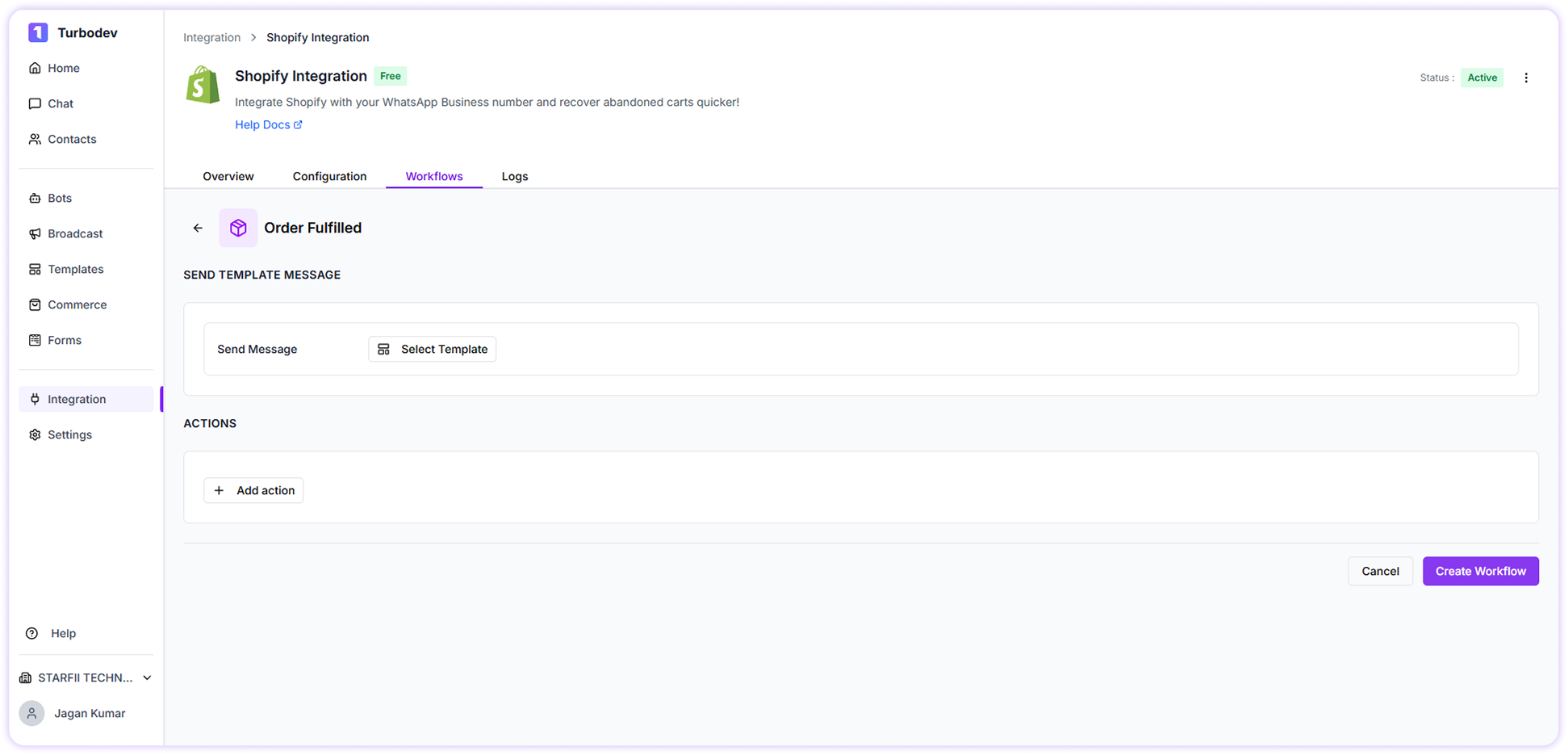 3. Select approved WhatsApp template
4. Map template variables with Shopify webhook data
5. Add actions if needed (optional)
6. Click **Create Workflow**
The message will be sent automatically after the order Fulfilled
## Order Delivered Workflow
Automatically confirm successful delivery and follow up.
### Steps to Create Workflow
1. Go to **Workflows**
2. Click **Order Delivered Workflow**
3. Select approved WhatsApp template
4. Map template variables with Shopify webhook data
5. Add actions if needed (optional)
6. Click **Create Workflow**
The message will be sent automatically after the order Fulfilled
## Order Delivered Workflow
Automatically confirm successful delivery and follow up.
### Steps to Create Workflow
1. Go to **Workflows**
2. Click **Order Delivered Workflow**
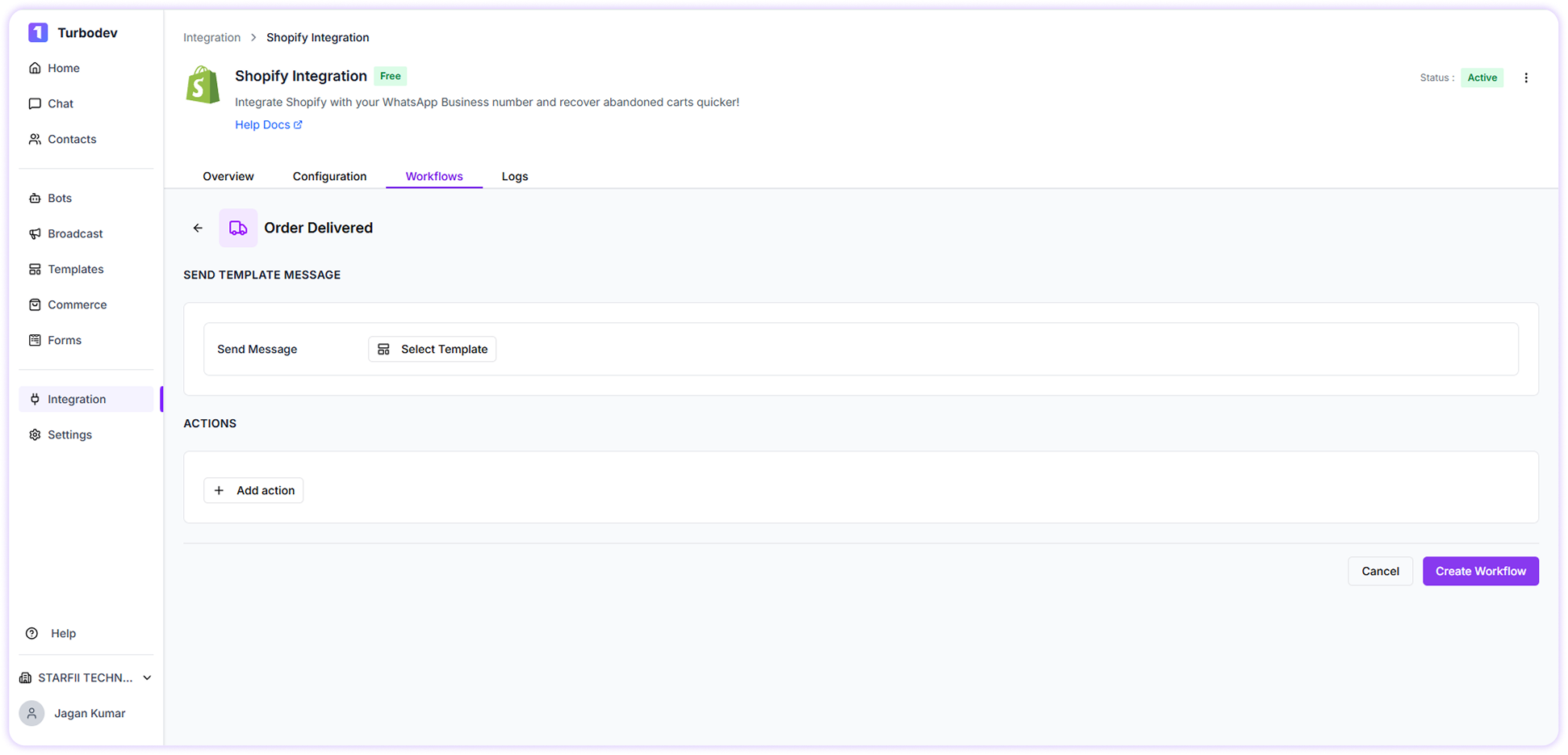 3. Select approved WhatsApp template
4. Map template variables with Shopify webhook data
5. Add actions if needed (optional)
6. Click **Create Workflow**
The message will be sent automatically after the Order Delivered
## Order Out for Delivery Workflow
Inform customers when their order is out for delivery.
### Steps to Create Workflow
1. Go to **Workflows**
2. Click **Order Out for Delivery Workflow**
3. Select approved WhatsApp template
4. Map template variables with Shopify webhook data
5. Add actions if needed (optional)
6. Click **Create Workflow**
The message will be sent automatically after the Order Delivered
## Order Out for Delivery Workflow
Inform customers when their order is out for delivery.
### Steps to Create Workflow
1. Go to **Workflows**
2. Click **Order Out for Delivery Workflow**
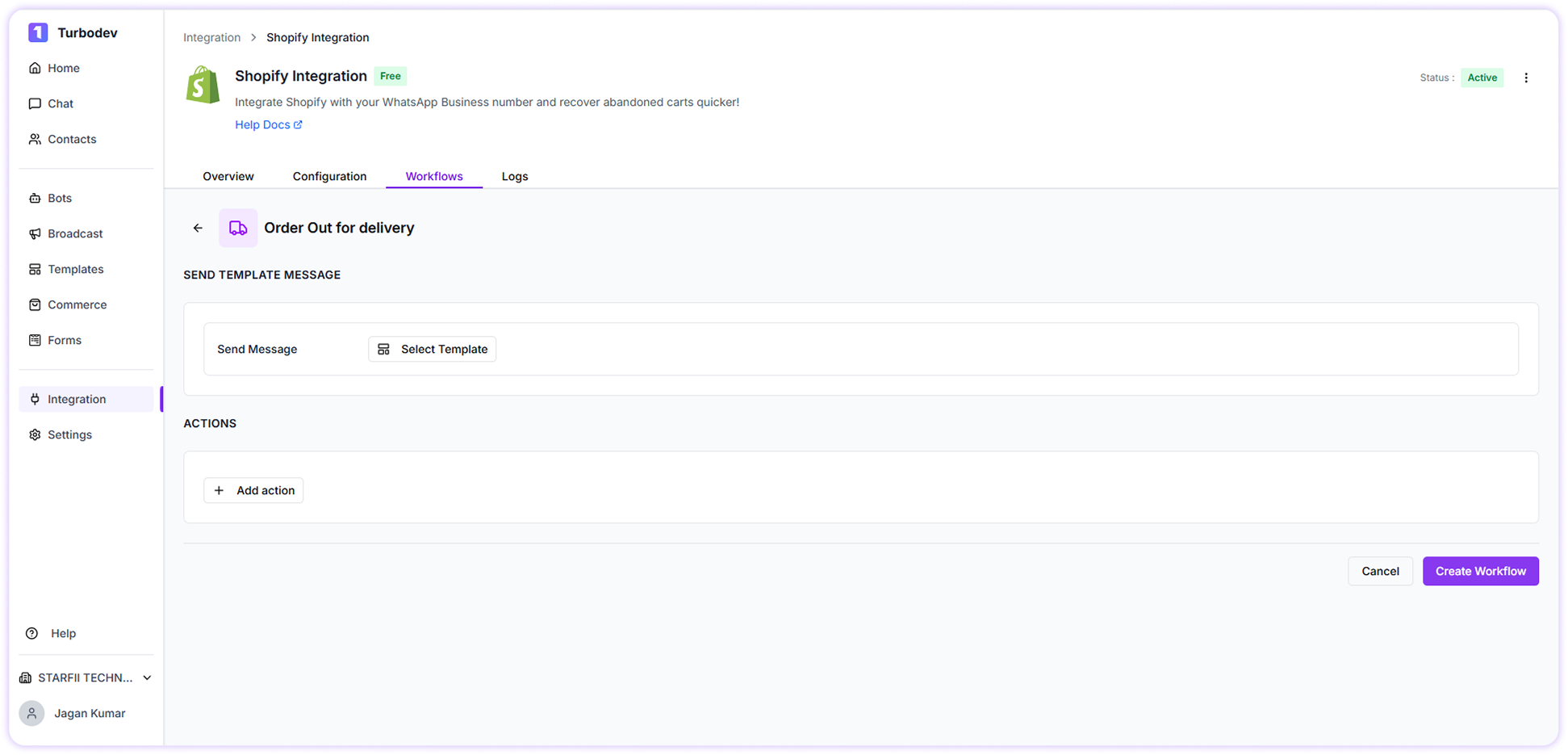 3. Select approved WhatsApp template
4. Map template variables with Shopify webhook data
5. Add actions if needed (optional)
6. Click **Create Workflow**
The message will be sent automatically after the Order Out for Delivery
## Order Cancelled Workflow
Notify customers when an order is cancelled.
### Steps to Create Workflow
1. Go to **Workflows**
2. Click **Order Cancelled Workflow**
3. Select approved WhatsApp template
4. Map template variables with Shopify webhook data
5. Add actions if needed (optional)
6. Click **Create Workflow**
The message will be sent automatically after the Order Out for Delivery
## Order Cancelled Workflow
Notify customers when an order is cancelled.
### Steps to Create Workflow
1. Go to **Workflows**
2. Click **Order Cancelled Workflow**
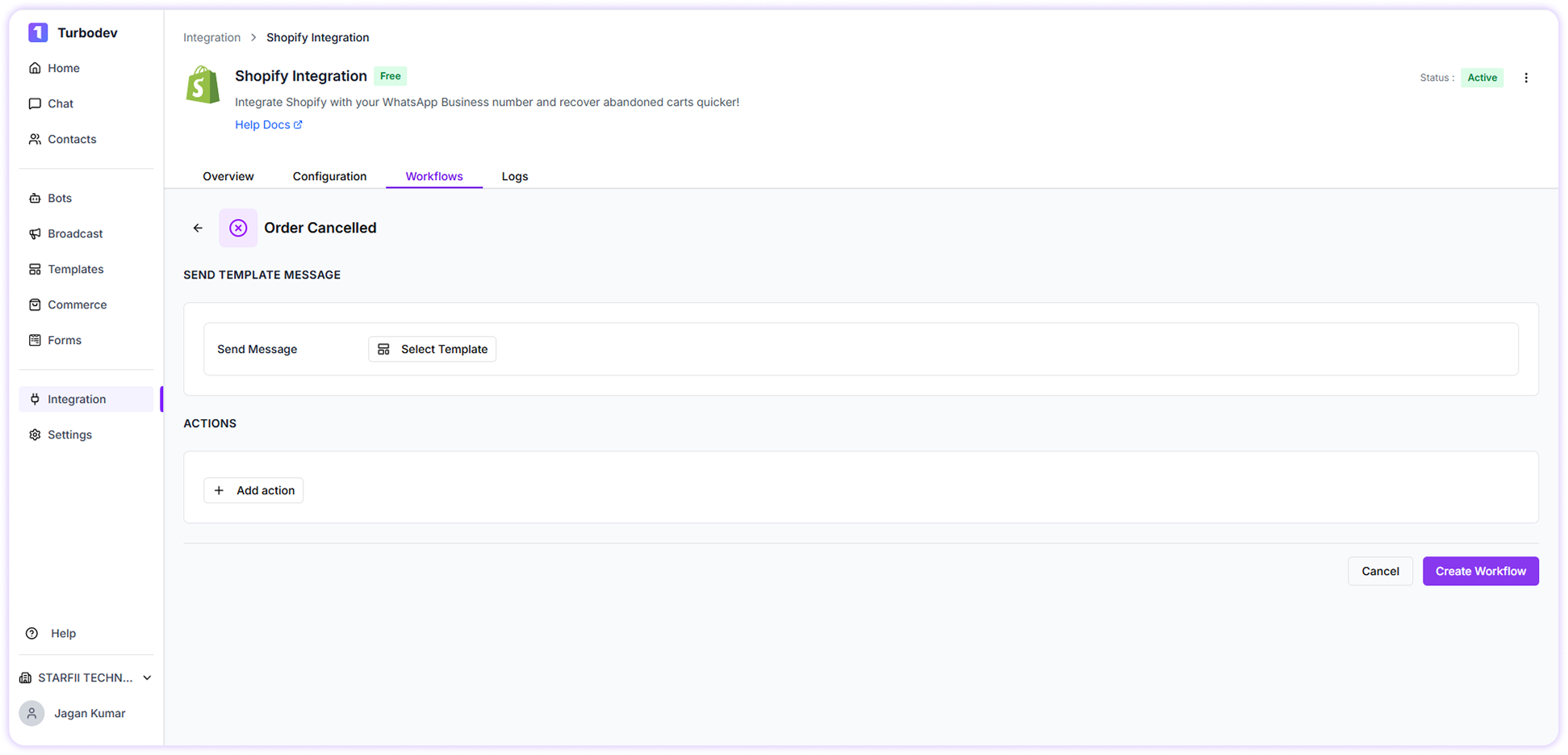 3. Select approved WhatsApp template
4. Map template variables with Shopify webhook data
5. Add actions if needed (optional)
6. Click **Create Workflow**
The message will be sent automatically after the Order Cancelled
3. Select approved WhatsApp template
4. Map template variables with Shopify webhook data
5. Add actions if needed (optional)
6. Click **Create Workflow**
The message will be sent automatically after the Order Cancelled