

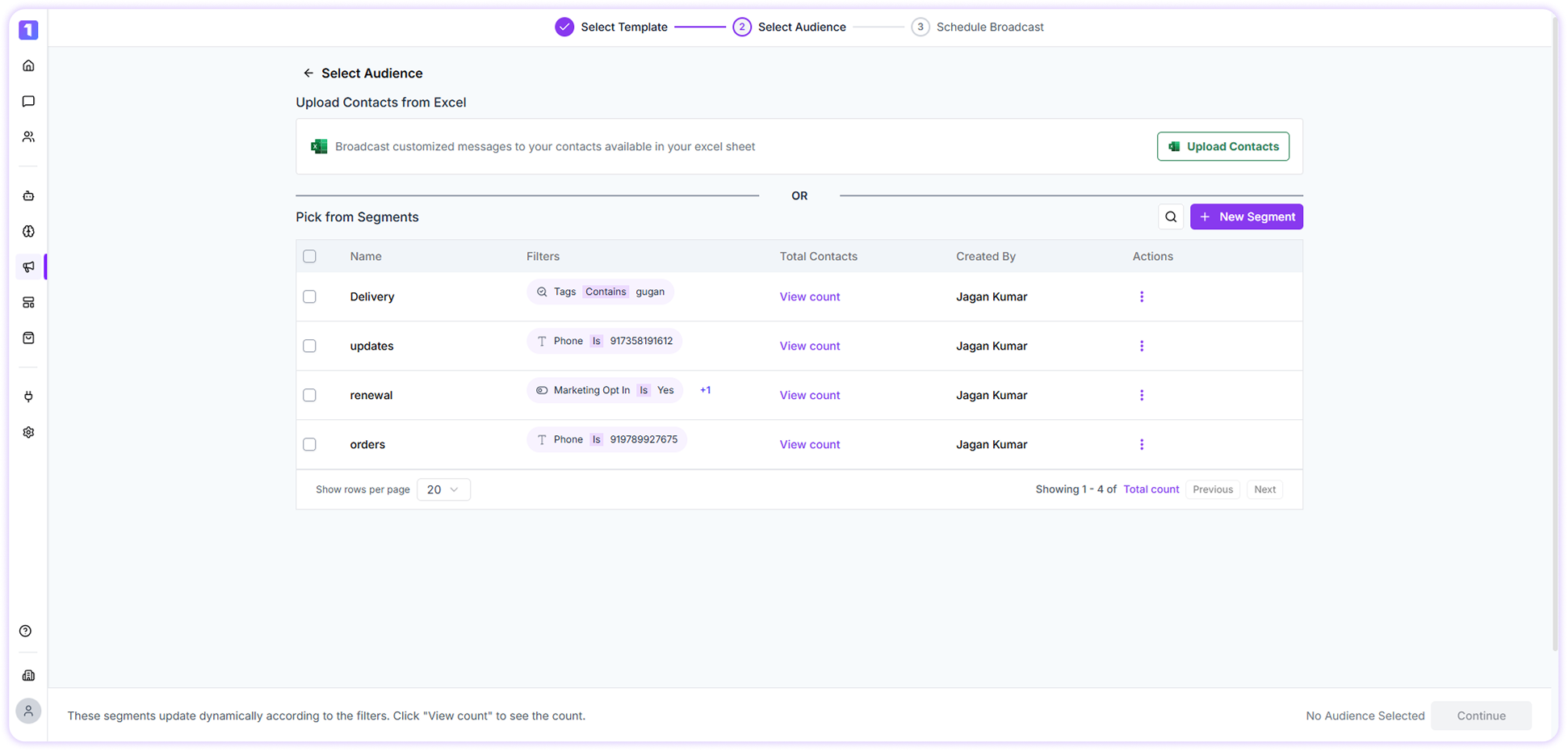
Important:Let’s look at both options in detail.
Ensure all phone numbers include the country code (for example: +91, +1, +971).
Upload Contacts from Excel
Send personalized Broadcast messages to contacts stored in an Excel file. Click on Upload Contacts to download the sample file.Use this sample as a reference and restructure your data (such as Name and Phone Number) accordingly.
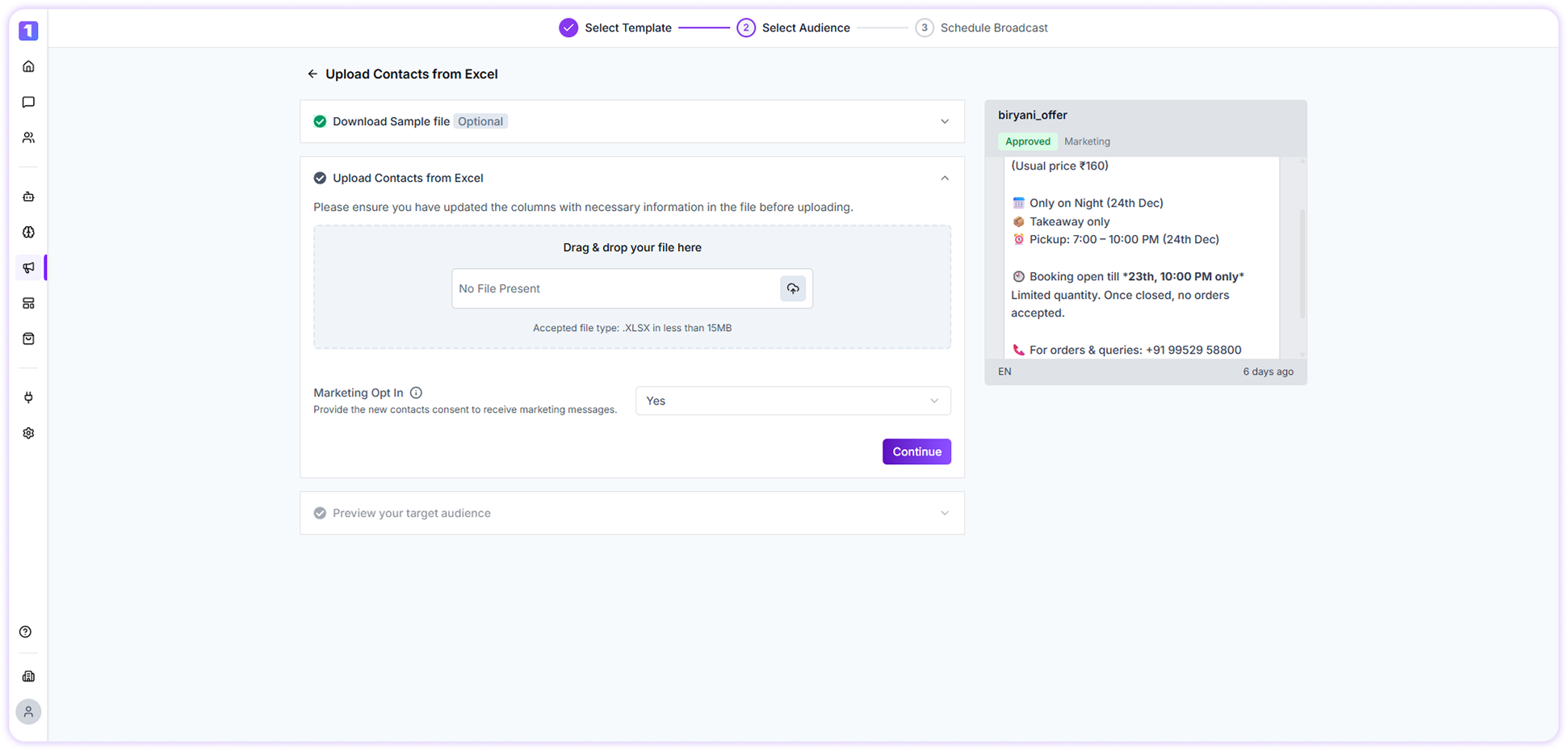
Before proceeding, set the Marketing Opt-in status and choose the phone number format. Variable & Media Mapping
If your WhatsApp Template includes pre-defined variables, you can map them to the appropriate columns in your Excel file.
Select from Contact Group
Send Broadcast messages using saved contact segment. You can either:- Create a new Contact Segment, or
- Select an existing segment
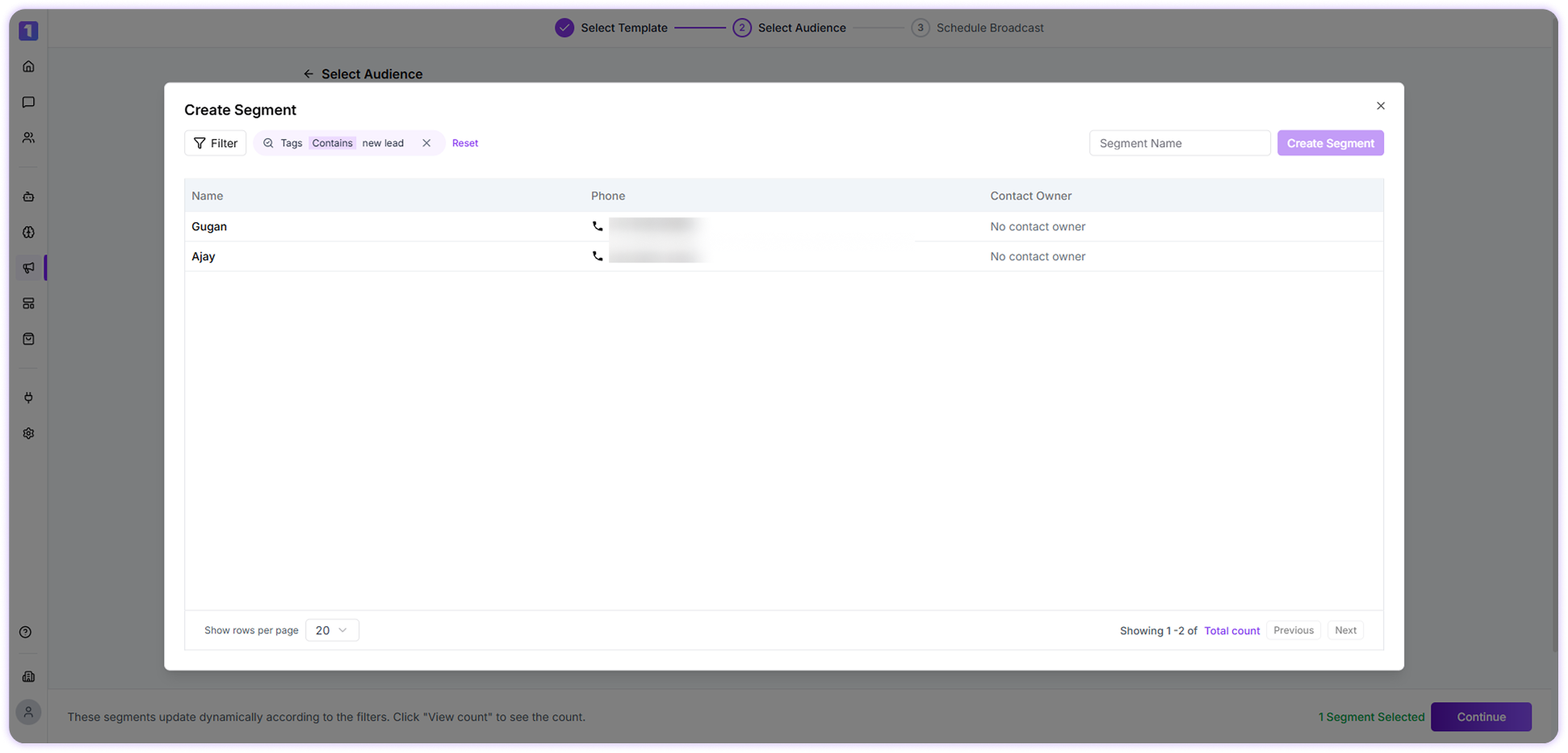
Create a New Contact Group
Click on New Segment, apply filters based on fields such as tags, email, marketing opt-in, or other available attributes, and then name the segment.Once created, contacts that match the criteria will automatically be added to the group.
Use an Existing Group
Search for and select an existing contact segment to quickly proceed.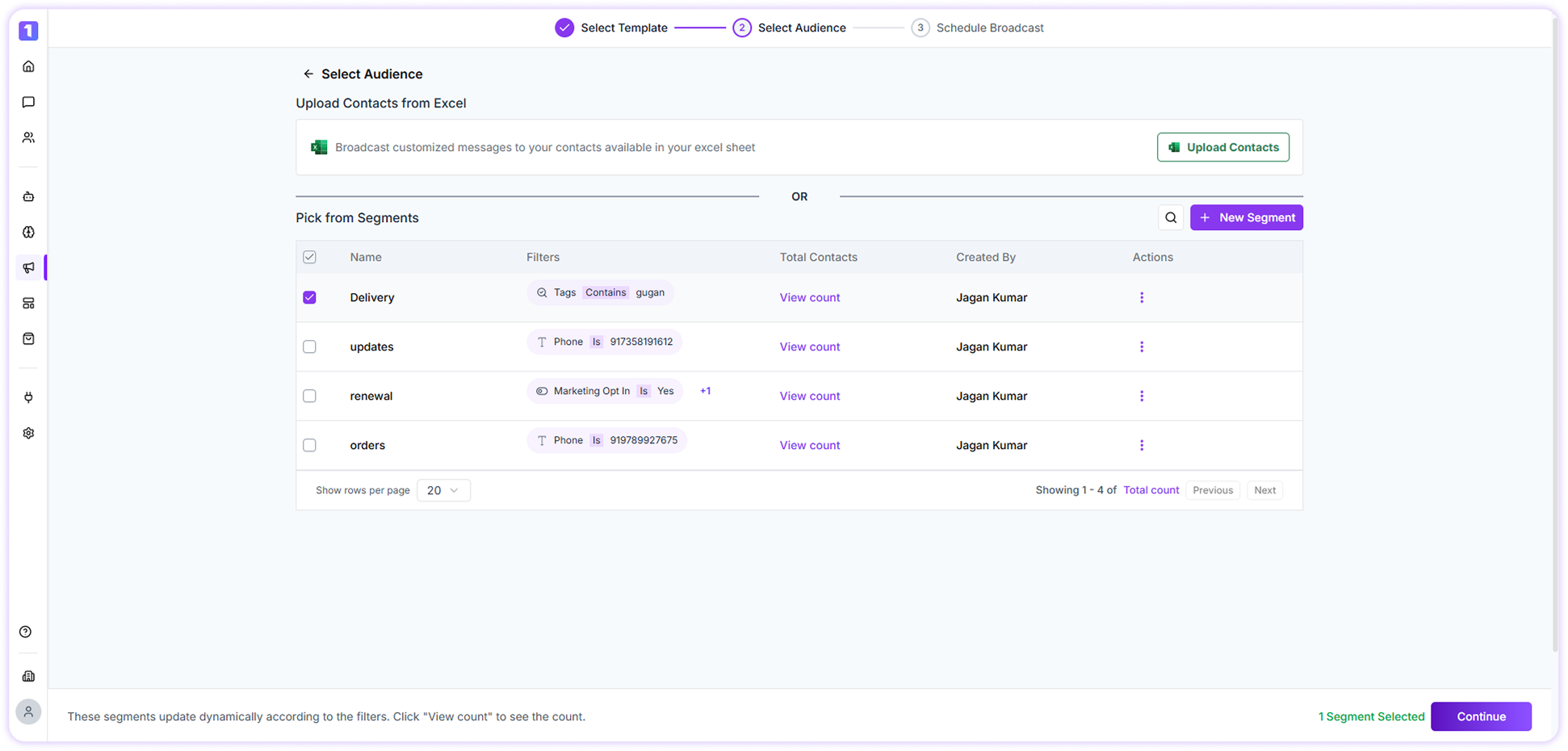
Map the Variables
After uploading contacts or selecting a contact group, preview the data and map the correct values to your template variables.
Add Button Payload
Button payloads allow you to define actions when users interact with CTA or Quick Reply buttons. Depending on your template: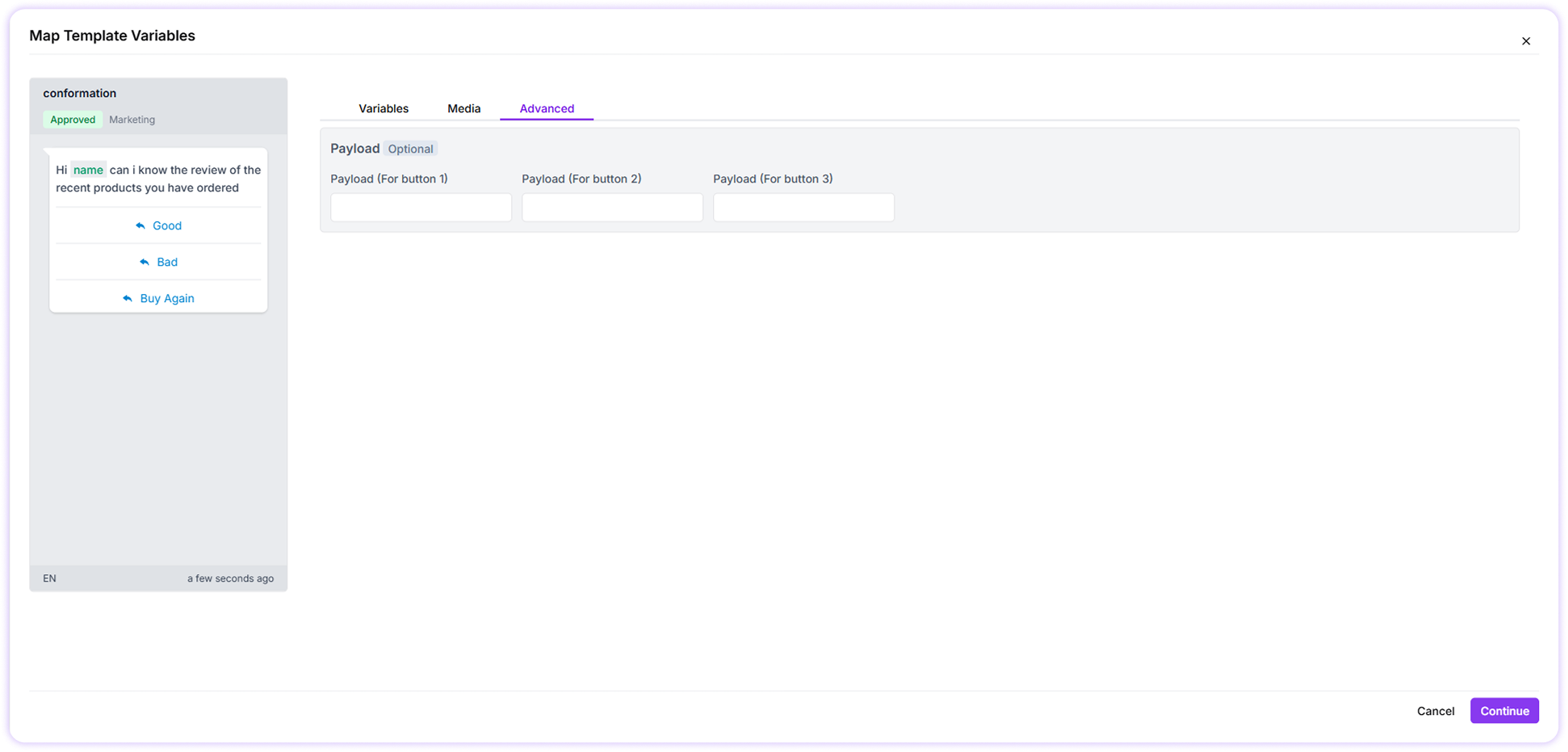
- Dynamic URL CTA buttons can include variables to generate personalized links.
- Quick Reply buttons can trigger specific bot flows by assigning an intent in the payload field.
- Map variables for dynamic content
- Add personalized URLs for CTA buttons