

What is a Generic Webhook?
A webhook is a unique URL generated by Turbodev that listens for incoming data from external platforms. When your external system sends data to the Turbodev webhook URL, Turbodev captures the data and triggers the configured workflow automatically. This allows you to automate:- Lead notifications
- Order alerts
- Appointment confirmations
- Follow-ups
- Customer communication
Step-by-Step Guide to Connect Generic Webhook in Turbodev
Follow these steps to create and connect a webhook.Step 1: Open Generic Webhooks Integration
- Log in to your Turbodev dashboard
-
Go to Integrations from the left navigation panel
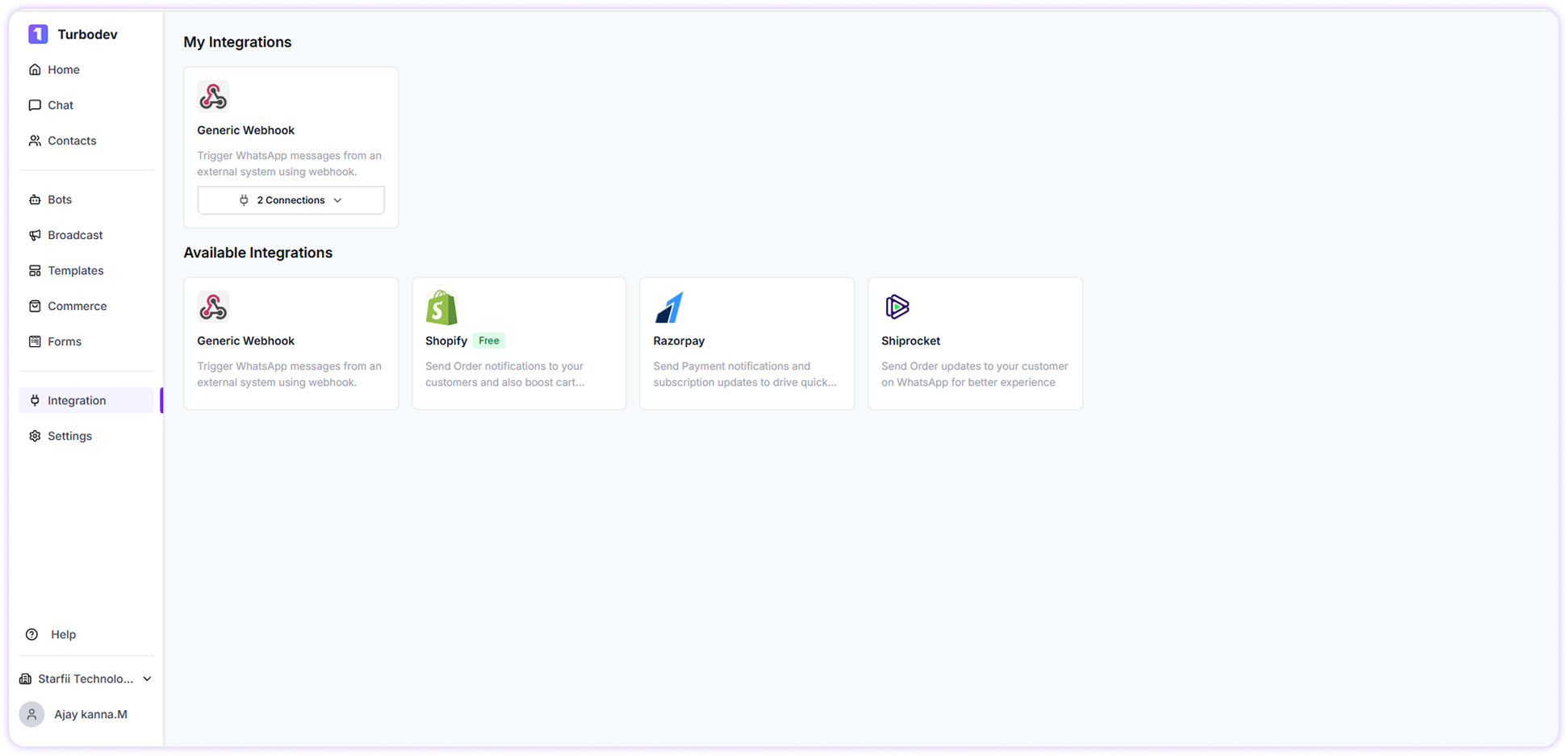
- Select Generic Webhooks
- Click Connect
Step 2: Enter Webhook Name
In the pop-up window:-
Enter a Webhook Name
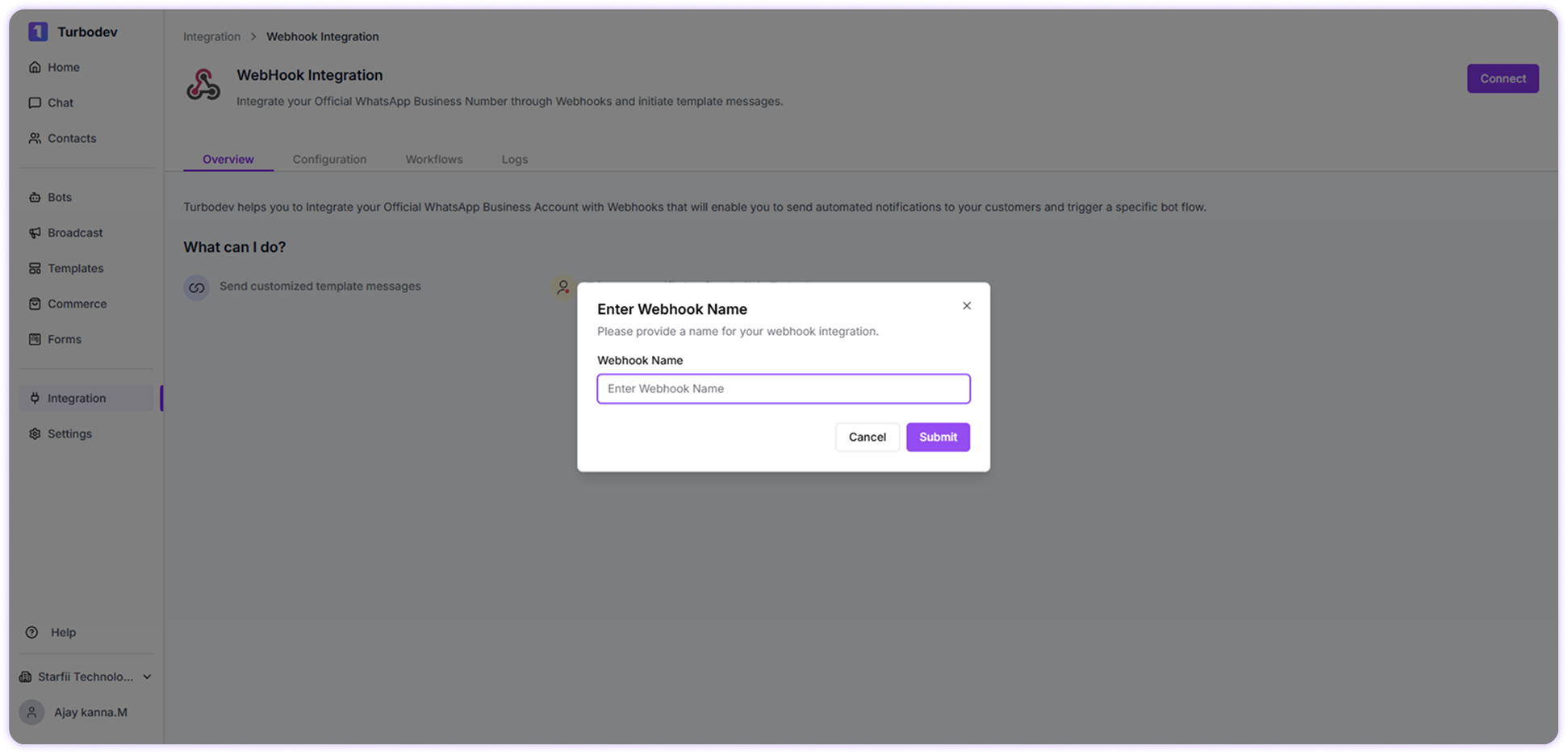
- Click Submit
Step 3: Copy Webhook URL
On the configuration page, you will see: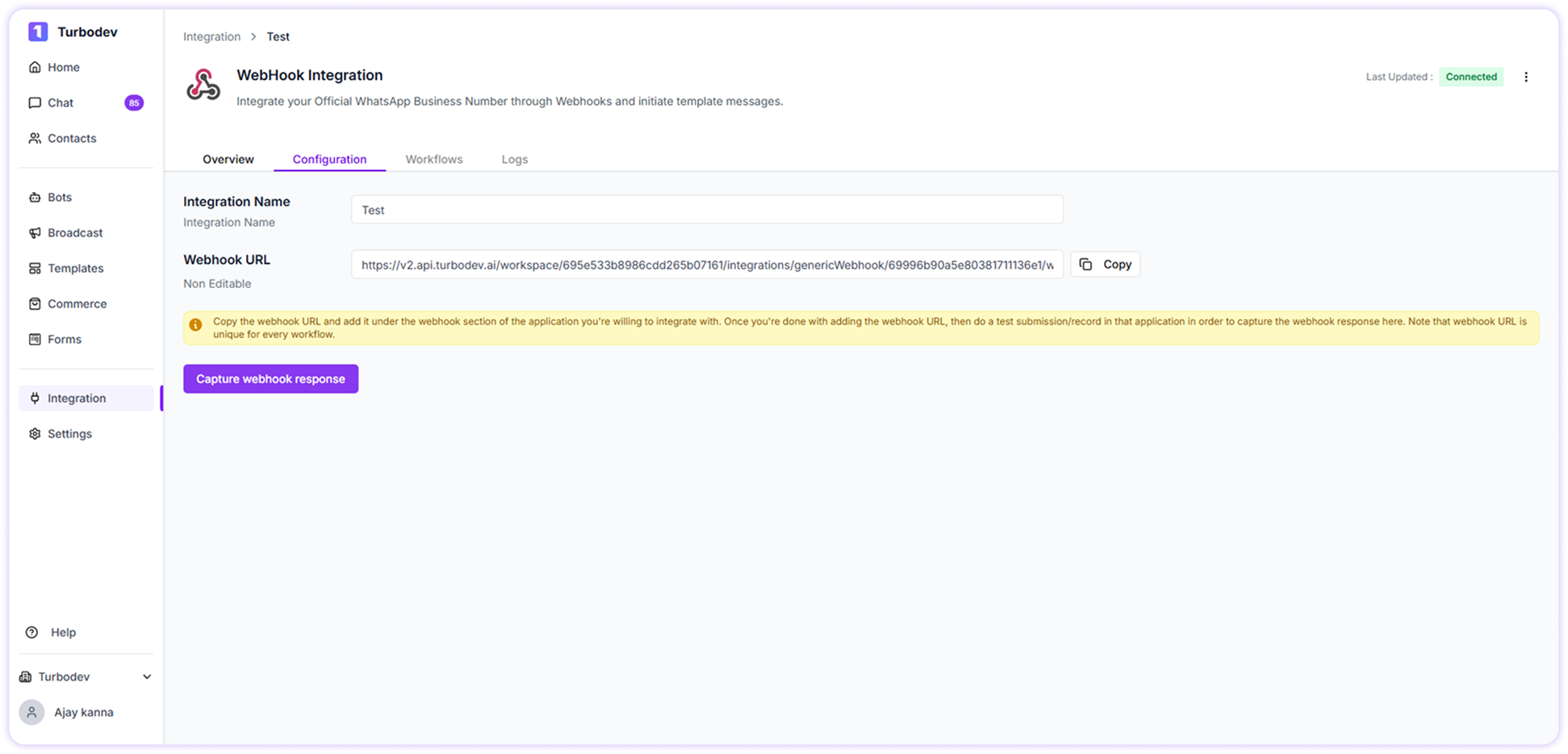
- Integration Name
- Webhook URL
- Your website backend
- CRM system
- Lead forms
- Shopify
- Custom applications
- Zapier or automation tools
Step 4: Capture Webhook Response
After adding the webhook URL to your external system:- Trigger a test event from your external platform
(example: submit a form or create a test lead) - Return to Turbodev
- Click: Capture Webhook Response
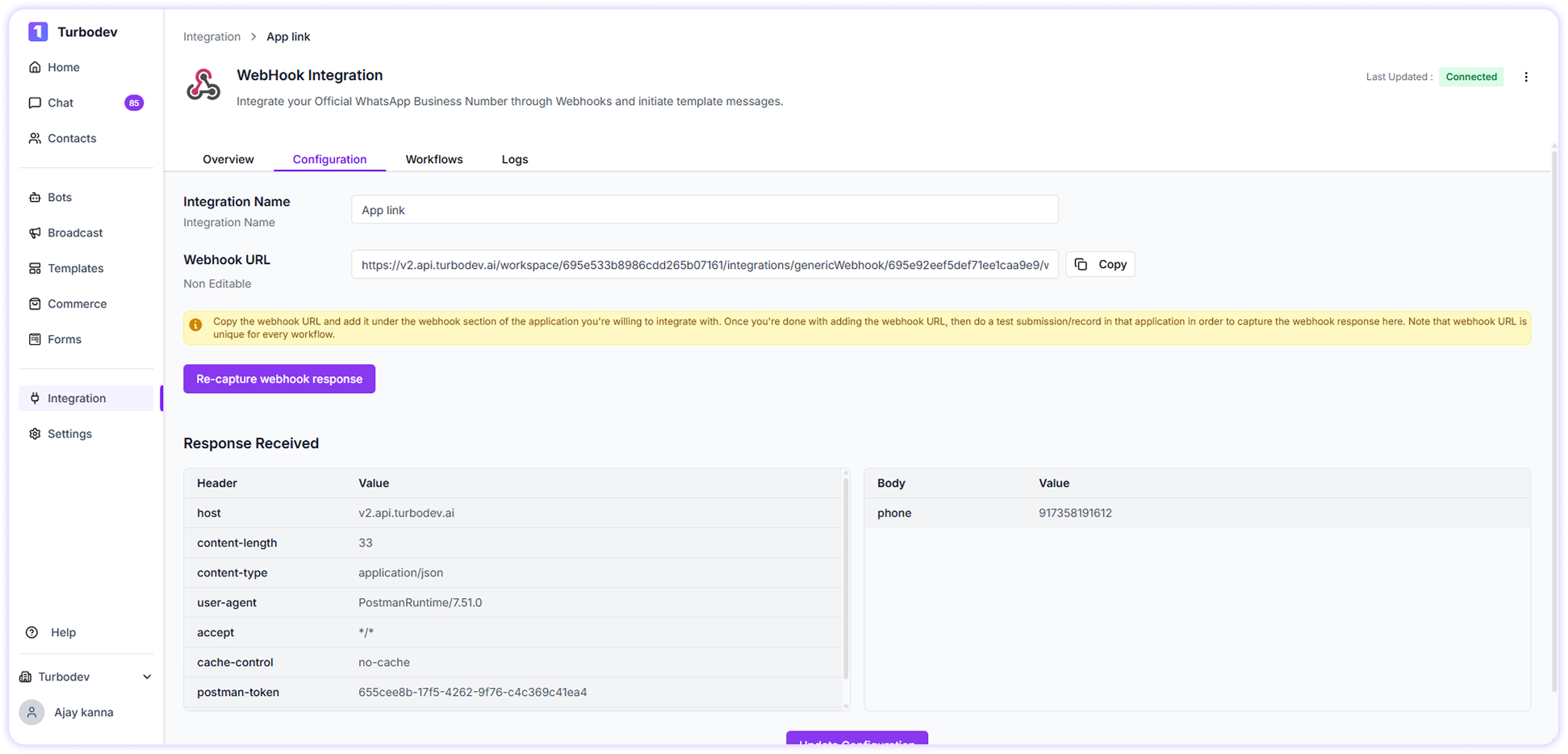
Step 5: Create Webhook Workflow
Click:Create Workflow Now configure the workflow details.Workflow Details Configuration
Enter the following:Workflow name
Enter the workflow name. Example:Recipient Name Mapping
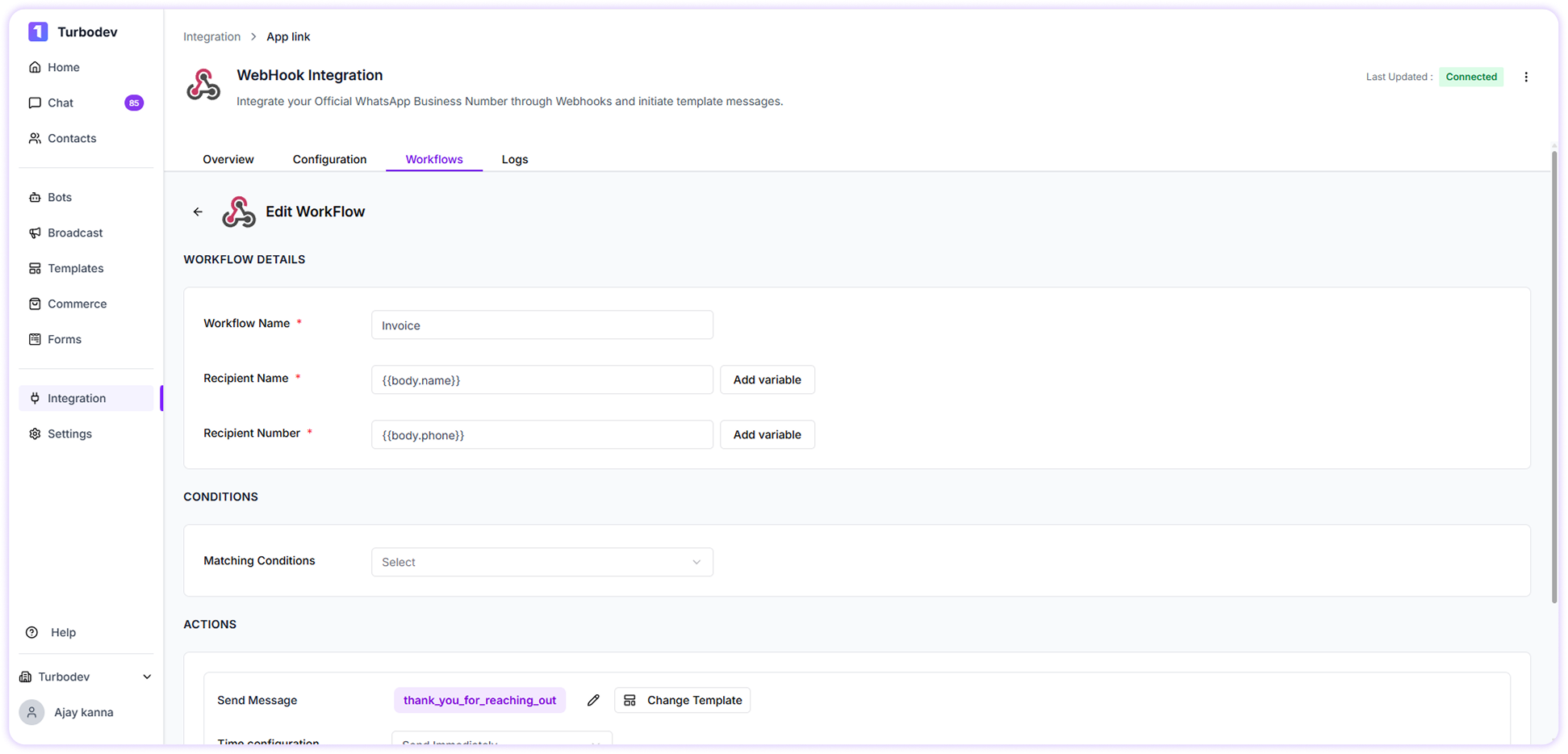
- Click Add Variable
- Select the field that contains the customer name from webhook response
- Map it as Recipient Name
Recipient Number Mapping
- Click Add Variable
- Select the field that contains the phone number
-
Map it as Recipient Number
The phone number must include the country code followed by the 10-digit mobile number, without using the ”+” symbol. Example: 917358XXXXXX
Step 6: Add Conditions (Optional)
TurboDev allows you to add conditions before sending messages.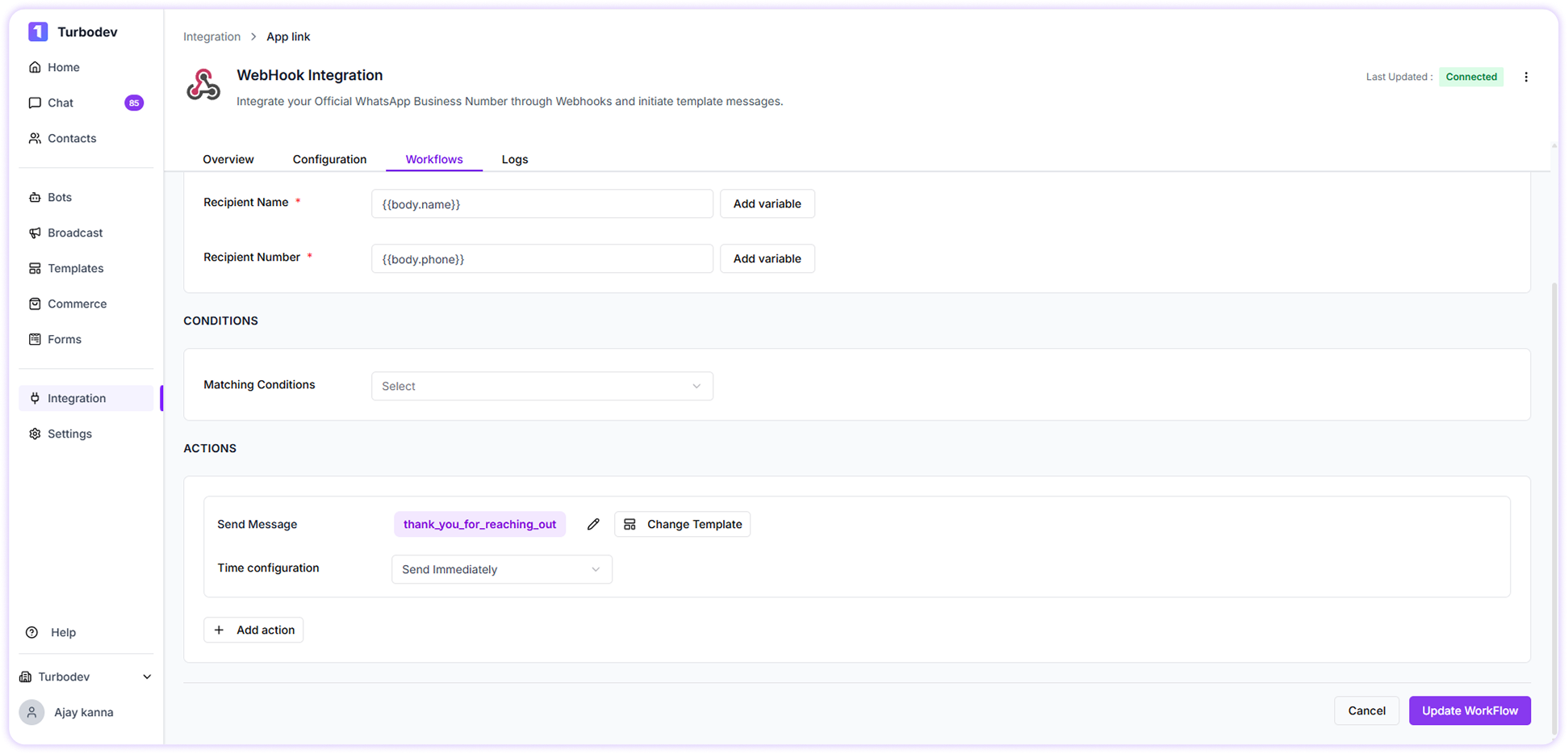
Step 7: Add Action – Send WhatsApp Message
Click: Add Action Select: Send WhatsApp Message Now:-
Click Select Template
- Choose a WhatsApp template that is already approved by Meta
- Confirm template selection
Hi name, thank you for your interest. Our team will contact you shortly.
Step 8: Create and Activate Workflow
Click: Update Workflow Your webhook workflow is now active. TurboDev will automatically send WhatsApp messages whenever webhook data is received.How the Webhook Workflow Works
Workflow process:- External system sends data to Turbodev webhook URL
- TurboDev captures the data
- Workflow is triggered automatically
- WhatsApp message is sent to the mapped phone number
- Message delivery status is tracked in TurboDev
How to Check Webhook and Message Status
You can monitor webhook activity and message delivery. Go to: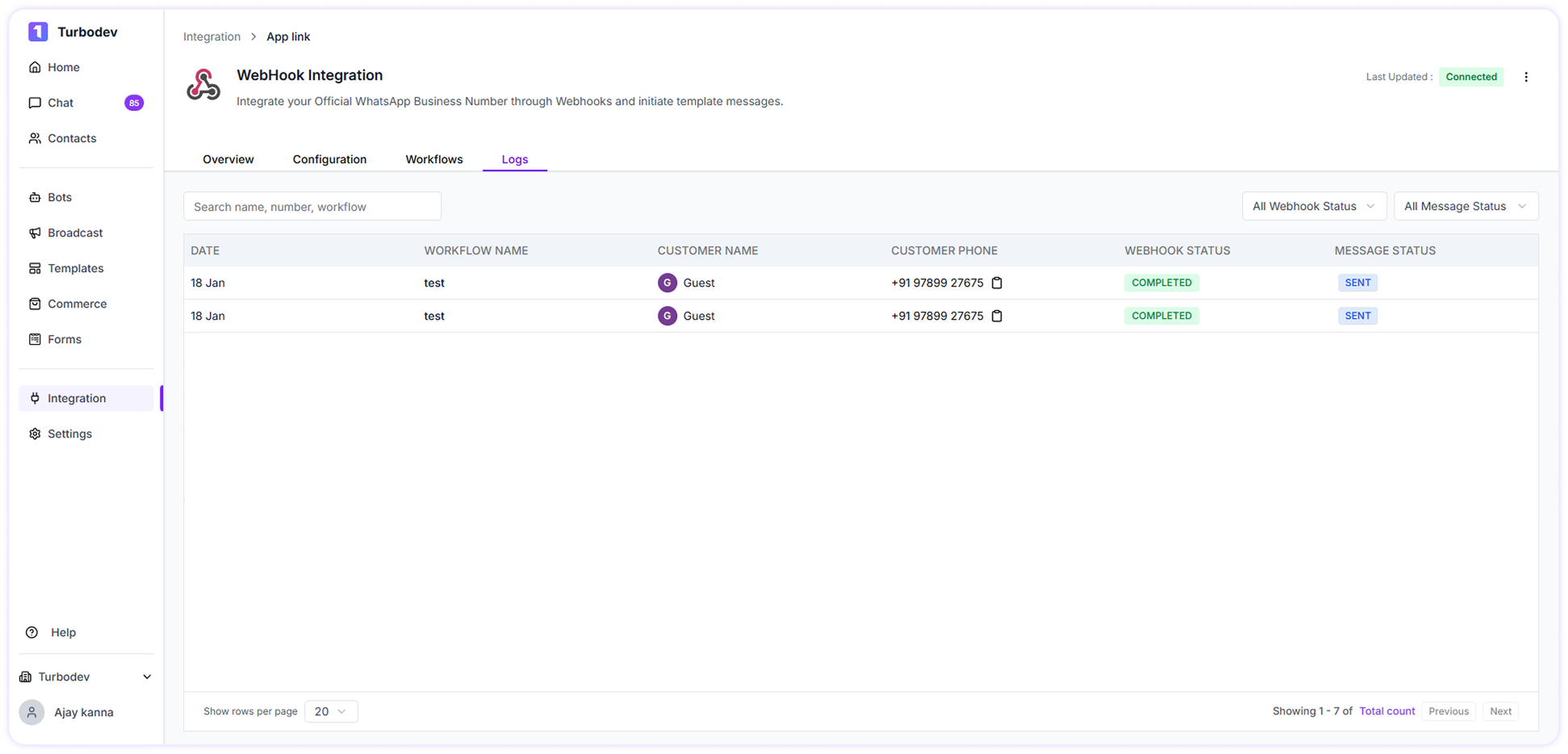
- Webhook Logs → Check webhook response status
- Message Logs → Check message sent, delivered, or failed status