Centralized Conversation Management
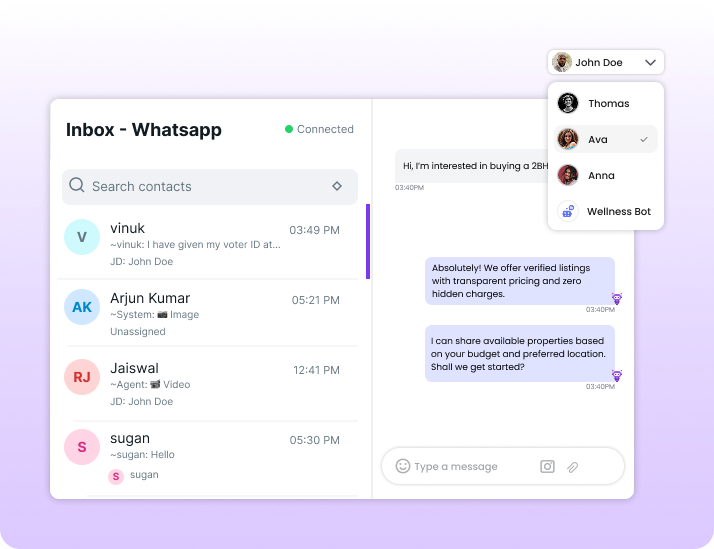
All incoming WhatsApp conversations are visible in one shared inbox. Conversations can be assigned or unassigned to specific team members or handled by chatbots, ensuring no message is missed and responses stay organized.Assign & Reassign Conversations
With Turbodev’s Team Inbox, conversations can be seamlessly managed between chatbots and human agents.- Assign conversations to specific agents
- Route chats to chatbots based on workflows or triggers
- Unassign or reassign conversations whenever needed
- Hand over chats from bot to human (or between agents) without losing context
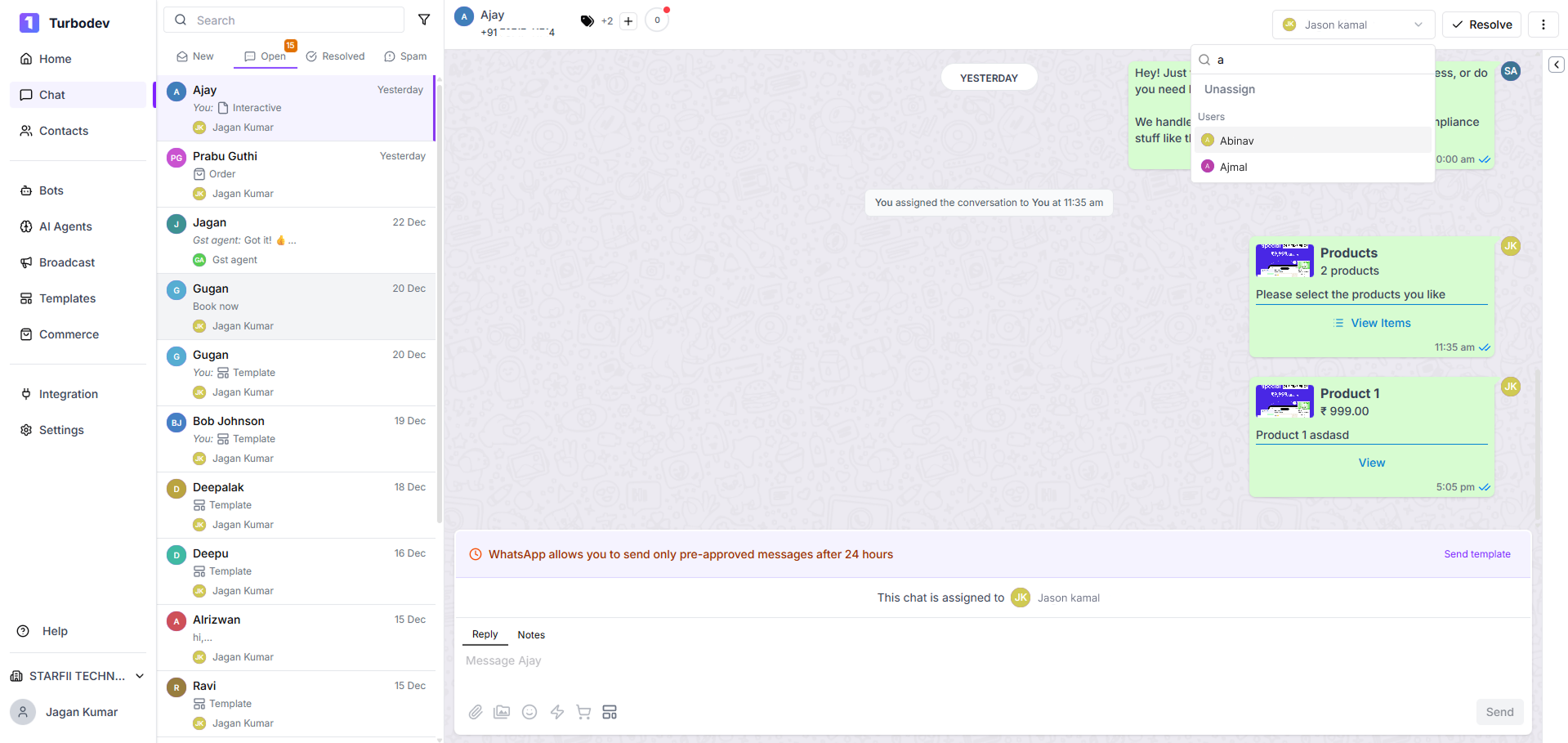
Assign a Conversation to a Bot
Conversations can also be assigned to a chatbot to handle:- Initial enquiries
- Frequently asked questions
- Automated follow-ups or predefined flows
Internal Notes & Collaboration
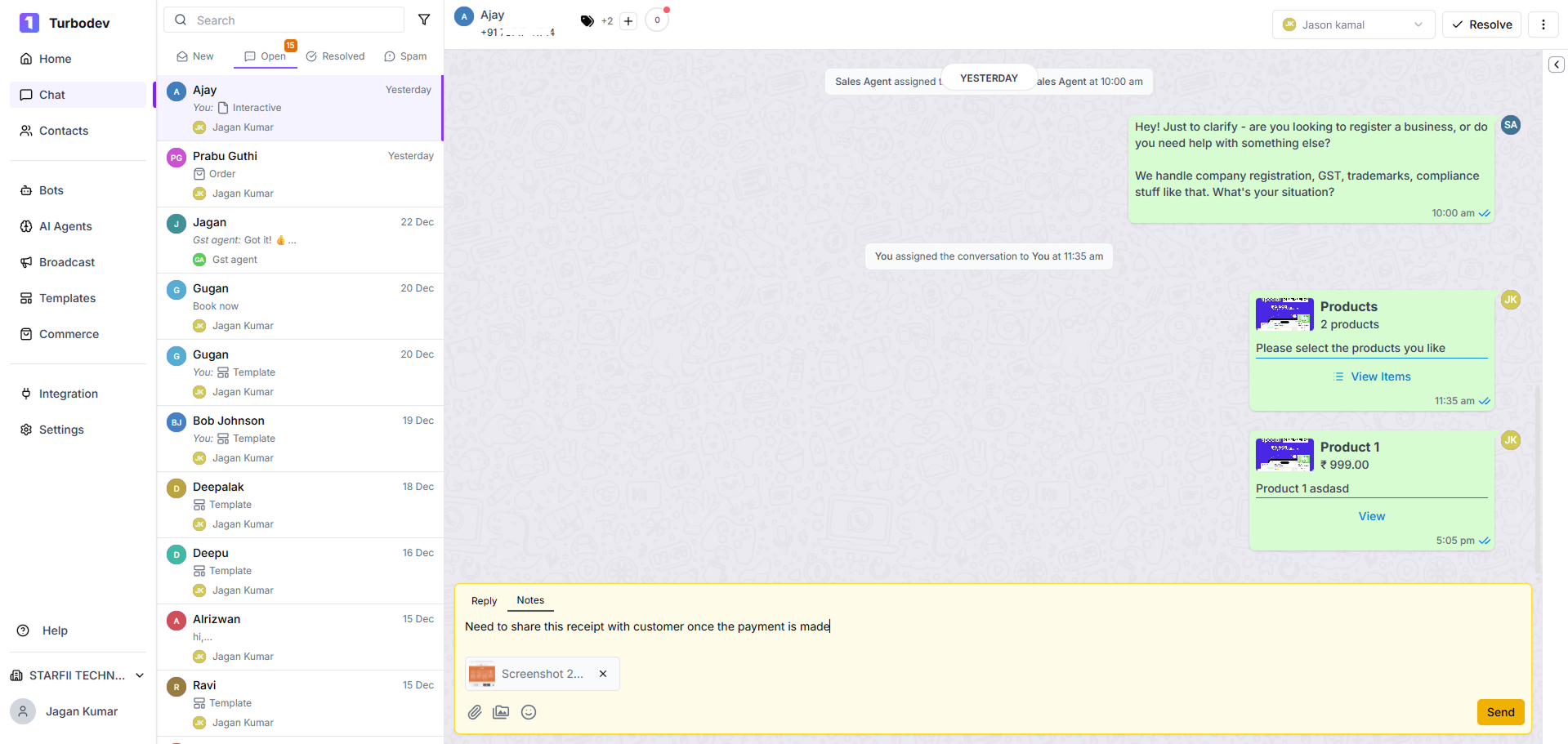
Team members can add private internal notes within a conversation, such as:- Text notes
- Documents
- Images
- Audio files
Follow-Up Reminders
Turbodev allows you to set follow-up reminders on any conversation so that no customer enquiry is missed. Once a reminder is set, the assigned team member is notified at the scheduled time, helping them take timely action. This ensures pending conversations are tracked properly, responses are prioritized, and important follow-ups never slip through.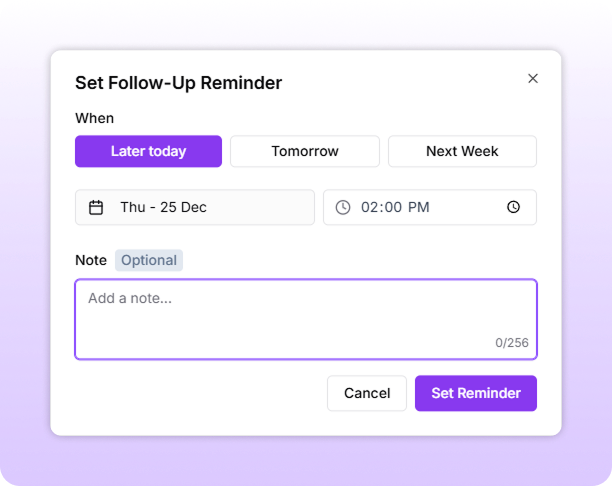
Why Manage Inbox Matters
Turbodev’s Manage Inbox helps teams collaborate smoothly while maintaining complete conversation context at all times. It enables efficient workload distribution, keeps conversations organized, and allows teams to combine automation with human support effortlessly. As your team grows, every interaction remains structured, actionable, and easy to manage from a single shared inbox.Conversation Window Session
Turbodev clearly shows the active WhatsApp 24-hour conversation session timer for each chat, helping agents understand when they can freely reply without using a template. You can also visually track the session window for conversations assigned to you through indicators on the contact, ensuring timely responses and better compliance with WhatsApp policies.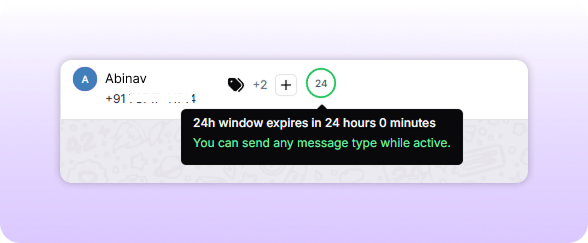
Conversation Tags
Conversation tags in Turbodev help teams organize and manage chats efficiently by categorizing them based on status, priority, or topic. Agents can create tags in advance or instantly add new tags while chatting, making it easy to filter, search, and track conversations. Tags remain linked to the current conversation session.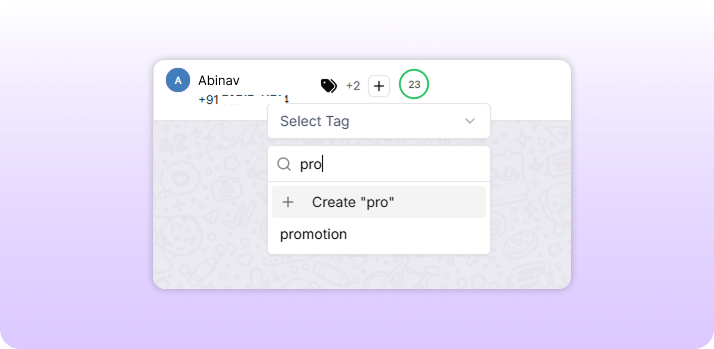
Block & Unblock Contacts
Turbodev allows agents to block contacts directly from the conversation view when required. Once a contact is blocked, no messages can be sent or received. If communication needs to be resumed, the contact can be unblocked instantly from the same menu, allowing messaging to continue without losing history.Resolve Conversations
Once a customer query is addressed, agents can mark the conversation as resolved to keep the inbox clean and organized. Conversations can be resolved by both human agents and bots based on the workflow. If further action is needed later, the agent can manually reopen the conversation at any time.Bulk Actions
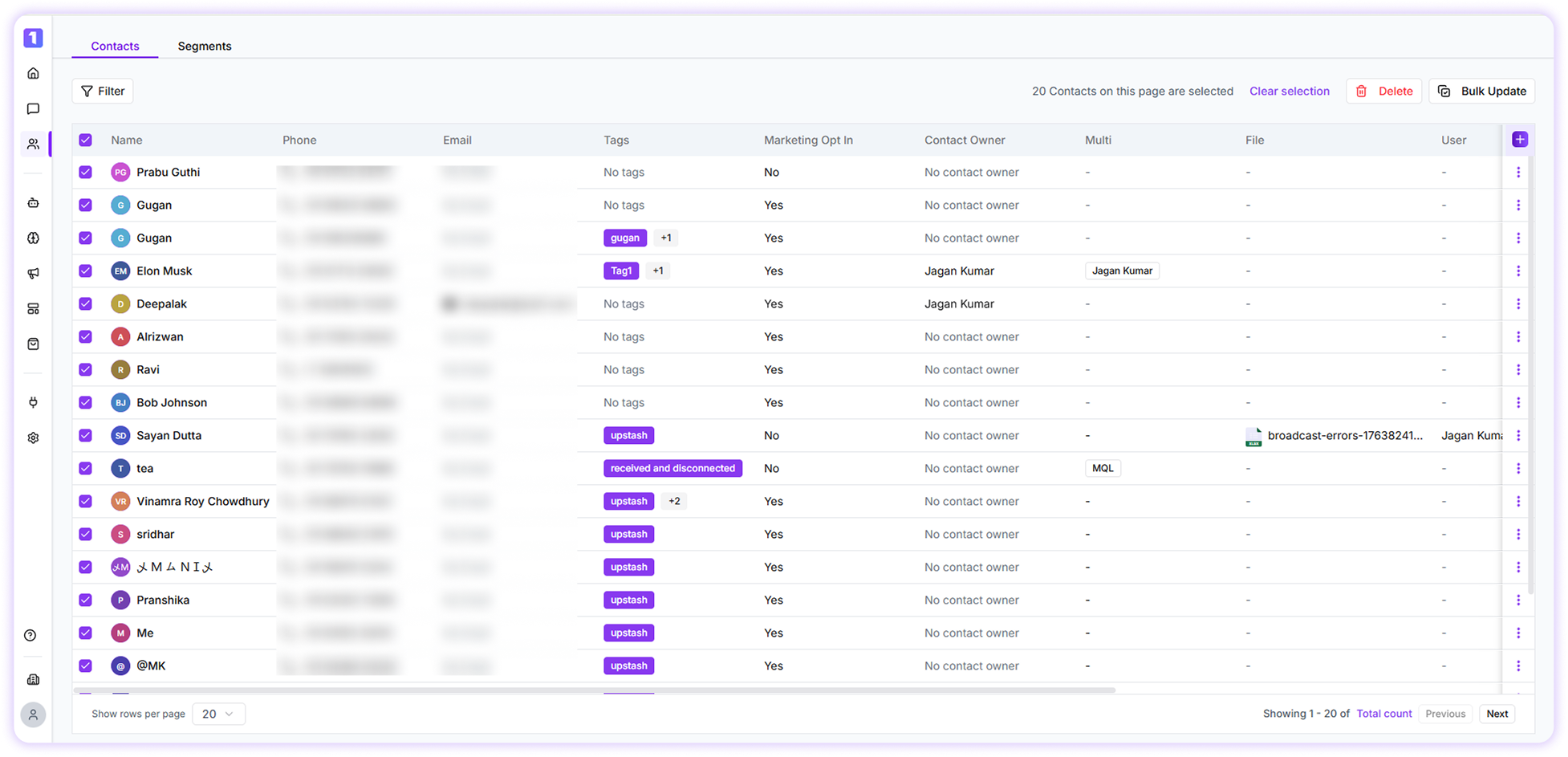
Turbodev allows agents to perform bulk updates on multiple conversations from the table view. The following bulk actions are currently supported:- Add tags
- Remove tags
- Add contact owner
- Remove contact owner
- Update marketing opt-in status