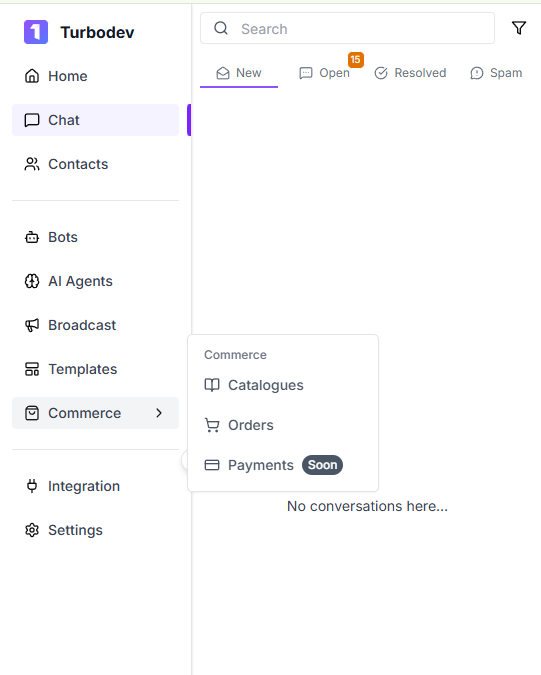
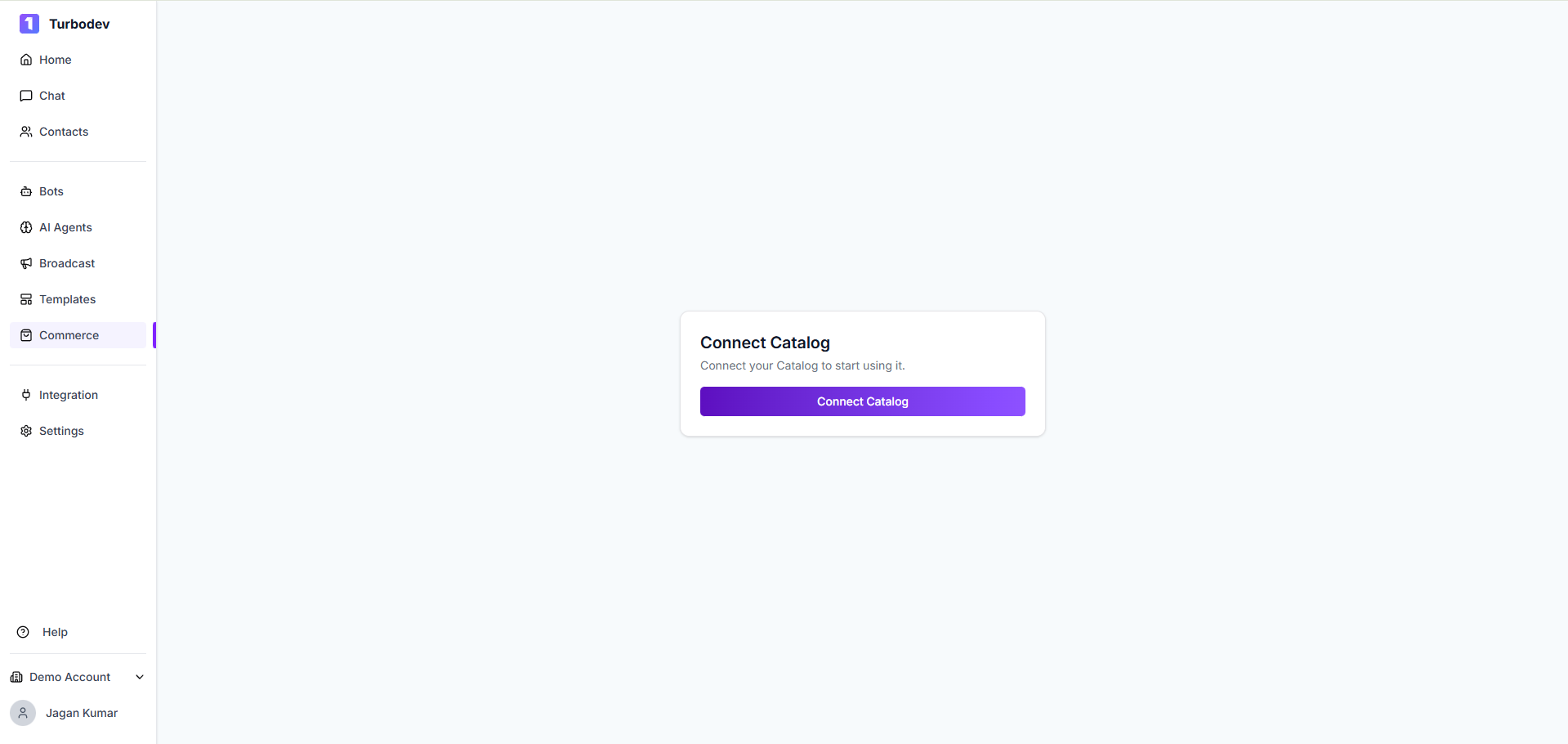
Integration Steps Step 1: Access Catalog Settings Download From the left navigation menu in Turbodev, click on Commerce. Under Commerce, select Catalogs. Step 2: Connect with Facebook Connect Catalog A Facebook authentication popup will appear. Select the WhatsApp Business Account you want to link with your Catalog. Click Next to proceed. Step 3: Grant Business Manager Permissions Authorize Turbodev to manage your Facebook Business Manager by granting the requested permissions. Important: Ensure you have admin permissions for your Facebook Business Manager before proceeding. Step 4: Authorize Catalog Access Provide Turbodev with permissions to:
  • Manage your Business
  • Access your Account
  • Manage your Product Catalog
Click Done to complete the authorization. Connection Complete! Your Facebook Catalog is now successfully connected with Turbodev. Simple, right? Once connected, you’ll be able to view all your products and collections from your Catalog directly within Turbodev. You can now showcase products in customer chats and streamline the ordering process.