Follow the steps below:
To begin the process, click on the “Connect Whatsapp” button to start linking your WhatsApp Channel with Turbodev.Connection Steps
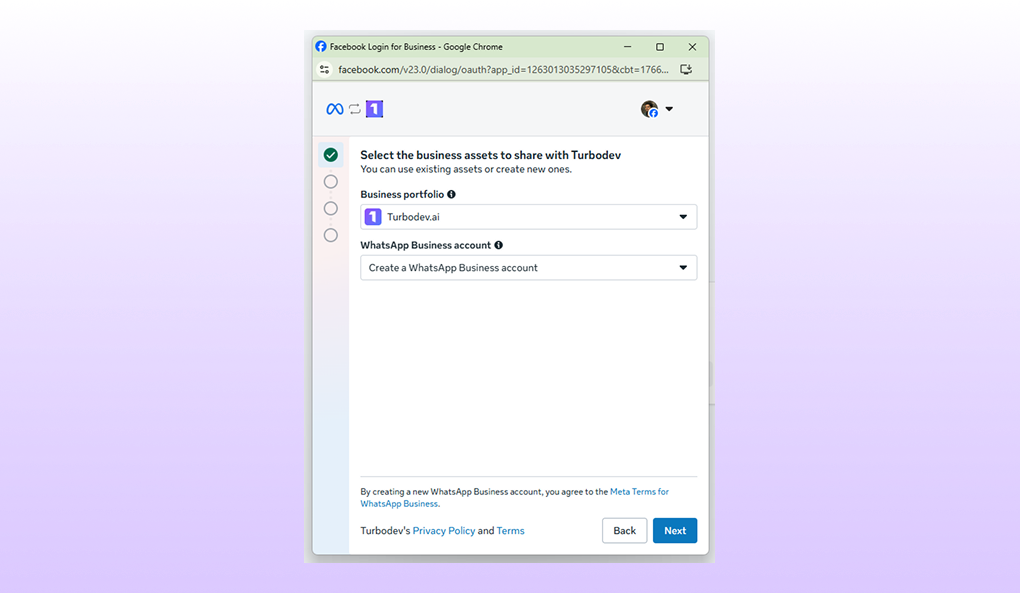
Step 1: Select Business Assets to Share with Turbodev
Choose which business assets you want to use with Turbodev. You can either use existing assets or create new ones.- Business Portfolio: Select your existing Business Portfolio from the dropdown, If you’re new, create a new WhatsApp Business Account
- WhatsApp Business Account: Choose an existing account or create a new WhatsApp Business Account
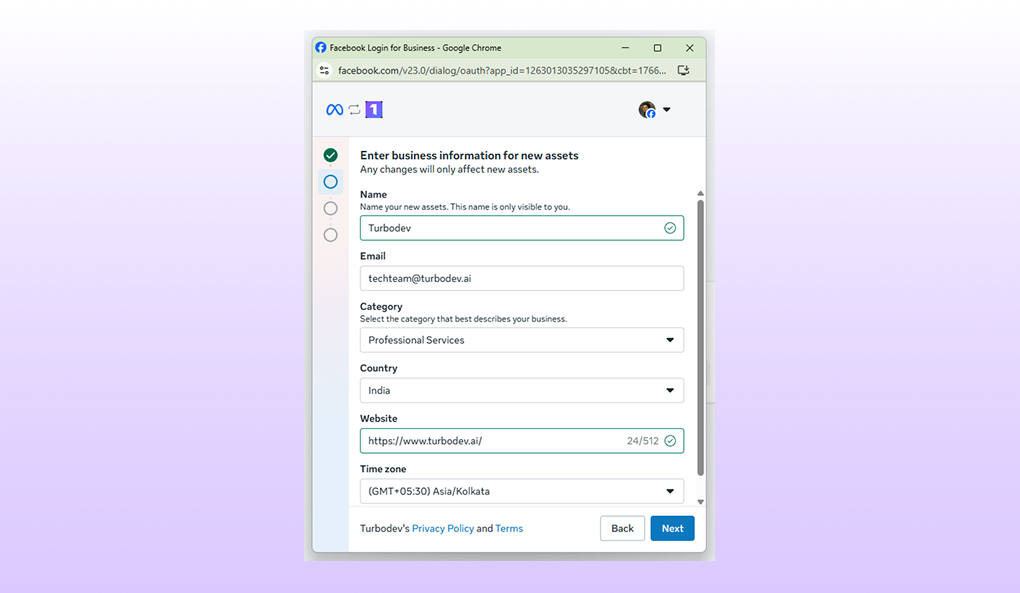
Step 2: Enter Your Business Information
- If you already have a WhatsApp Business Account, select it from the list
- If you’re new, create a new WhatsApp Business Account
Step 3: Set Up Your WhatsApp Business Profile
Create your WhatsApp Business profile with information that will be visible to your customers when they view your business profile on WhatsApp.Step 4: Add and Verify Your Phone Number
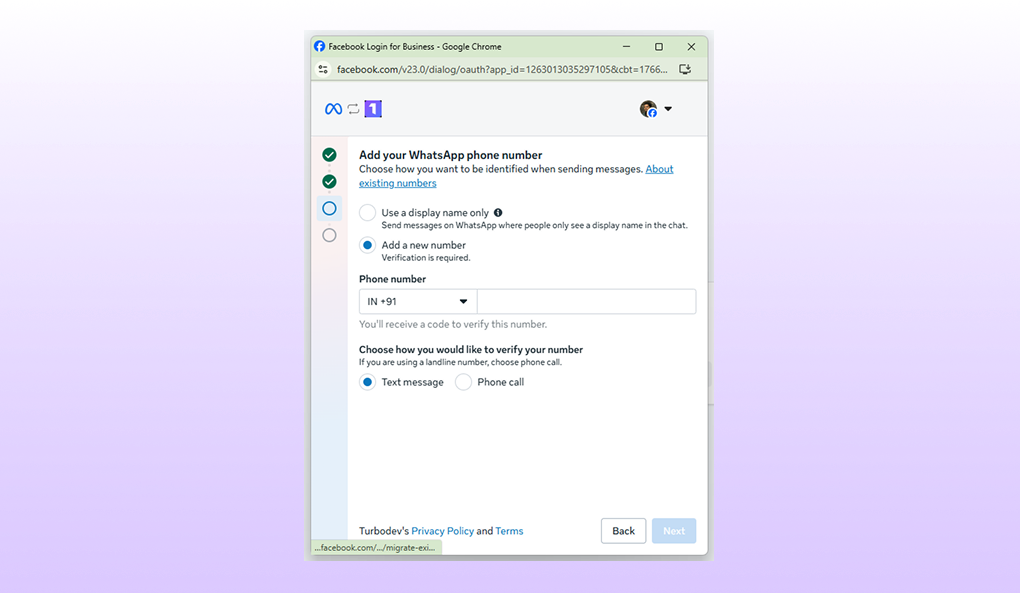
- Enter the mobile number you want to connect
- Verify the number using the one-time password (OTP) sent to that number