Facebook Product Catalog
Think of your Facebook Product Catalog as your digital storefront. It holds all the product information images, prices, descriptions, and availability that customers see when browsing products on WhatsApp. Before selling products through WhatsApp, you need to create and populate your catalog with accurate product details.Create Your First Catalog
Before You Begin
Make sure you have the following:- A Facebook Page for your business
- A Business Manager account with full control
- Permission to create and manage catalogs under your business
Steps to Create a Catalog
-
Go to Meta Commerce Manager
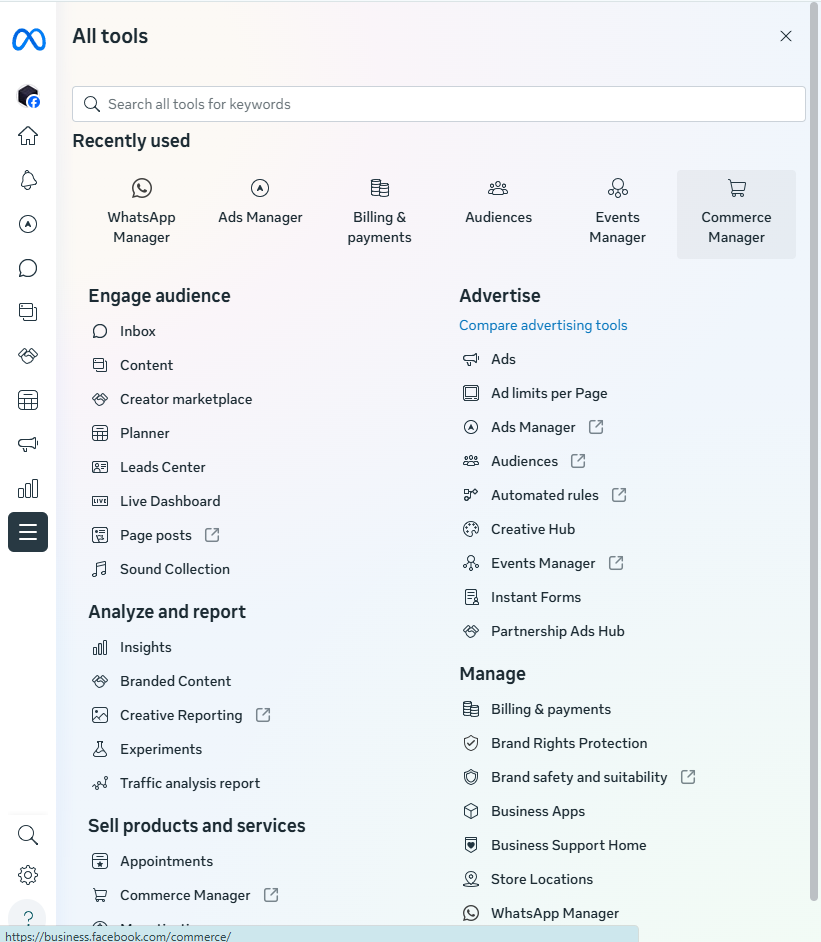
- Click Get Started
- Select Create a Catalog and proceed
Choose Your Catalog Type
Select the catalog type that best fits your business: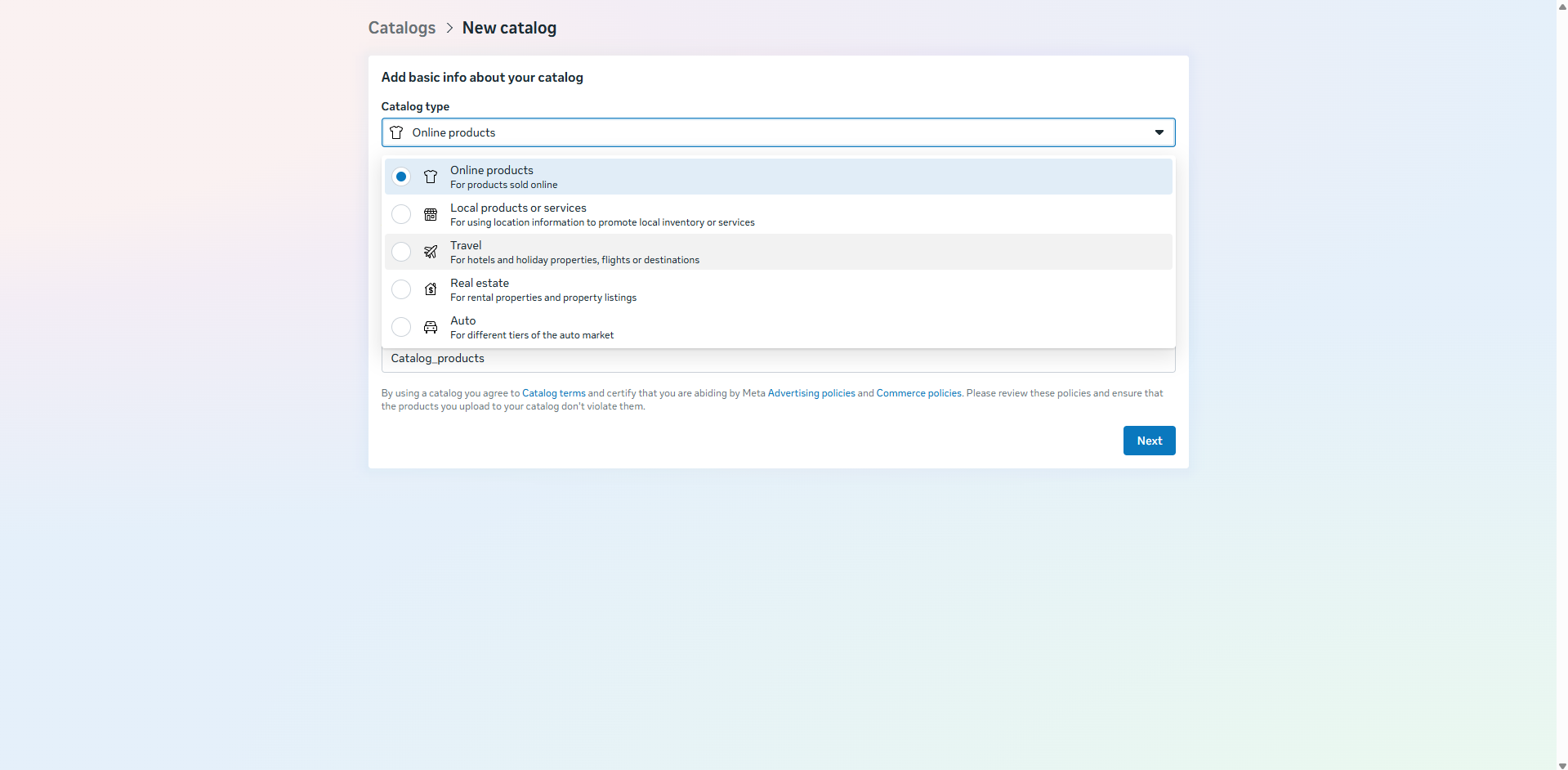
- E-commerce
Ideal for selling physical products such as clothing, electronics, accessories, furniture, and more. - Travel
Suitable for hotels, holiday packages, flights, or travel destinations. - Property
Best for rental listings and real estate businesses. - Auto
Designed for automotive listings and vehicle-related businesses.
Configure Your Catalog
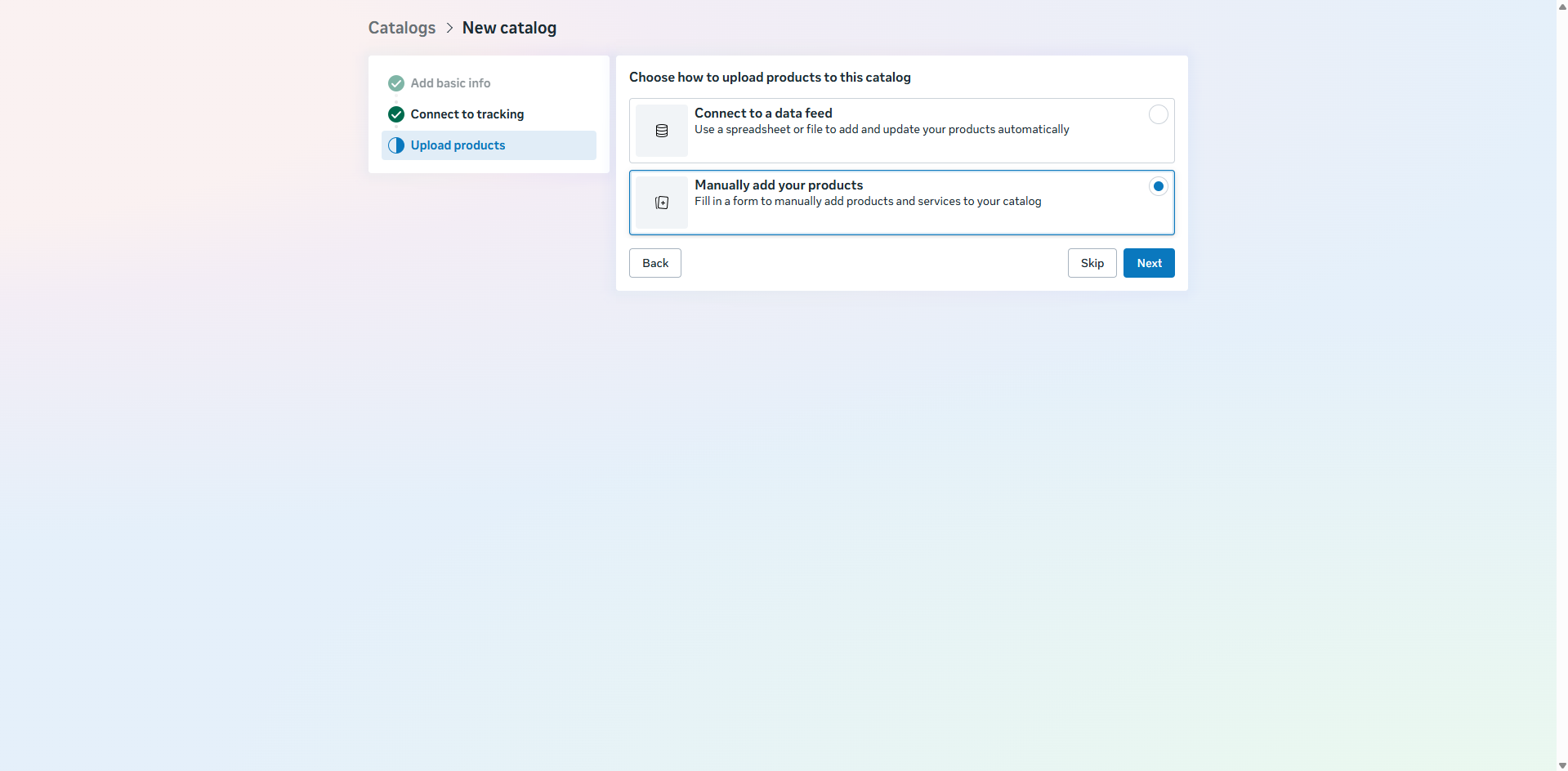
Next, choose how you want to upload or sync your products:-
Upload Product Info
Upload products manually using Excel or CSV files. -
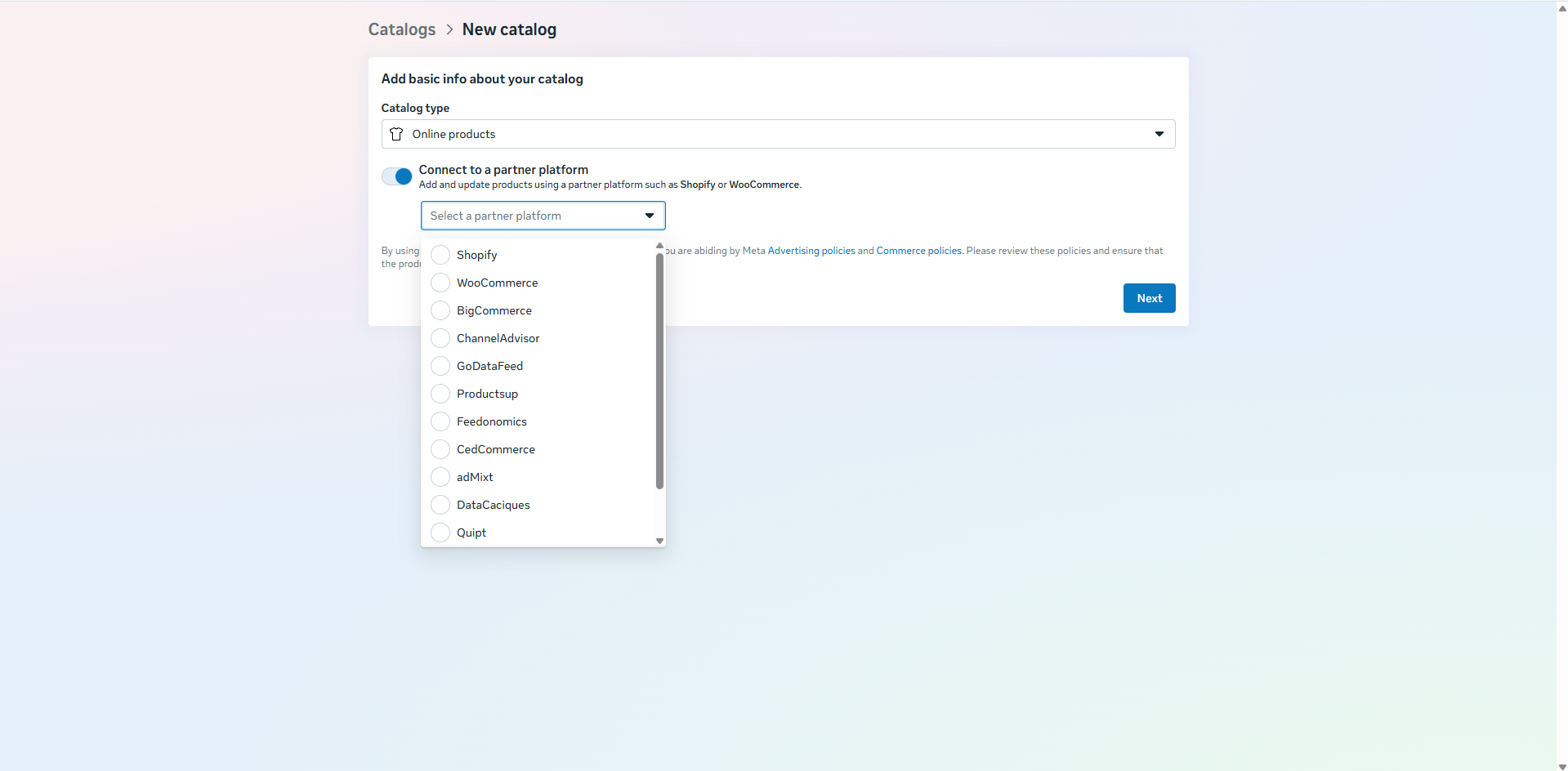
Connect a Partner Platform
Manage Your Catalog
Once created:- Click View Catalog to access it
- Start adding, editing, or managing products
- Your catalog will now be ready to connect with TurboDev for WhatsApp product messaging
Ways to Add Products to Your Catalog
You can add items to your Facebook Catalog in three main ways: