

Step 1: Create a Canned Response
Before using Quick Replies, make sure you have added at least one canned response.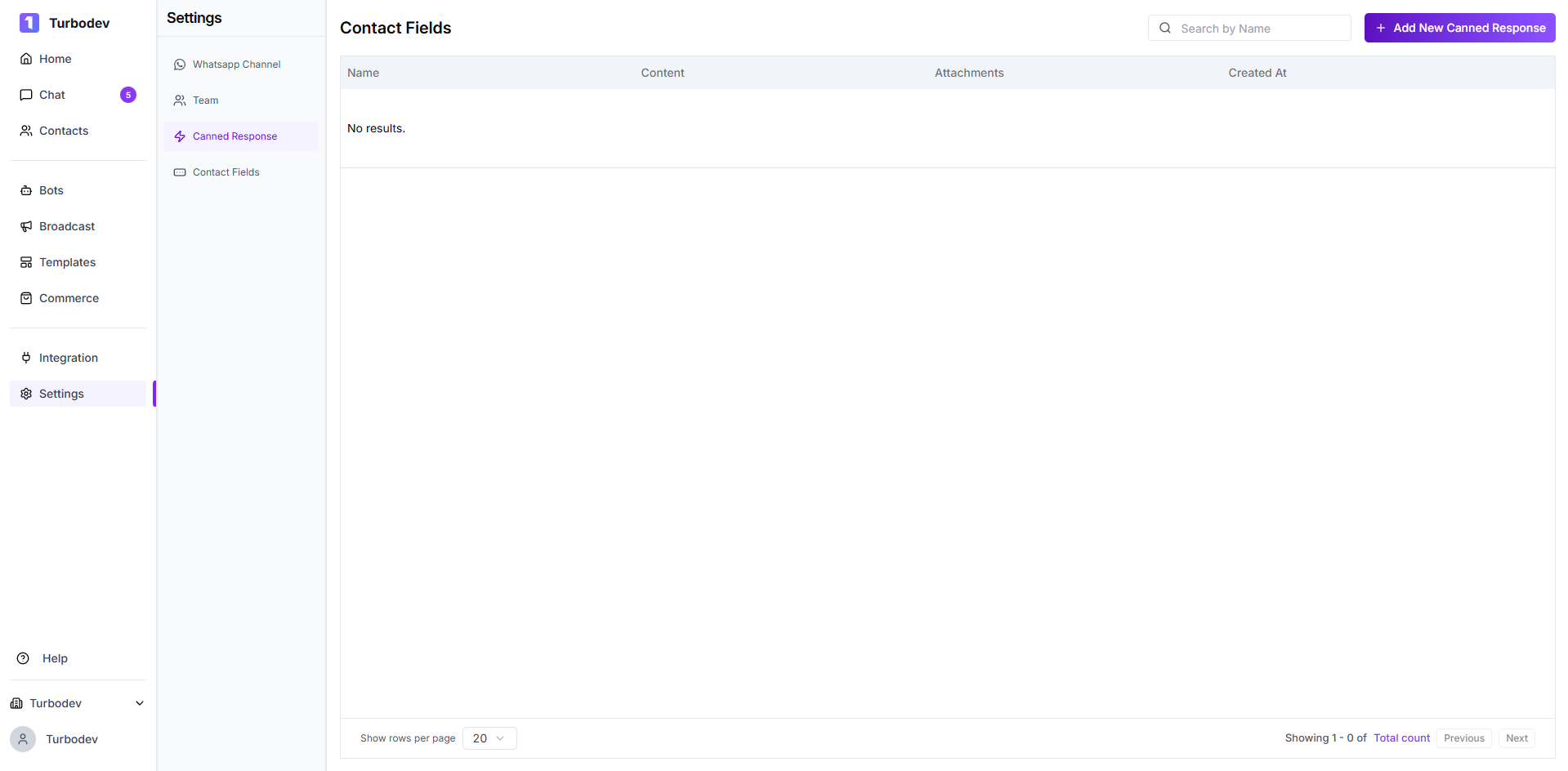
- Go to Turbodev Settings
- Click on Canned Responses
- Select Add New Canned Response
- Enter a name for the response (this is for internal reference)
-
Choose the response type:
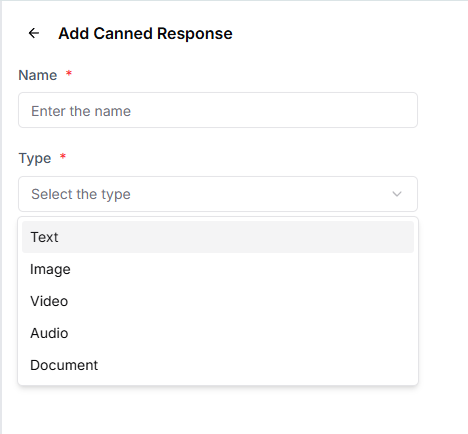
- Text
- Image
- Video
- Audio
- Document
- Add the content based on the selected type
-
Click Save
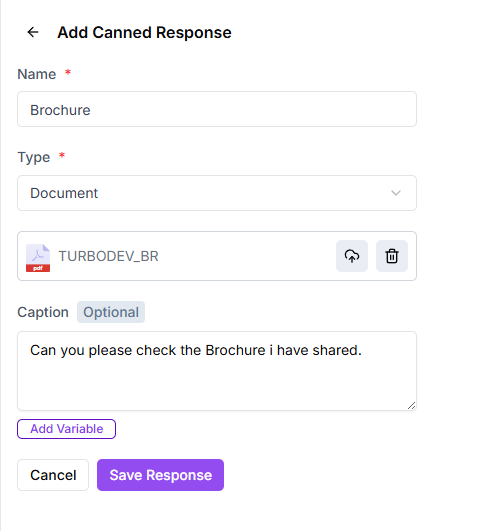
Use Variables
Variables help you personalize messages using customer data already available in Turbodev. For example, a message like:Hello , can you please check the details?will automatically replace
{{name}} with the customer’s actual name during the conversation.
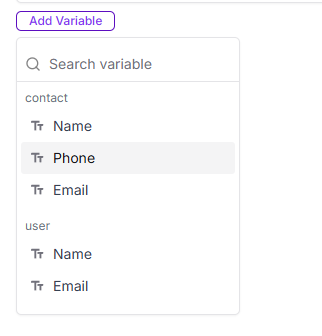
- Click on Add Variables
- Select the required field from the dropdown list
Ensure the selected variable contains data; otherwise, it may appear blank in the message.
- Click Save to store the canned response
Step 2: Send a Quick Reply in Chat
After creating canned responses, you can use them while replying to customers.- Open the Chat with the customer
- In the Reply section, locate the action icons
- Click on the ⚡ Quick Reply icon
- Select the required canned response from the list
- Click Send
Edit or Delete Canned Responses
Once a canned response is created, you can manage it anytime based on your needs.
Edit a Canned Response
You can edit an existing canned response to update its details. To edit:- Go to Settings → Canned Responses
- Select the canned response you want to edit
- Click Edit
- Update any of the following:
- Name
- Message content
- Caption
- Variables
- Click Save to apply the changes
Delete a Canned Response
If a canned response is no longer required, you can delete it. To delete:- Go to Settings → Canned Responses
- Select the canned response
- Click Delete