

Overview
The Ask Button Option card allows you to ask a question and present up to three predefined response options as buttons. This makes it easier for customers to take action, whether they want to explore products, proceed with a purchase, or request more information. You can also enhance the experience by adding media such as images, videos, text, or documents along with the question.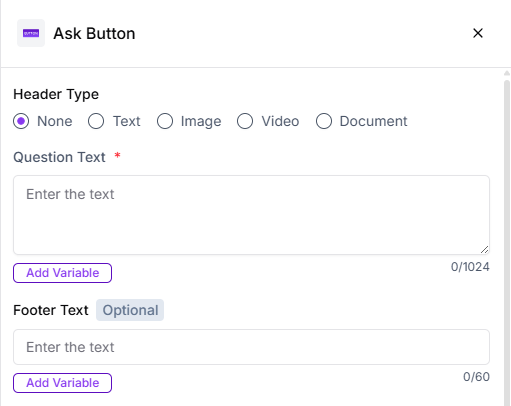
Header Type
You can add one of the following to make the message more engaging:- Image
- Video
- Text
- Document
Question Text
Use this section to ask a clear question or provide a short description related to the options. For example, you can highlight an offer, describe a product, or guide the customer on what to choose next.Footer
The footer can be used to add supporting or promotional information, such as urgency messages, short instructions, or helpful notes related to the options shown.Option Types
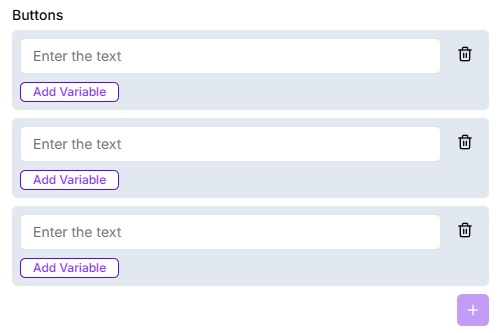
You can add up to three buttons using either of the following methods: Static OptionsThese are fixed button labels that remain the same for all users.
Attempts
Set how many times the question should be repeated if the customer provides an invalid response.Validation Error Message
This message is shown when the customer responds with an unexpected or unsupported input.Action on Invalid Response
Choose how the flow should behave when an invalid response is received:- End the flow
- Skip the question and continue