

Overview
The Ask List Option card allows you to display up to 10 selectable options in a single message. It’s ideal for menus, FAQs, service categories, or any scenario where customers need to choose from multiple options without typing.How to Use It
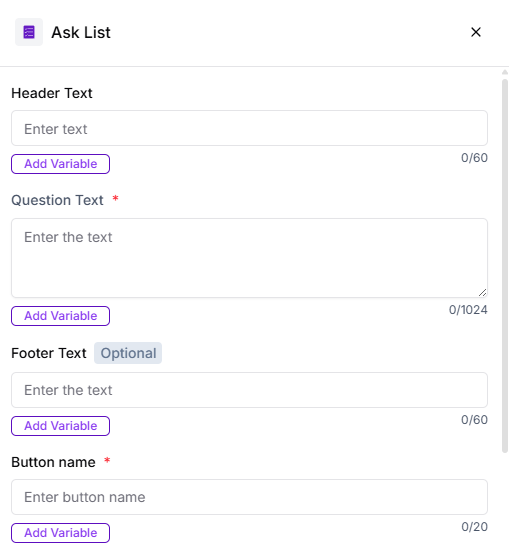
Header Type
Use this field to add a short heading that sets context for the list. For example, a welcome message or a brief introduction to what the options represent.Question Text
This is where you ask the main question or explain what the list is for. It helps guide the customer on how to use the options provided.Footer
The footer can contain supporting information such as your business name, a short tagline, or any additional context related to the list.Options Type
Static OptionsStatic options remain fixed for all users and are best suited for standard menus or predefined selections.
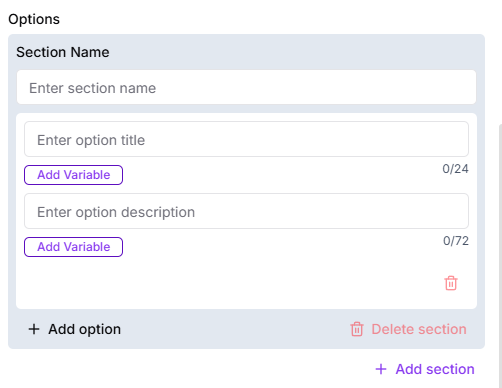
- Add up to 10 options
- Organize options into multiple sections for better clarity
Validation Settings
AttemptSet how many times the question should be repeated if the customer provides an invalid response. Validation Error Message
This message is shown when the customer responds with something other than the listed options, guiding them to choose correctly. Action on Invalid Response
Define how the flow should proceed when an invalid response is received:
- End the flow
- Skip the question
- Proceed to fallback