

Overview
The Send Products card lets you share one or more specific products from your connected product catalog inside a chat flow or conversation. It’s ideal when you want to promote selected items rather than an entire collection. Before using this card, ensure that your product catalog is connected to Turbodev.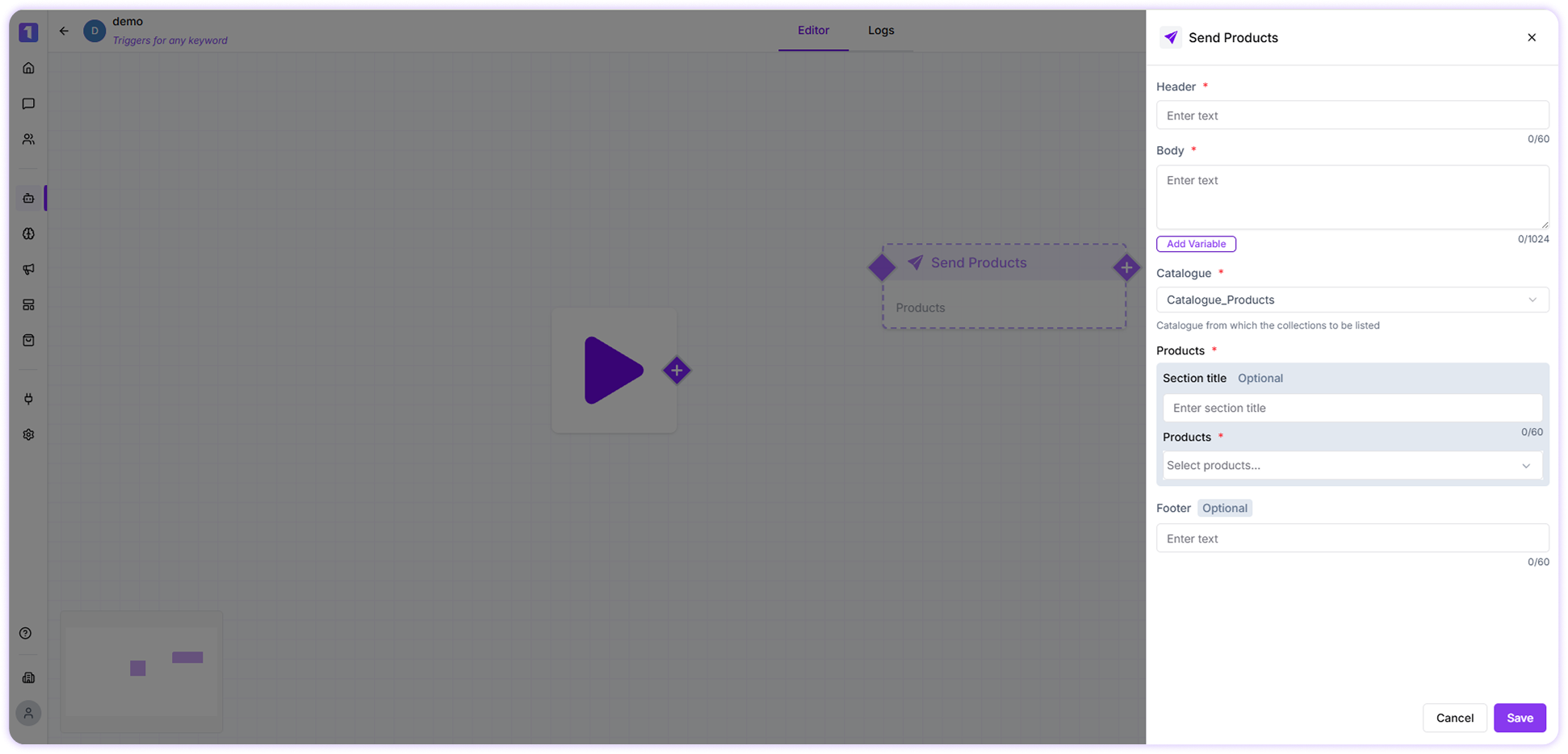
Sending Products in a Chat Flow
Once the catalog is set up, you can add the Send Products card to your flow and choose which products to display to the customer.Message
The message section allows you to add detailed information about the product, such as key features, benefits, pricing notes, offers, or usage instructions. This helps provide context and guides the customer on what to do next.Use Variables
You can personalize your product message using customer data collected earlier in the conversation.Click Add Variables to select from available fields. Ensure the selected variable contains data; otherwise, it will not appear in the message.
Static Products
From the dropdown, select the product(s) you want to display from your connected catalog. If you choose to showcase multiple products, make sure to update the header accordingly so the message clearly reflects that more than one product is being shown.Footer (Optional)
The footer appears at the bottom of the message and can be used to include helpful or compliance-related information, such as:- Business name or contact details
- Instructions for opting out of messages
- Disclaimer or copyright text
- Links to your website or social profiles
Edit, Duplicate, or Delete Send Products Card
While building or editing a flow, you can easily manage the Send Products card:- Edit the card to change product details or content
- Duplicate the card to reuse it elsewhere
-
Delete the card if it’s no longer required
