Overview
The Send Template card allows you to send approved WhatsApp message templates to users directly from your flow. These templates must be approved beforehand and can include text, media, variables, and buttons.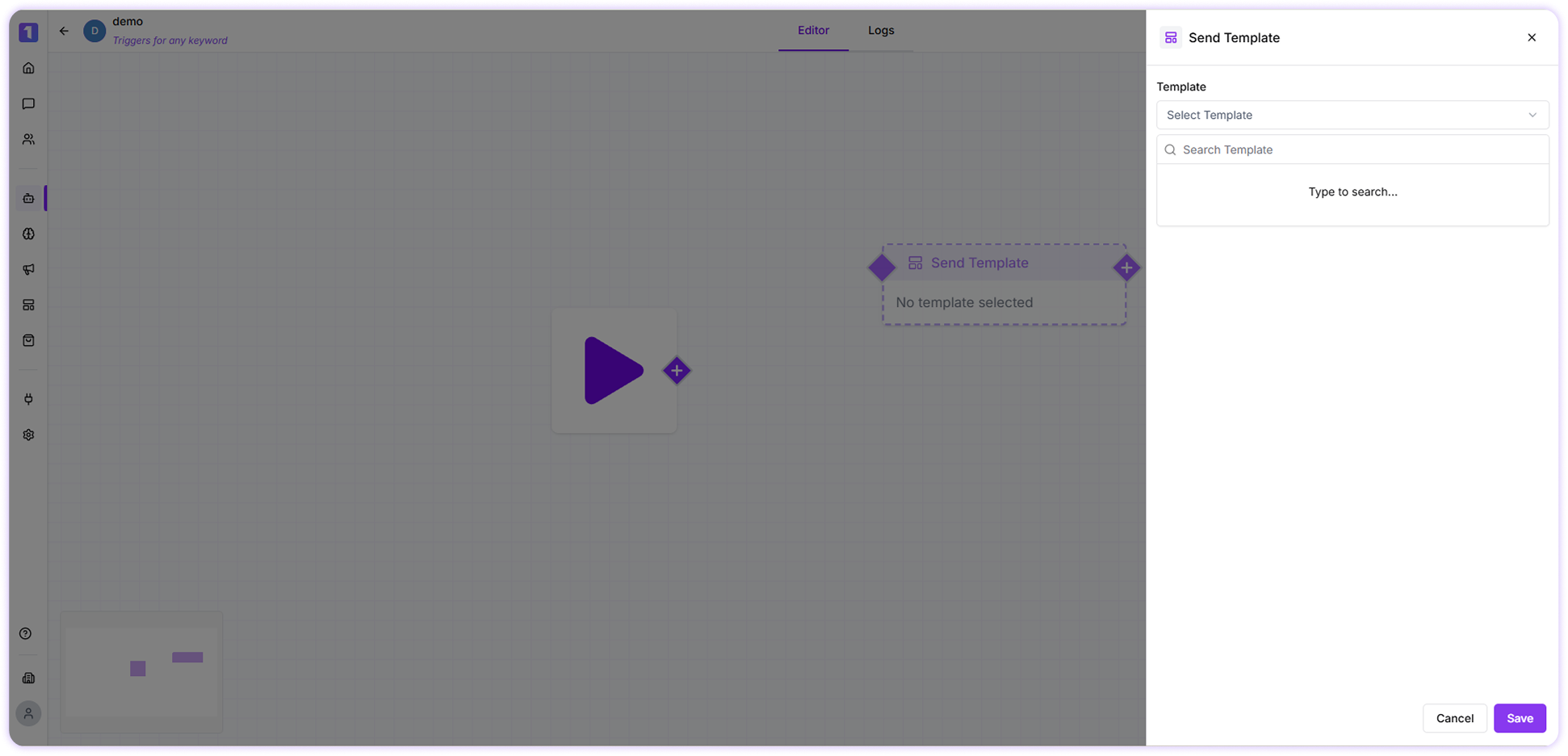
Order Confirmation Template
To send an order confirmation or similar transactional message, simply select the approved template from the dropdown list.Sending an Order Confirmation Template in a Chat Flow
If the selected template contains body variables, you will be prompted to enter sample values for each variable. These values will be dynamically replaced when the message is delivered to the customer. For detailed steps on creating and getting templates approved, refer to the message template creation guide.Media Template
You can also send templates that include media content such as images, videos, or documents. Select an approved template that supports media from the dropdown. Upload the relevant media file you want to send along with the template before publishing the flow.Duplicate / Delete / Edit Send Template Card
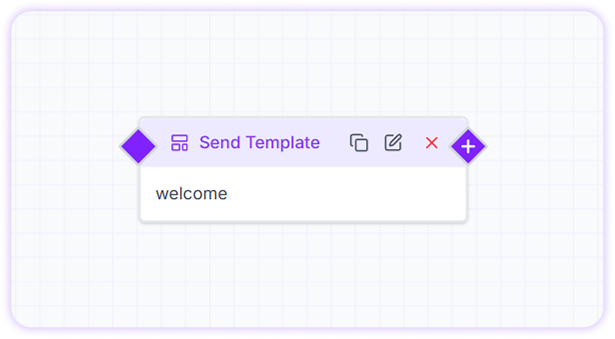
When you hover over the Send Template card, you’ll see options to manage it easily:- Edit the card to change the selected template or variable values
- Duplicate the card to reuse it in another part of the flow
-
Delete the card if it’s no longer needed