Overview
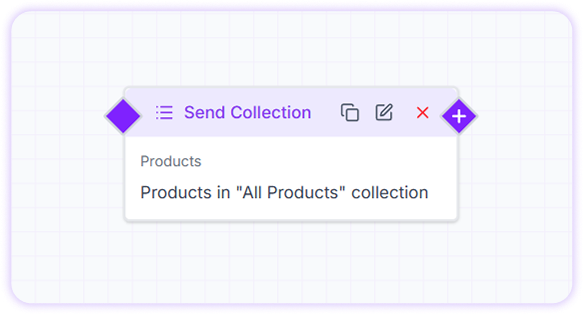
The Send Collection card is designed specifically for e-commerce use cases. It allows businesses to send a curated group of products (a collection) from their Meta catalog as part of a chat flow, helping customers discover products quickly and seamlessly. Before using this card, ensure your product catalog is connected to Turbodev.Sending a Product Collection in a Chat Flow
Once your catalog is set up, you can use the Send Collection card inside a bot flow or conversation to display products.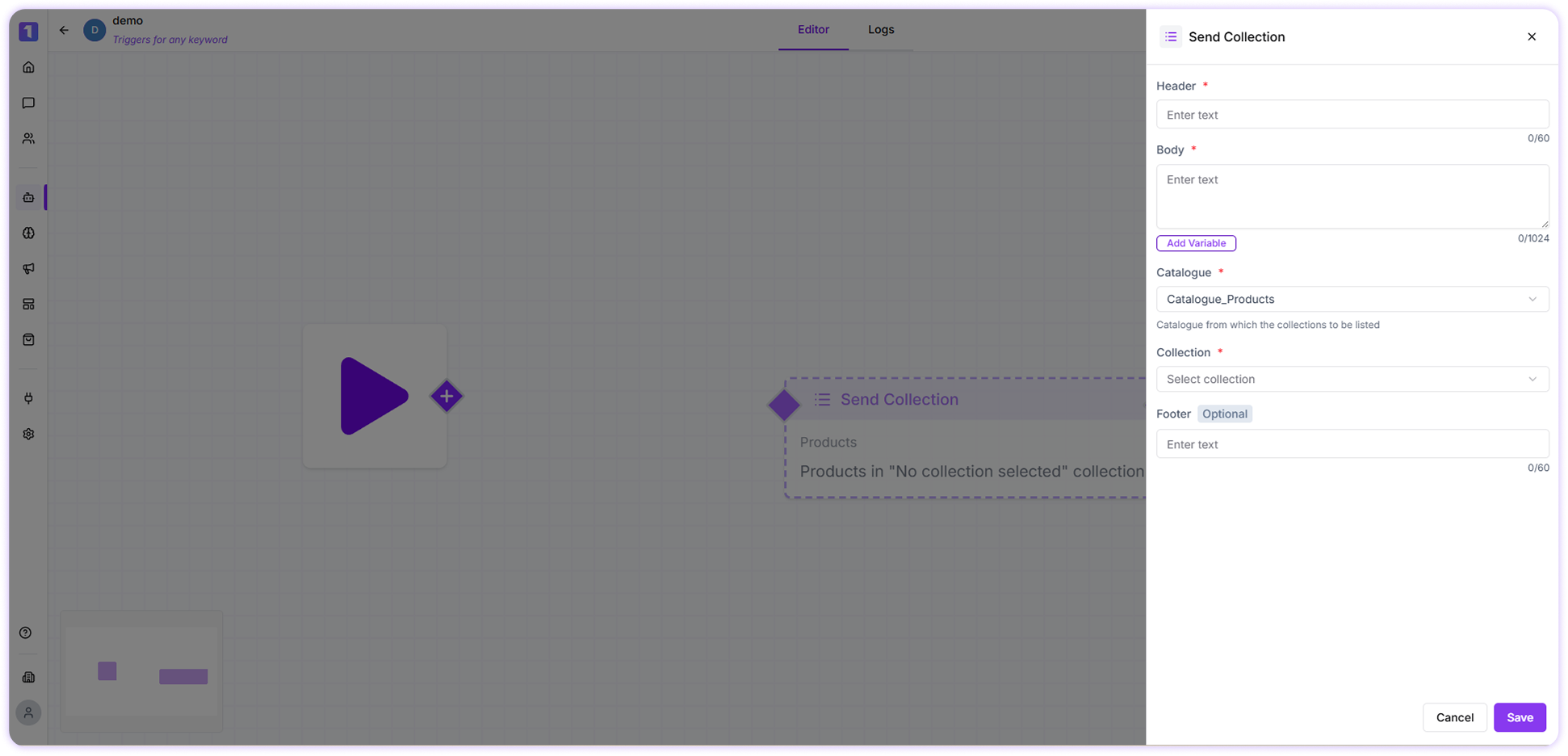
Header
The header lets you add a short title or headline for the collection. This helps customers instantly understand what the collection is about, such as “New Arrivals”, “Best Sellers”, or “Your Order Items”.Message
The message section allows you to add supporting text for the collection. You can describe product features, highlight offers, explain benefits, or guide the customer on what to do next.Use Variables
You can personalize the message using variables collected from customers, such as name or order details.Simply click Add Variables and select the required field. Make sure the selected variable already contains data, otherwise it will not appear in the message.
Catalog
Select the connected product catalog from which the collection will be displayed.If your catalog is not yet connected, you will need to complete the catalog integration before using this option.
Collection
A collection is a group of related products within your catalog. Selecting a collection allows customers to view multiple items together, making browsing and purchasing easier inside WhatsApp.Footer (Optional)
You may include optional information at the bottom of the message, such as business details or helpful instructions. Footer content is not mandatory and can be customized based on your communication needs and compliance practices.Edit, Duplicate, or Delete Send Collection Card
When building or updating a flow, you can easily manage the Send Collection card:- Edit the card to update content or change the collection
- Duplicate the card to reuse it in other flows
-
Delete the card if it’s no longer needed