

Why Connect Shopify with Turbodev?
Connecting your Shopify store with Turbodev unlocks powerful automation capabilities designed for modern e-commerce businesses. Once integrated, you can:- Send automated WhatsApp order confirmations
- Notify customers about shipping and delivery updates
- Automate abandoned cart recovery messages
- Trigger follow-ups and customer engagement workflows
- Manage customer conversations from one unified dashboard
How Shopify Integration Works in Turbodev
The integration connects your Shopify store directly with Turbodev’s automation engine. When specific events occur in Shopify such as a new order, order update, or abandoned cart—Turbodev automatically triggers predefined workflows and sends WhatsApp messages to customers. No coding is required. Everything works through Turbodev’s no-code automation builder.Step-by-Step Guide: Connect Shopify with Turbodev
Follow these simple steps to integrate your Shopify store.Step 1: Open Integrations in Turbodev
- Log in to your Turbodev dashboard
- Click on Integrations from the left navigation panel
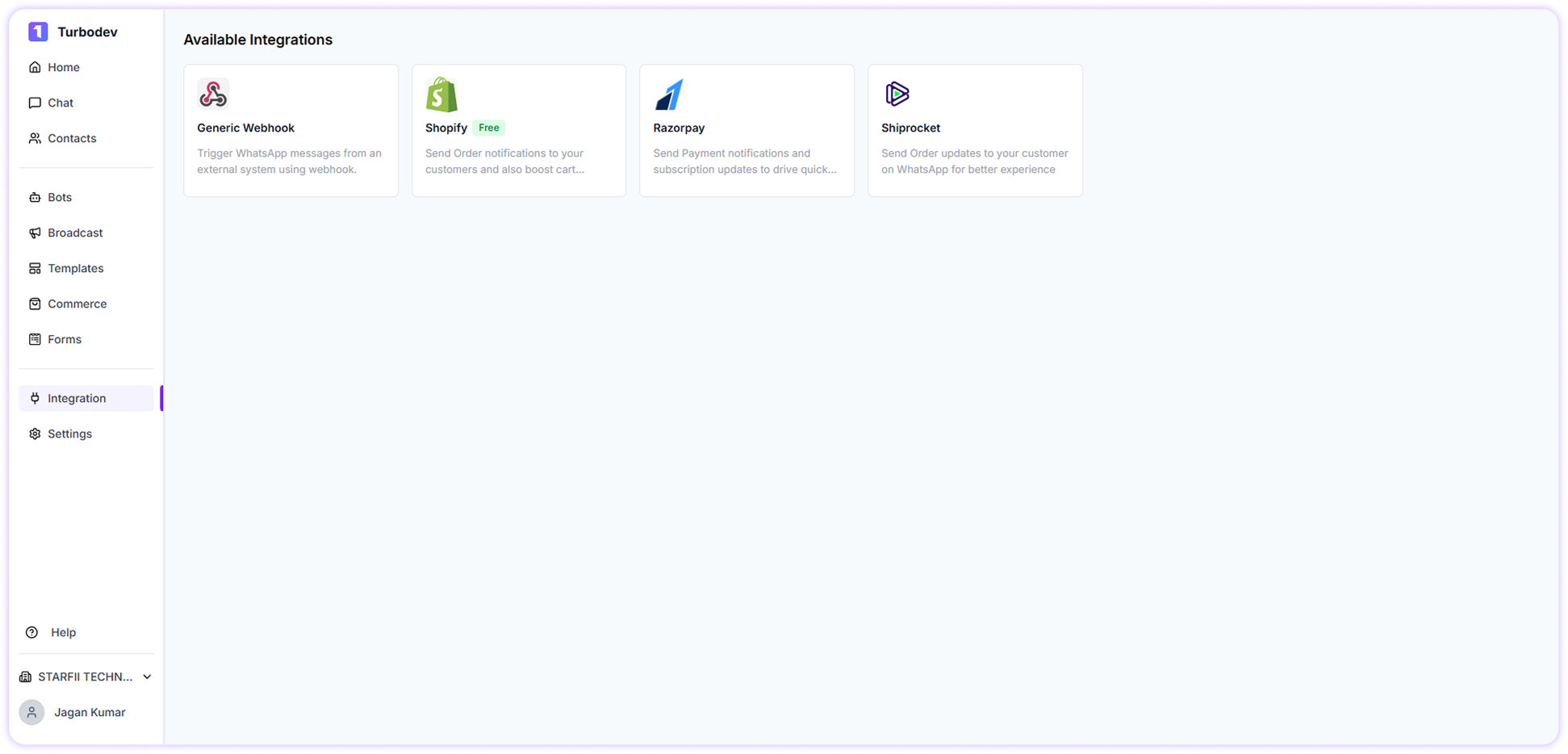
- Locate Shopify under Available Integrations
- Click on Shopify
Step 2: Connect Your Shopify Store
In the pop-up window, you will see: Connect Shopify Store Enter your Shopify store URL to connect your store and start sending order notifications.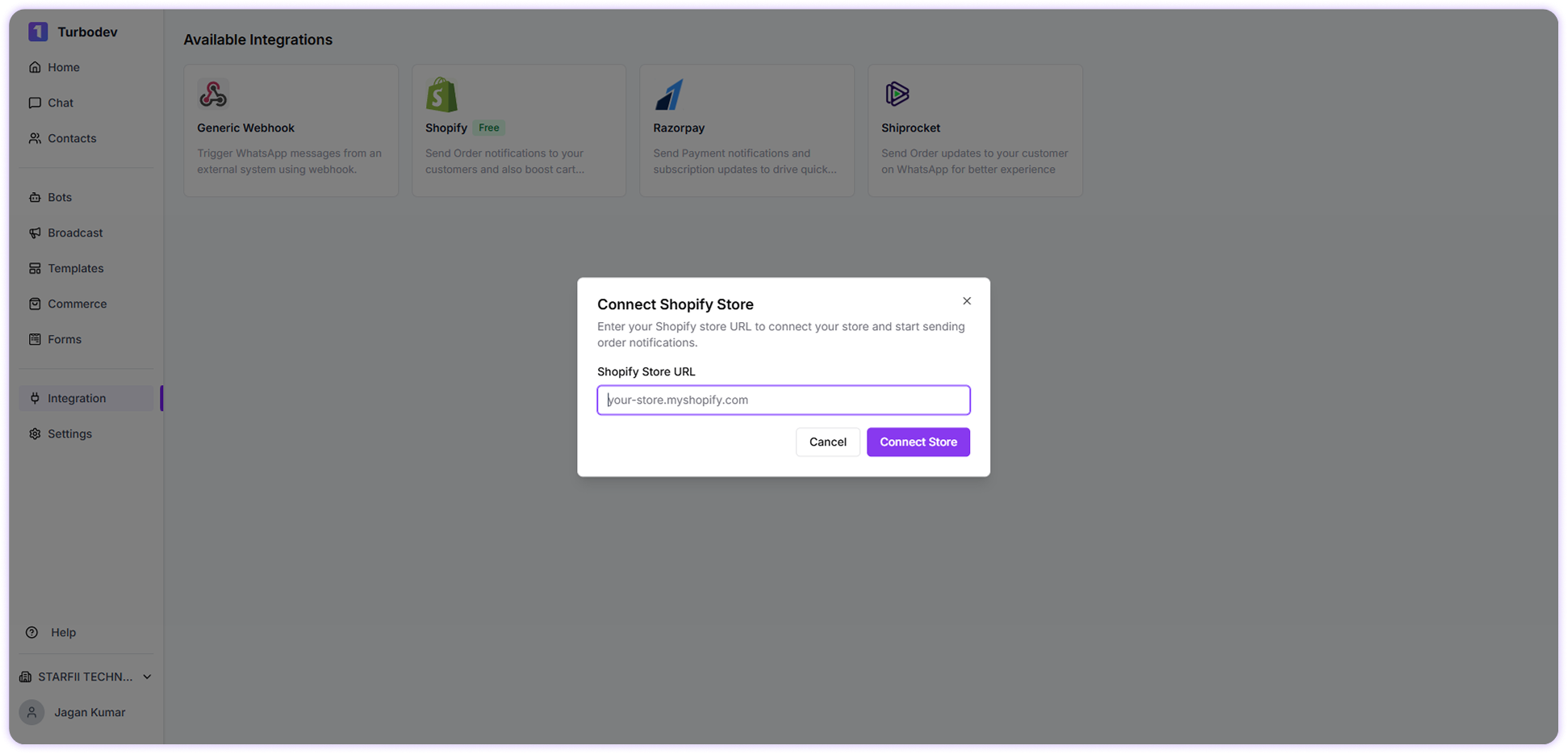
Step 3: Install Turbodev in Shopify
After clicking Connect Store, you will be redirected to your Shopify admin panel. Here:- Review the Turbodev application permissions
- Click Install App
- Approve the installation
Step 4: Complete Turbodev Configuration
After installation, the Configuration panel will open in Turbodev. You need to enter the following details: Required Fields: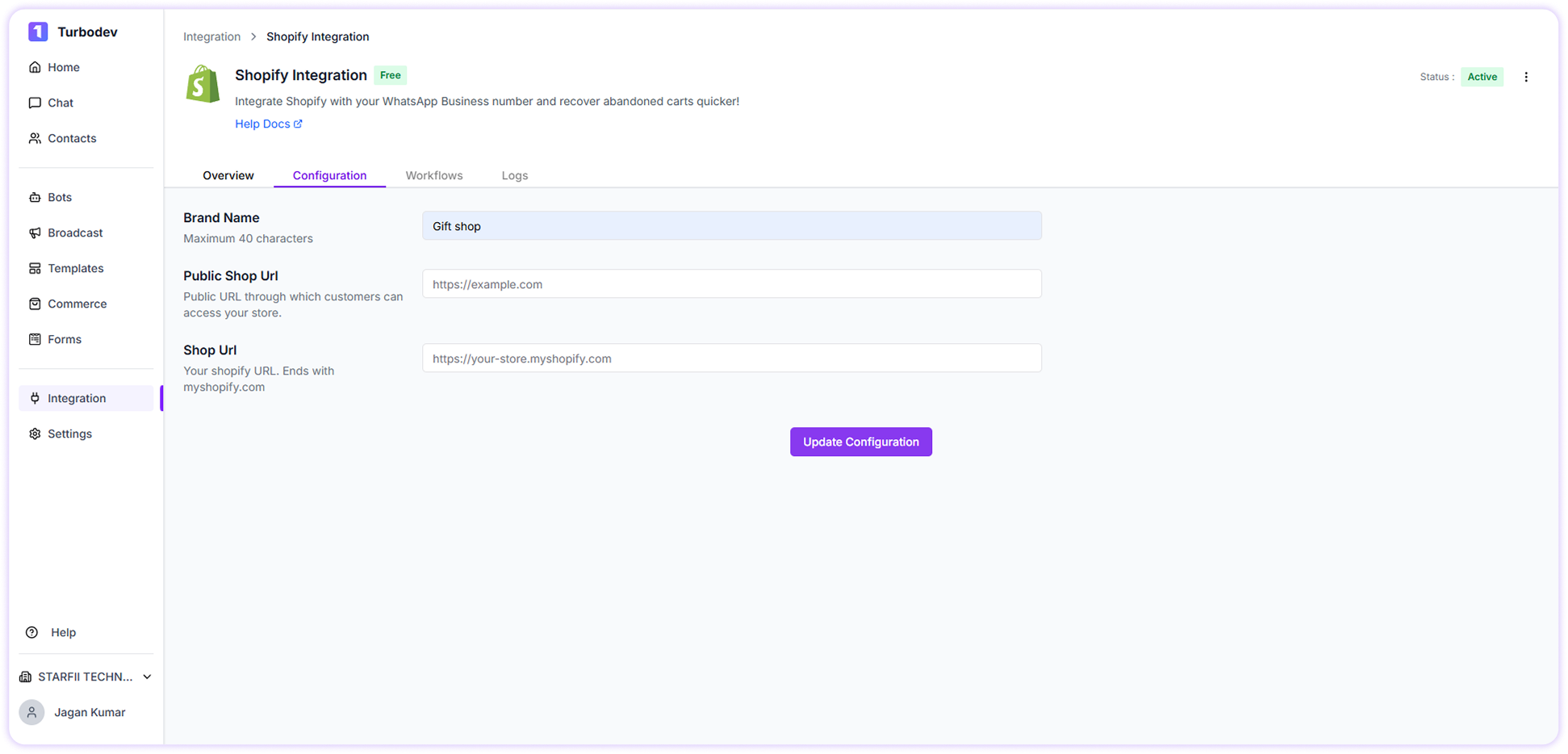
- Brand Name
- Public Shop URL (customer-facing store URL)
- Shop URL (your Shopify store URL)
Step 5: Access and Activate Shopify Workflows
Once configuration is completed successfully:- Shopify integration will be activated
- Automation workflows will be unlocked
- You can start creating automated WhatsApp workflows